How to Set Up a Slack Bot with AI
💡 Want the big picture first? See what an AI Slack bot can do for your team on the Slack Bot overview.
Overview
This guide walks you through creating and configuring a Slack App, enabling event delivery, and connecting it to Mingleego as a Slack bot. You will:
- Create (or choose) a Slack workspace where the bot will live
- Create a Slack App from scratch
- Copy the required credentials (App ID + Verification Token)
- Configure OAuth scopes and install the app to your workspace to obtain the Bot User OAuth Token
- Enable Event Subscriptions and paste Mingleego’s Events URL (Request URL)
- Subscribe to the required bot events
- Create the Slack bot in Mingleego and verify it works
Prerequisites
Before you begin, make sure you have:
- A Slack account
- A Slack workspace where you can install apps (if you don’t have one, create it first)
- Access to Slack API Apps dashboard at api.slack.com/apps
Create a Slack Workspace (if needed)
If you don’t already have a workspace where you will add your bot, create one first:
- Open Slack “Get started” page: slack.com/get-started
- Click Create a Workspace
- Enter your workspace name (e.g., MingleegoWorkSpace) and continue
- Complete the profile step:
- What’s your name?
- (Optional) add a profile photo
- Invite teammates (optional):
- Add emails, copy an invite link, or skip this step
After this, your workspace is created and ready.
Create a Slack App
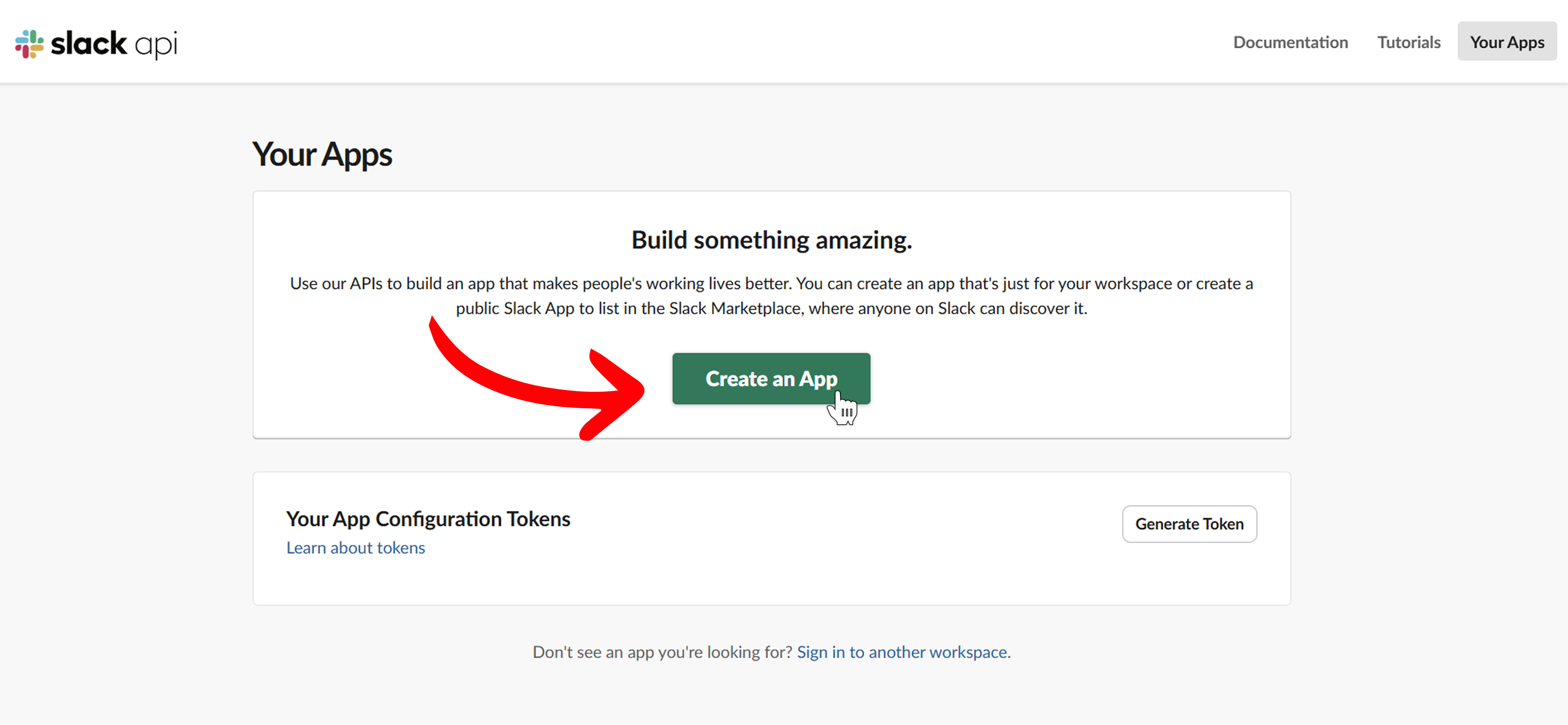
- Go to Slack Apps dashboard: api.slack.com/apps
- Click Create an App
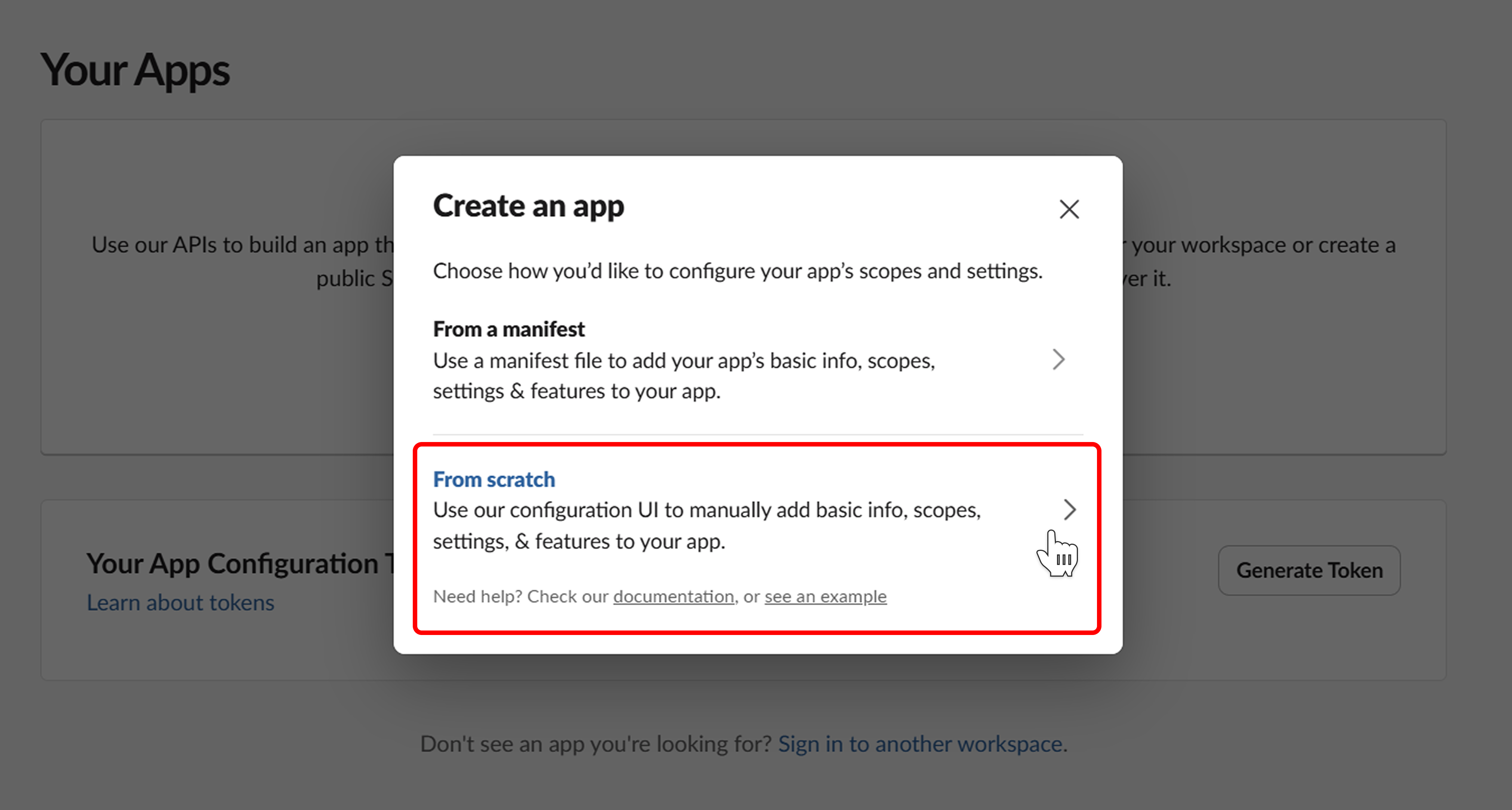
- In the modal Create an app, choose From scratch
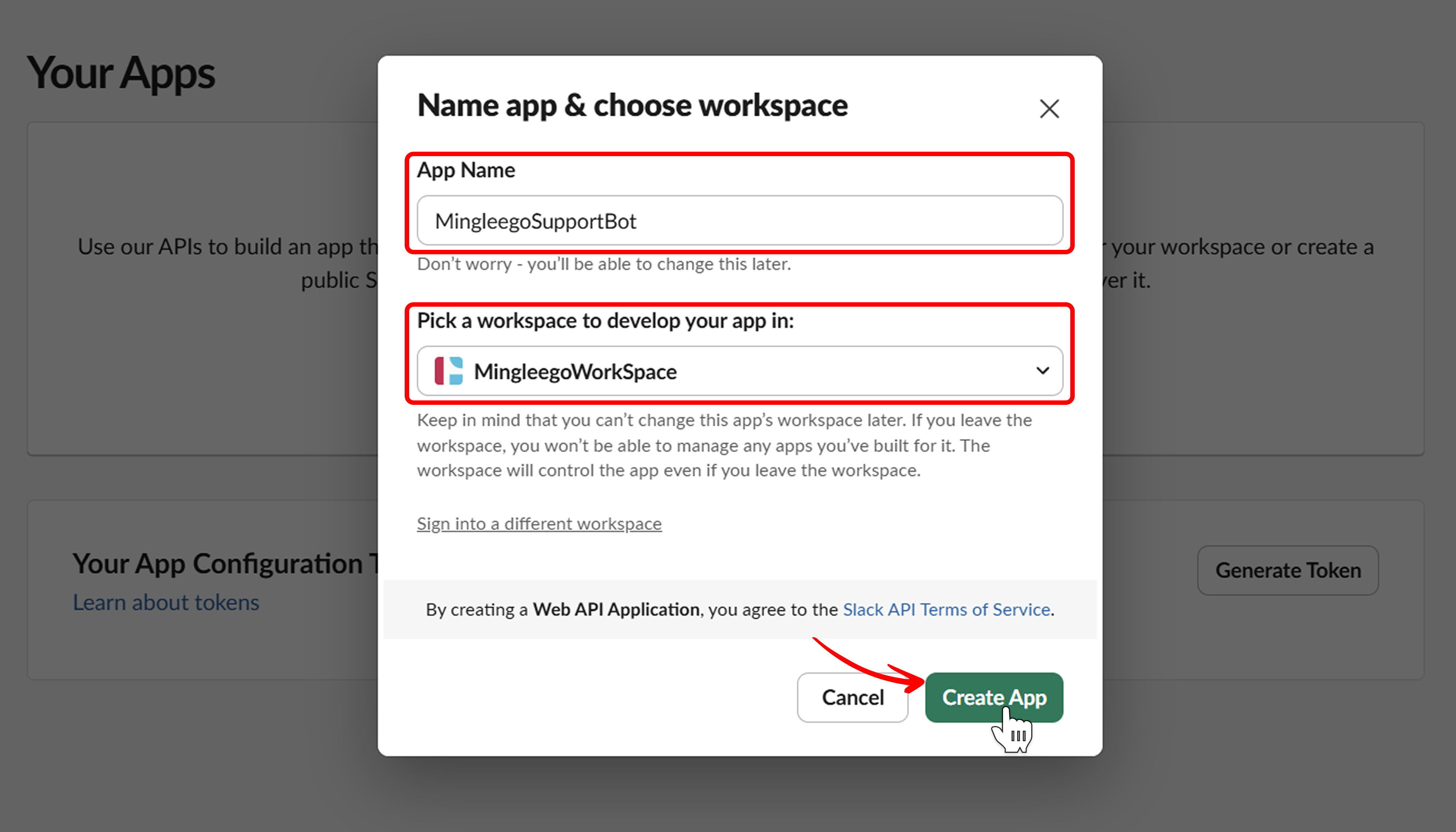
- In Name app & choose workspace:
- App Name: e.g.,
MingleegoSupportBot(you can change it later) - Pick a workspace: select the workspace you created/selected earlier
- Click Create App
- App Name: e.g.,
Copy Slack Credentials (App ID + Verification Token)
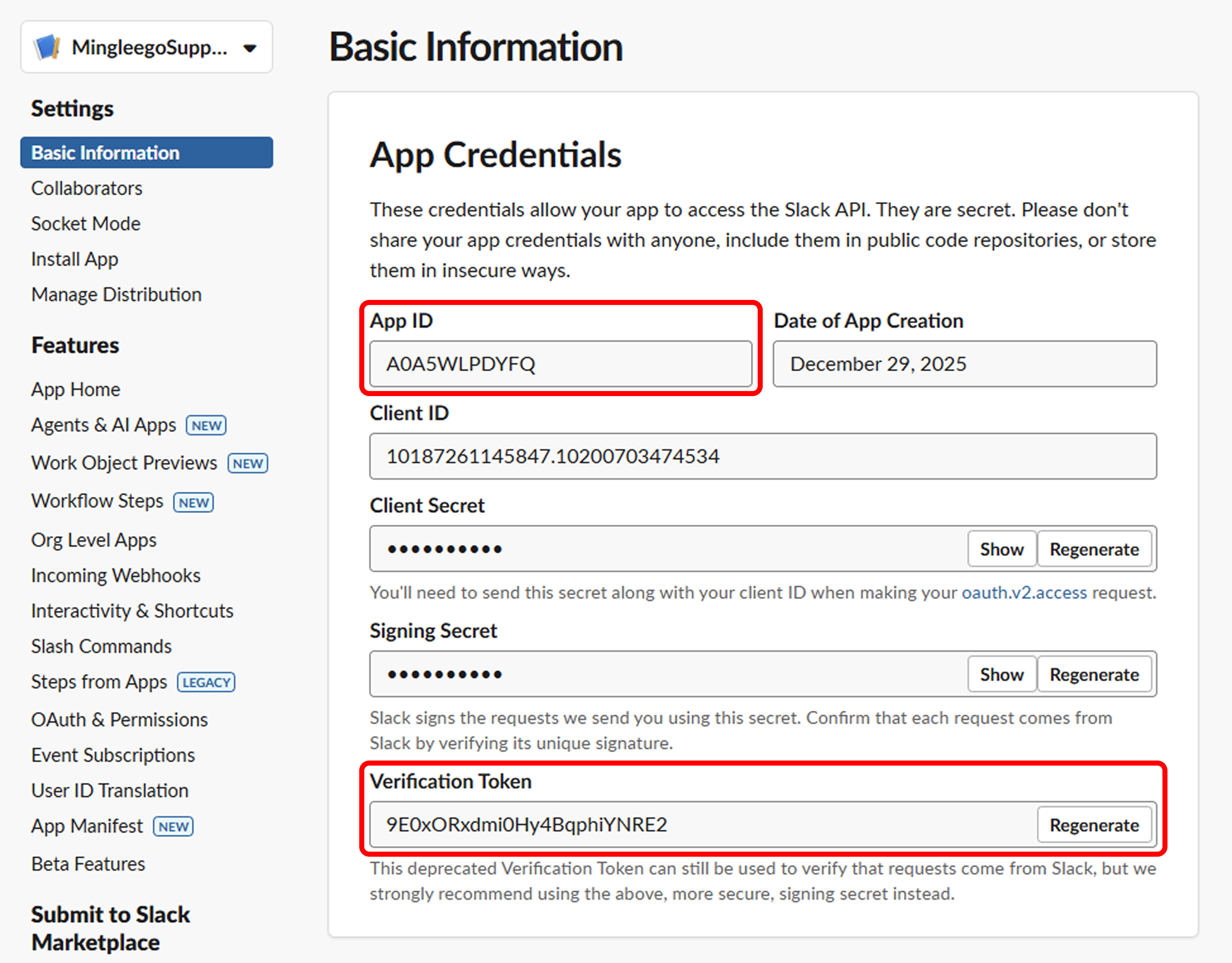
After the app is created, you’ll land on Basic Information.
- Open Basic Information → App Credentials
- Copy and save:
- App ID → you will use it in Mingleego as Bot ID
- Verification Token → you will use it in Mingleego as Verification Token
Configure OAuth & Permissions (Scopes)
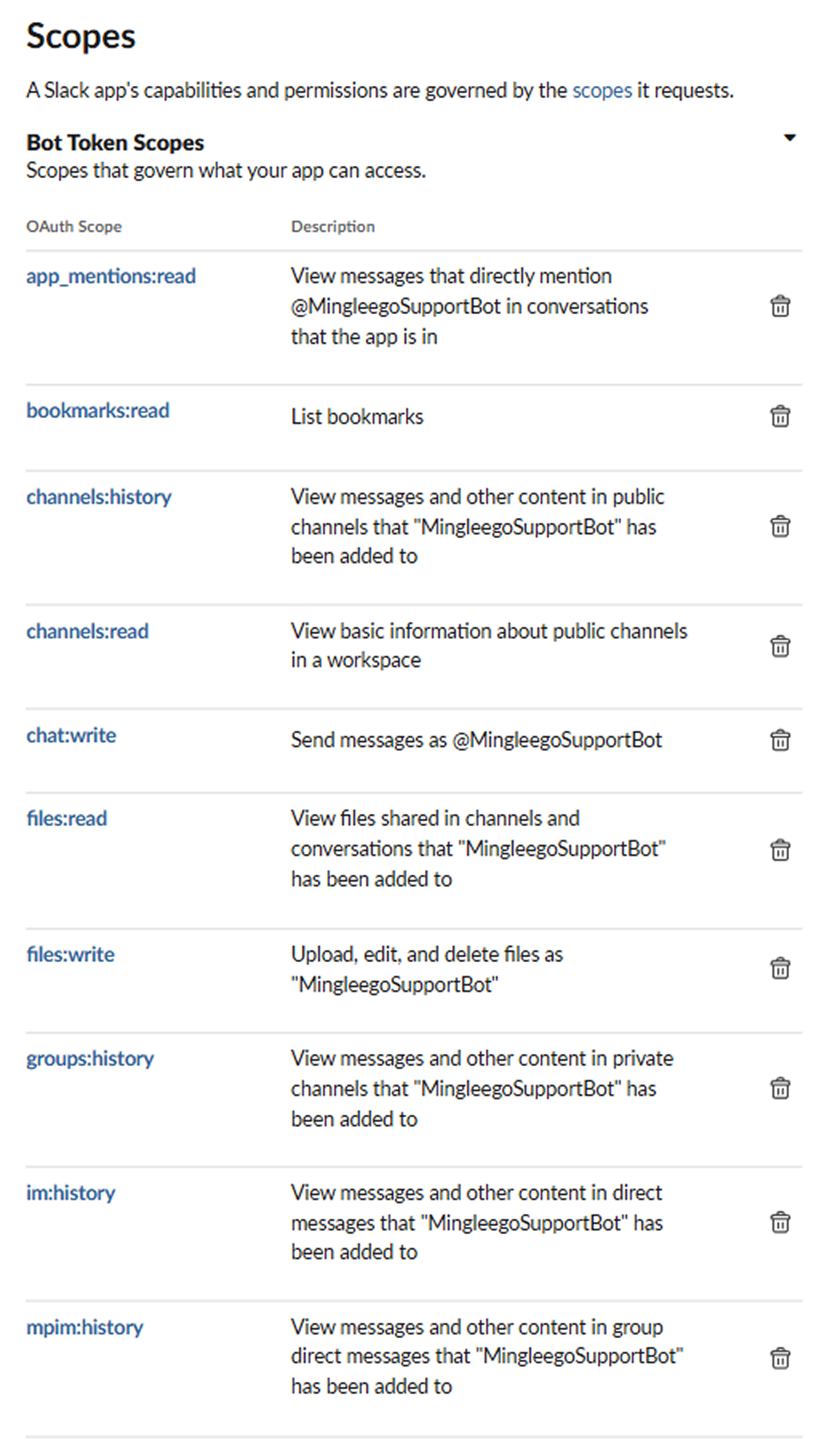
- Go to OAuth & Permissions
- Scroll to Scopes → Bot Token Scopes
- Add the following scopes:
app_mentions:readbookmarks:readchannels:historychannels:readchat:writefiles:readfiles:writegroups:historyim:historympim:history
Install the App to Your Workspace (Get Bot User OAuth Token)
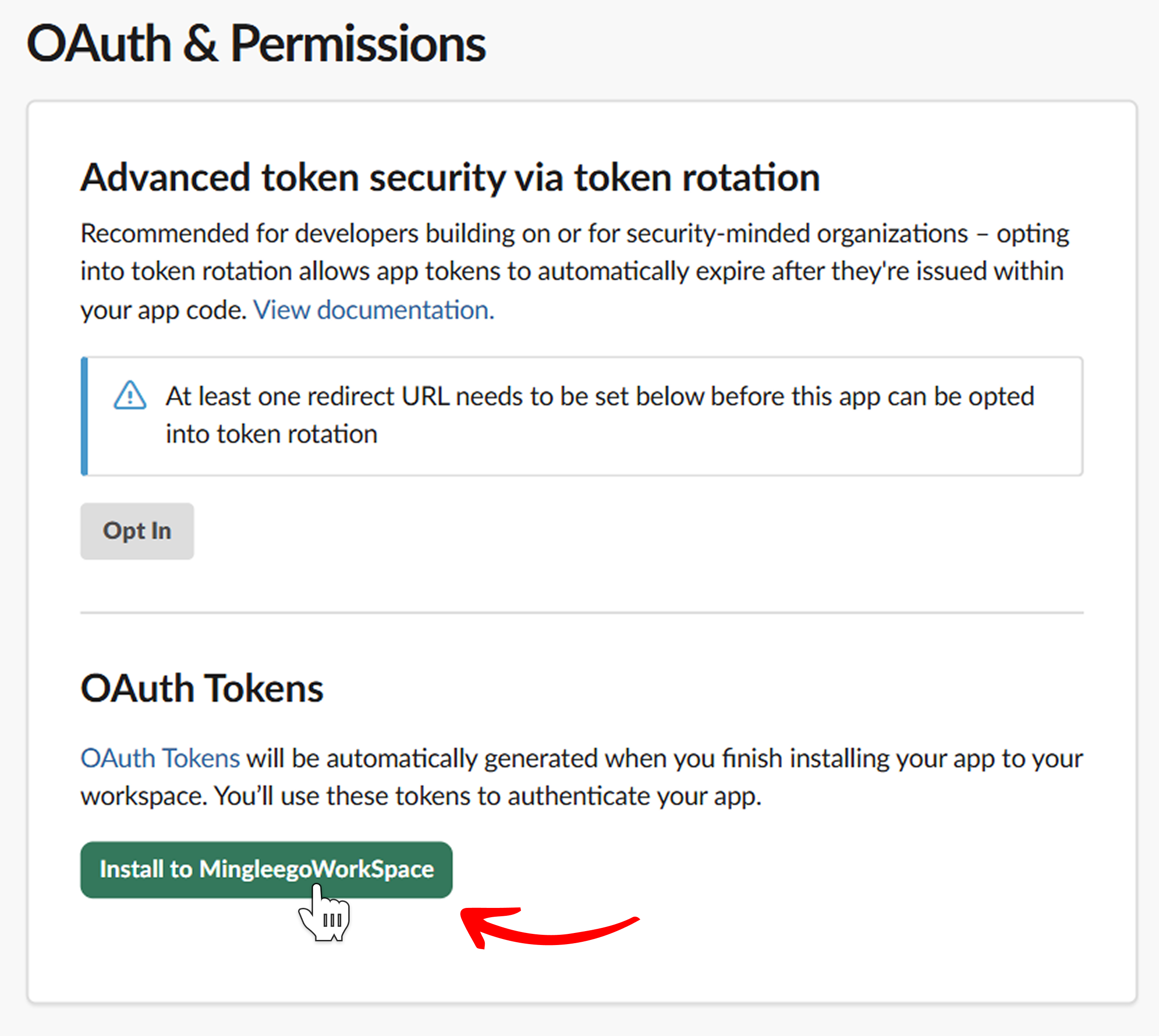
- Still on OAuth & Permissions, scroll up to OAuth Tokens
- Click Install to <YourWorkspace>
-
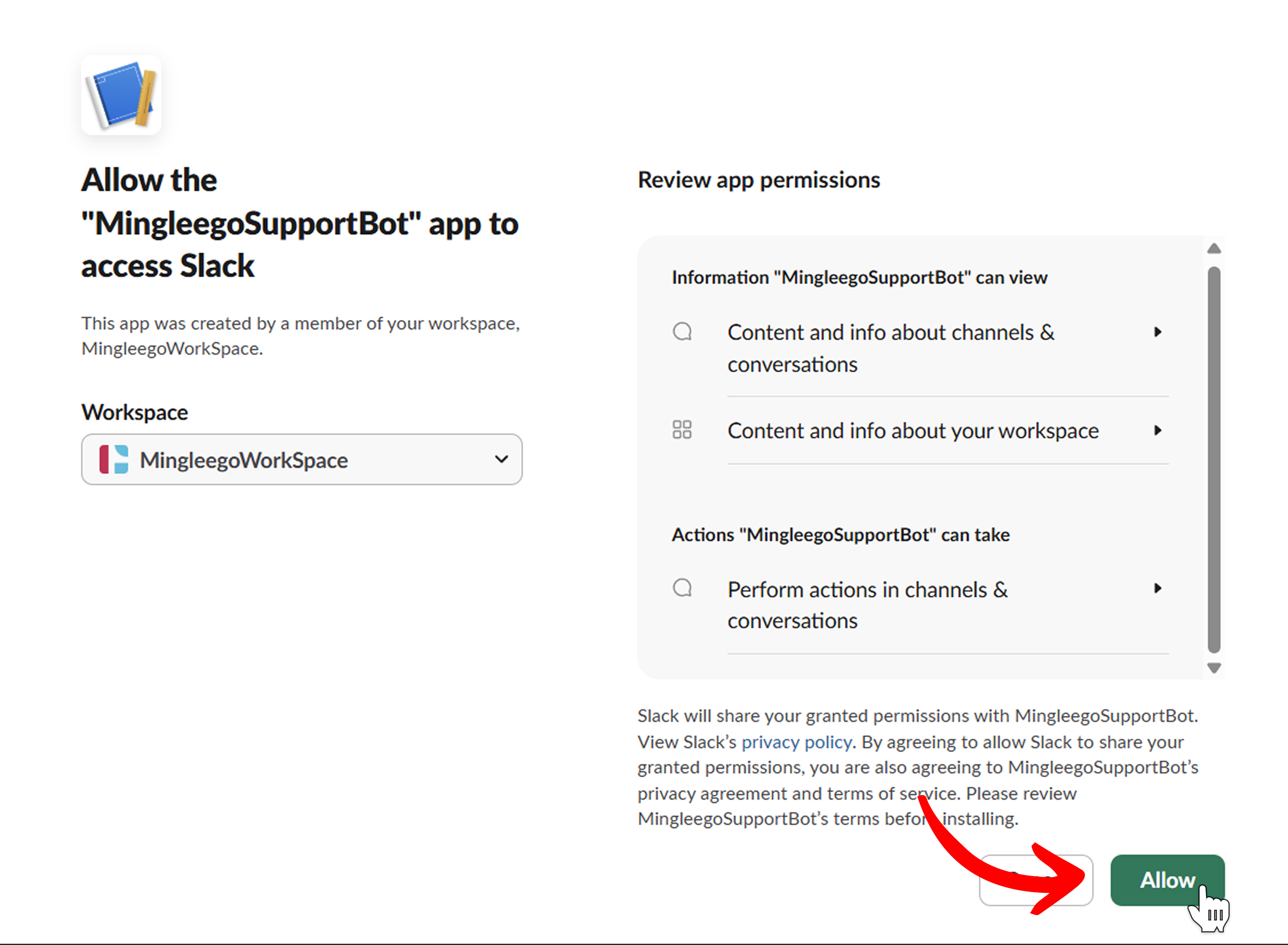
Click Allow on the permissions screen
-
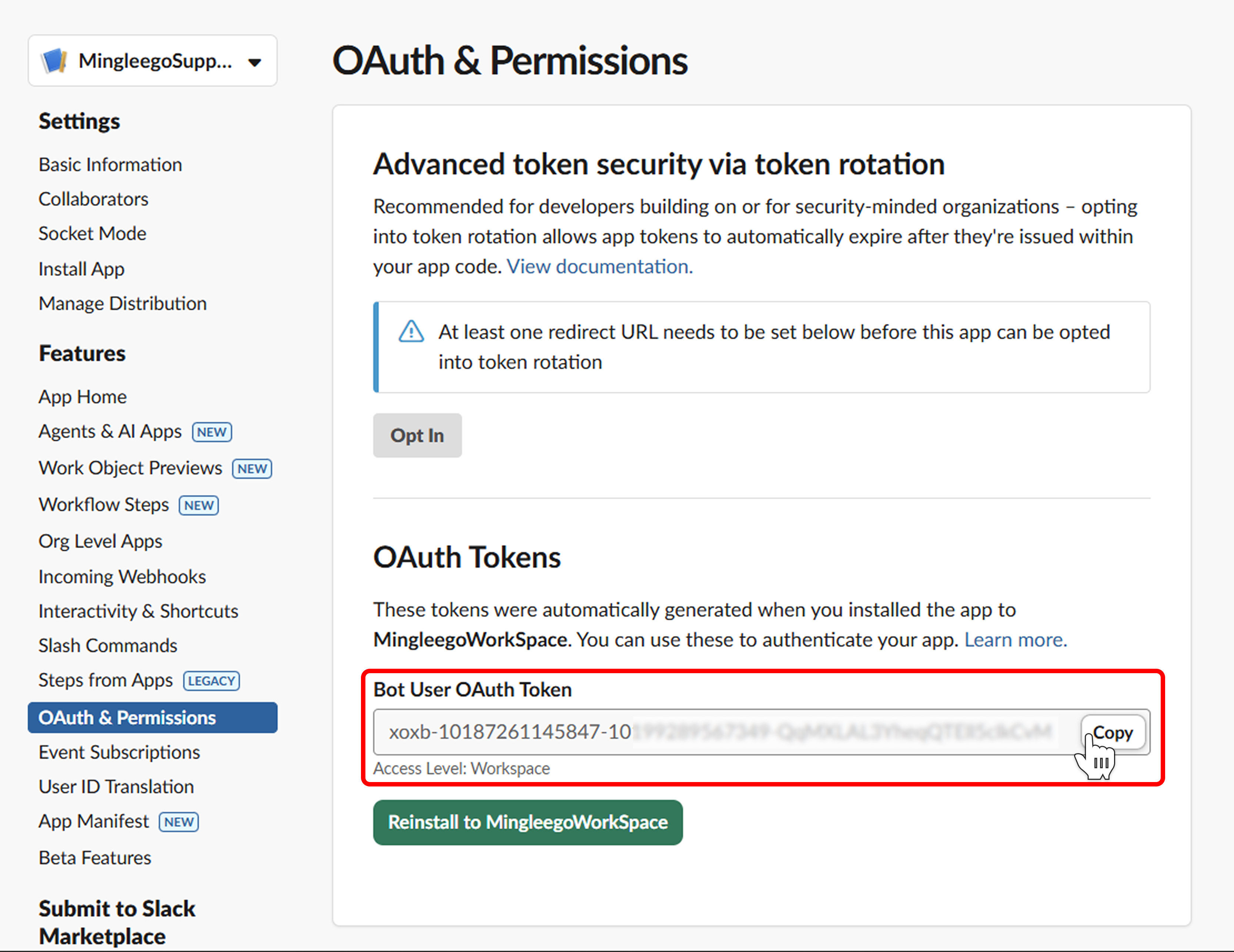
After installation, you will see Bot User OAuth Token. Copy and save it — you will use it in Mingleego as Bot User OAuth Token
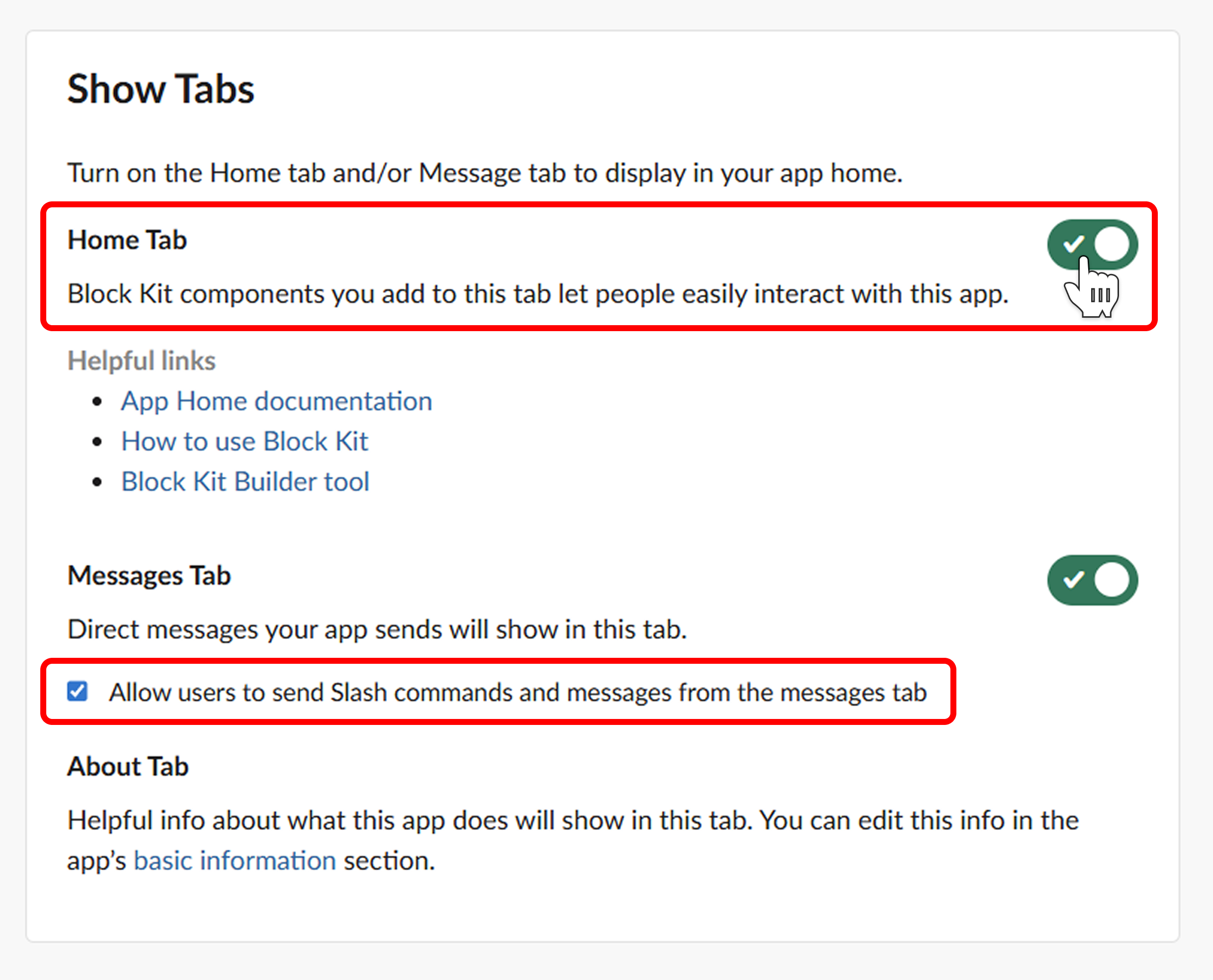
App Home Settings
- Go to App Home
- Scroll to Show Tabs
- Enable Home Tab
- Enable: Allow users to send Slash commands and messages from the messages tab
Enable Event Subscriptions (Request URL)
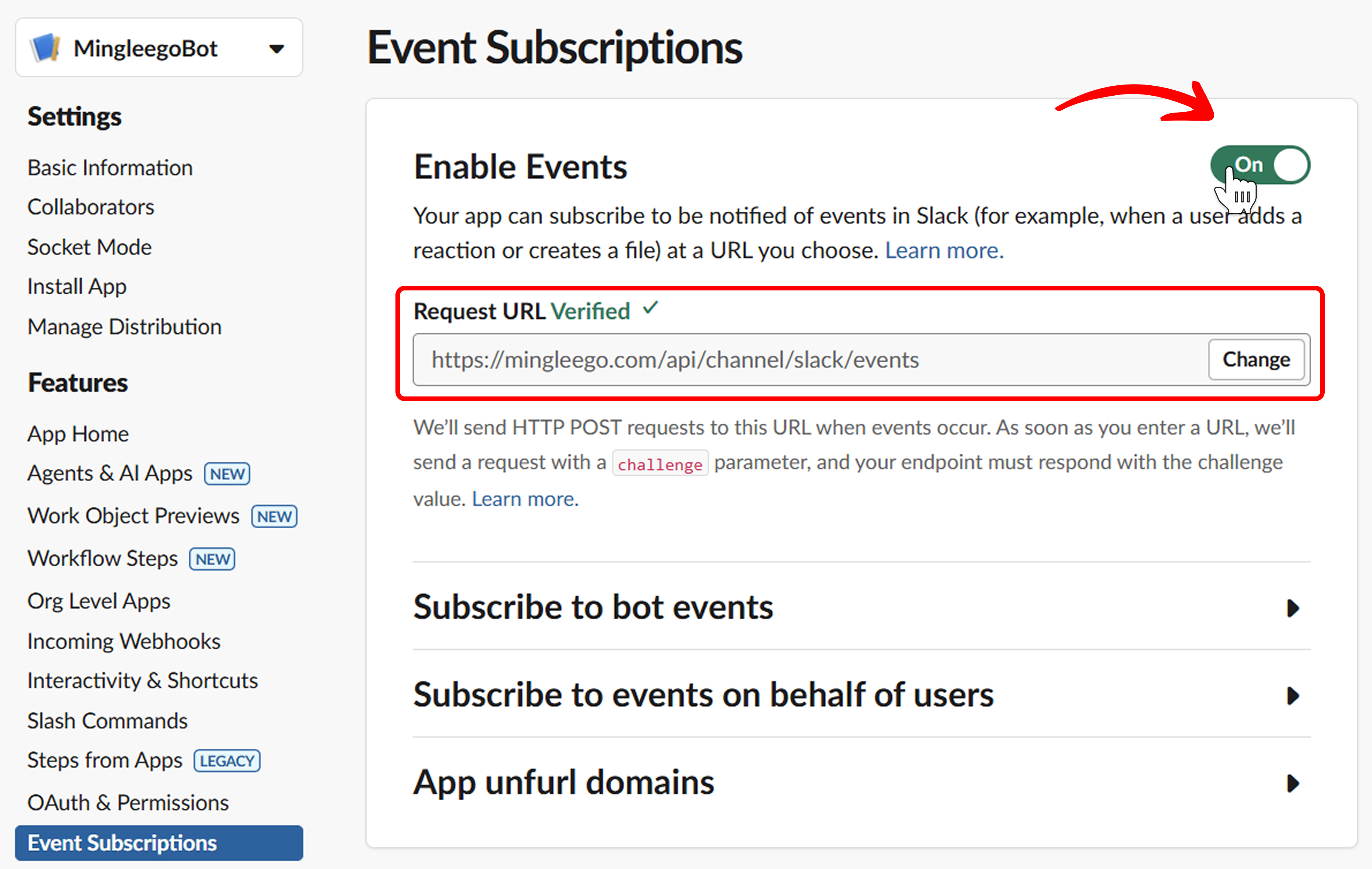
- Go to Event Subscriptions
- Enable Enable Events
- In Request URL, paste Mingleego Events URL:
https://mingleego.com/api/channel/slack/events
Slack will verify it by sending a challenge request.
Subscribe to Bot Events
To enable your bot to receive and respond to various events in Slack, you need to subscribe to specific bot events. This allows your bot to listen for messages, mentions, file changes, and other interactions.
-
Navigate to Bot Events:
- Still on the Event Subscriptions page, scroll down to the Subscribe to bot events section.
- Click the Add Bot User Event button to start adding events.
-
Subscribe to Required Events: Add the following events one by one by typing each event name and selecting it from the dropdown:
Event Name Required Scope Description app_mentionapp_mentions:readTriggers when your bot is mentioned in channels file_changefiles:readTriggers when a file is modified file_createdfiles:readTriggers when a new file is created file_deletedfiles:readTriggers when a file is deleted file_sharedfiles:readTriggers when a file is shared message.channelschannels:historyReceives messages posted in public channels message.groupsgroups:historyReceives messages posted in private channels message.imim:historyReceives direct messages sent to your bot 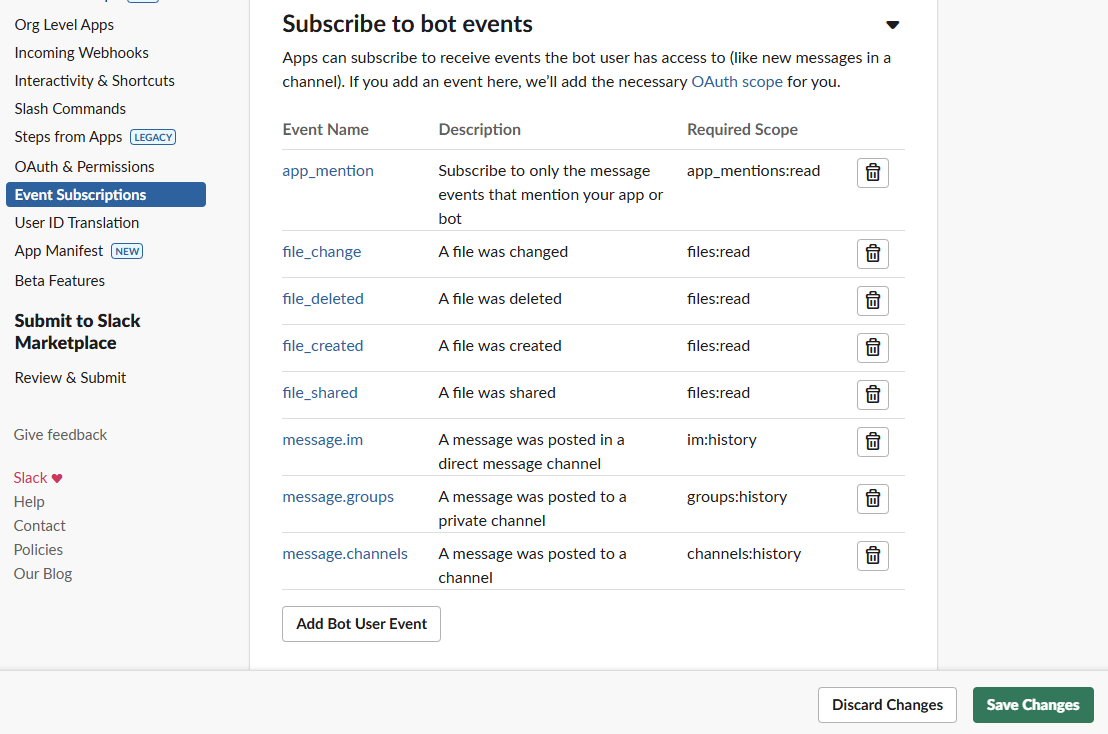
-
Save Your Changes:
- After adding all the required events listed above, scroll to the bottom of the page.
- Click the Save Changes button to apply your event subscriptions.
- Slack will confirm that your changes have been saved successfully.
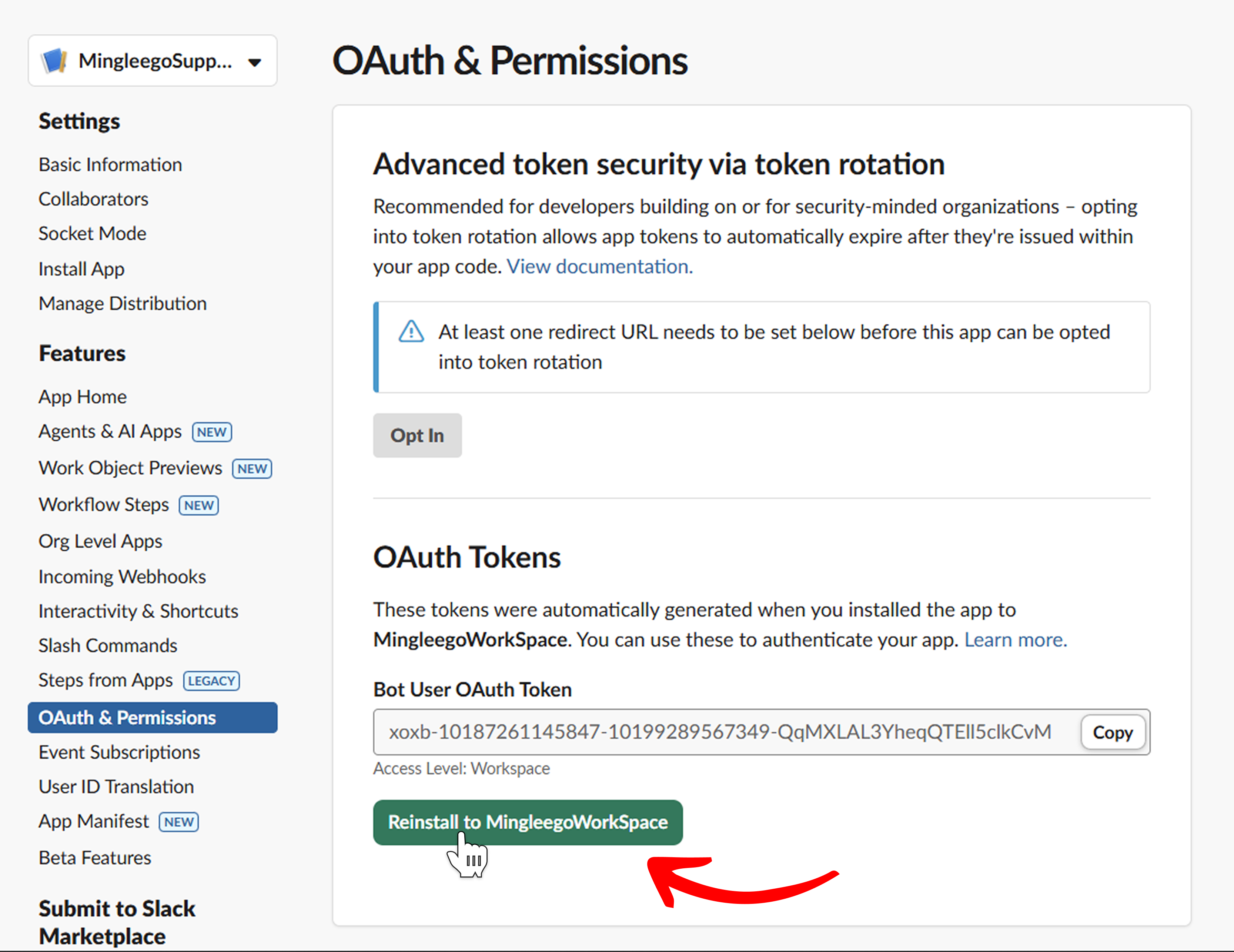
Reinstall the App
After changing scopes/events, go back to OAuth & Permissions and click Reinstall to <YourWorkspace>
Integrating with Mingleego
With the Slack App configured, integrate the Slack bot with the Mingleego platform:
-
Create a Social Bot:
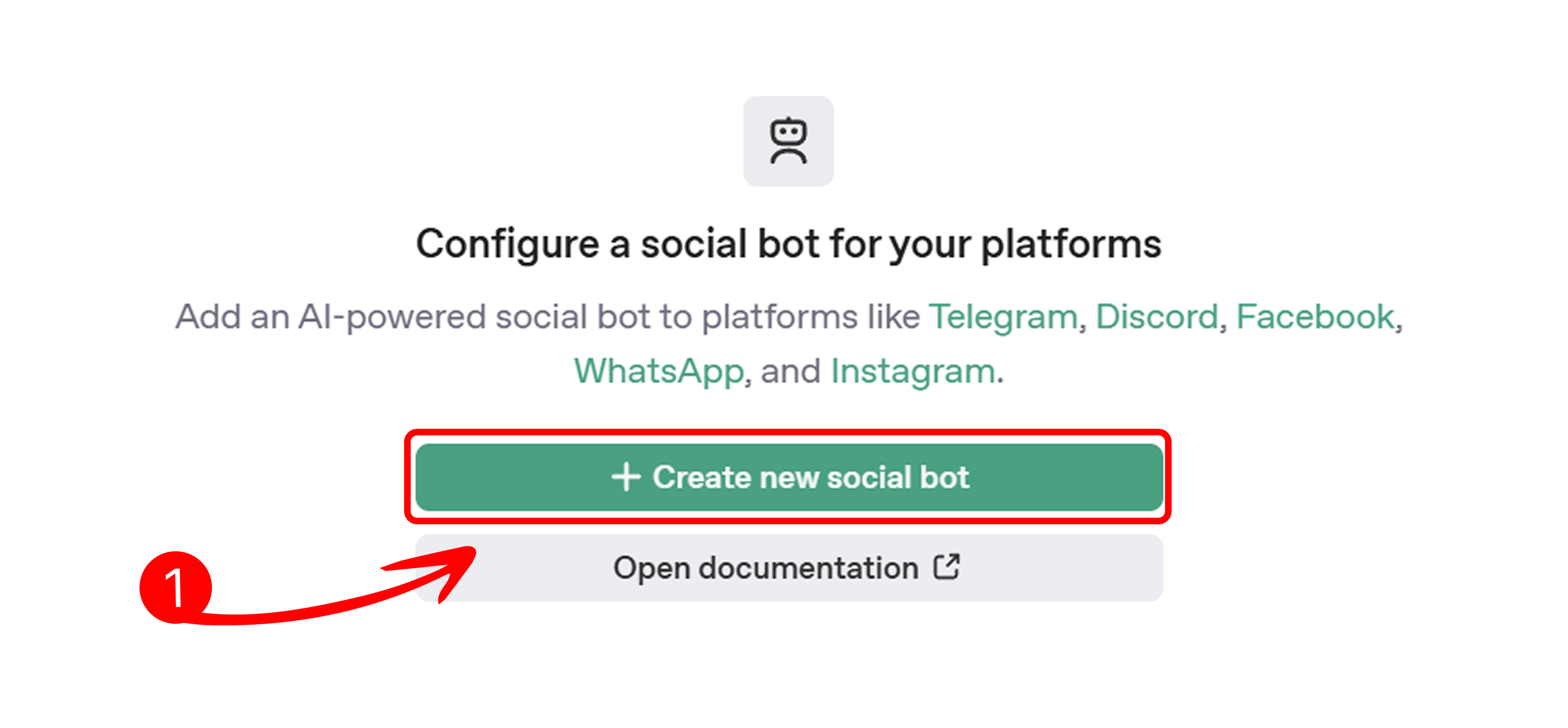
- On the Mingleego platform, navigate to Social Bots.
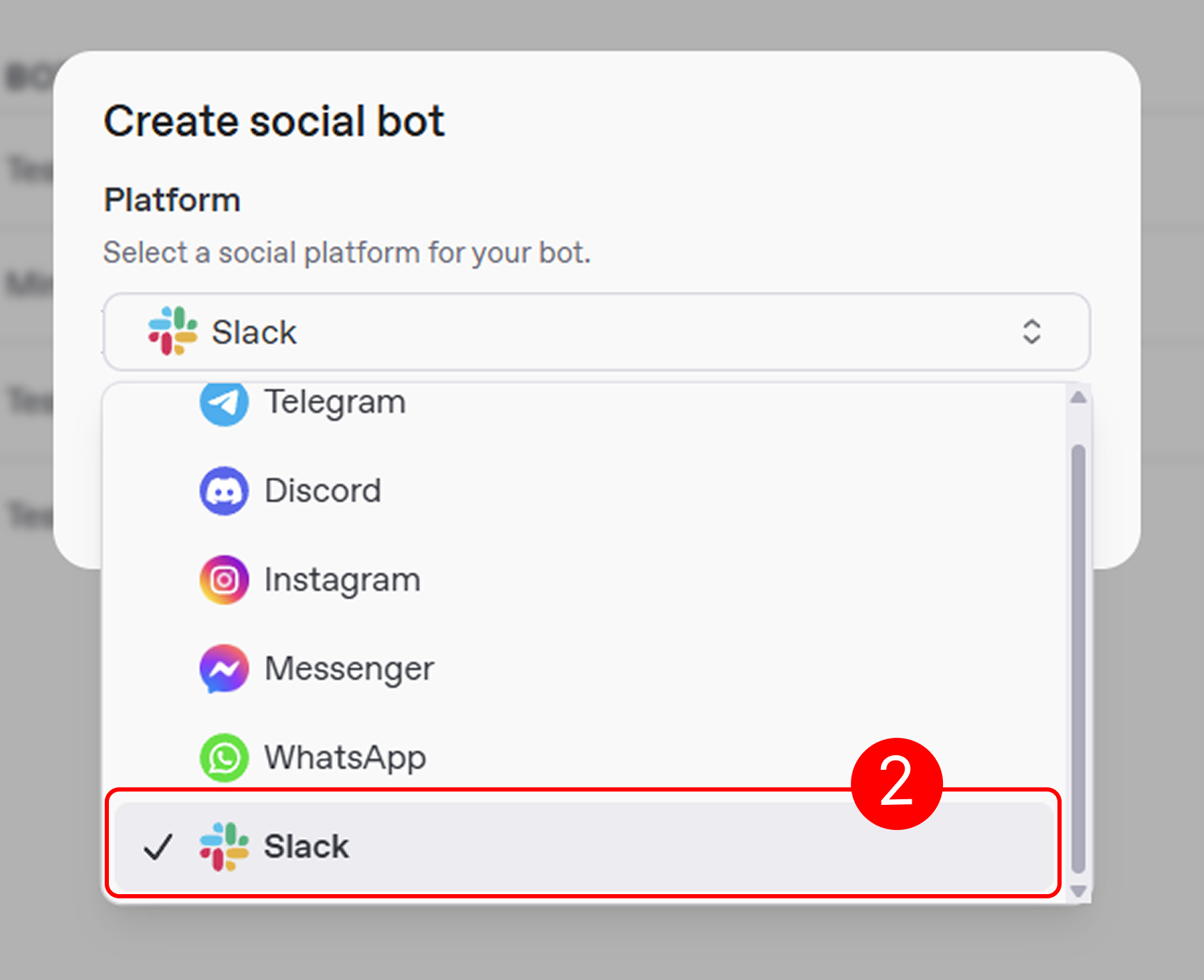
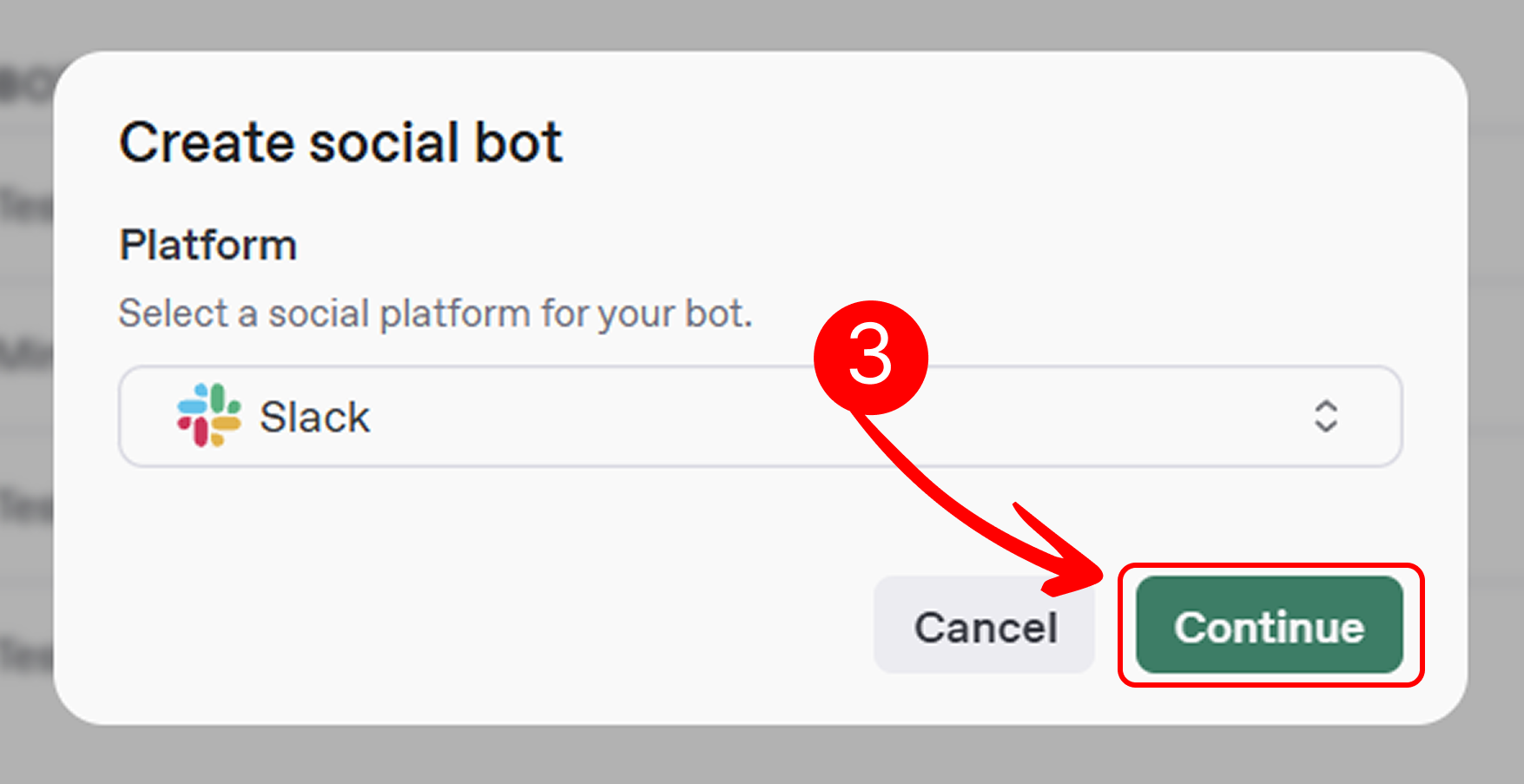
- Click Create New Social Bot, select Slack, and click Continue.
-
Enter Bot Details: Fill in the required fields to configure your Slack bot on the Mingleego platform:
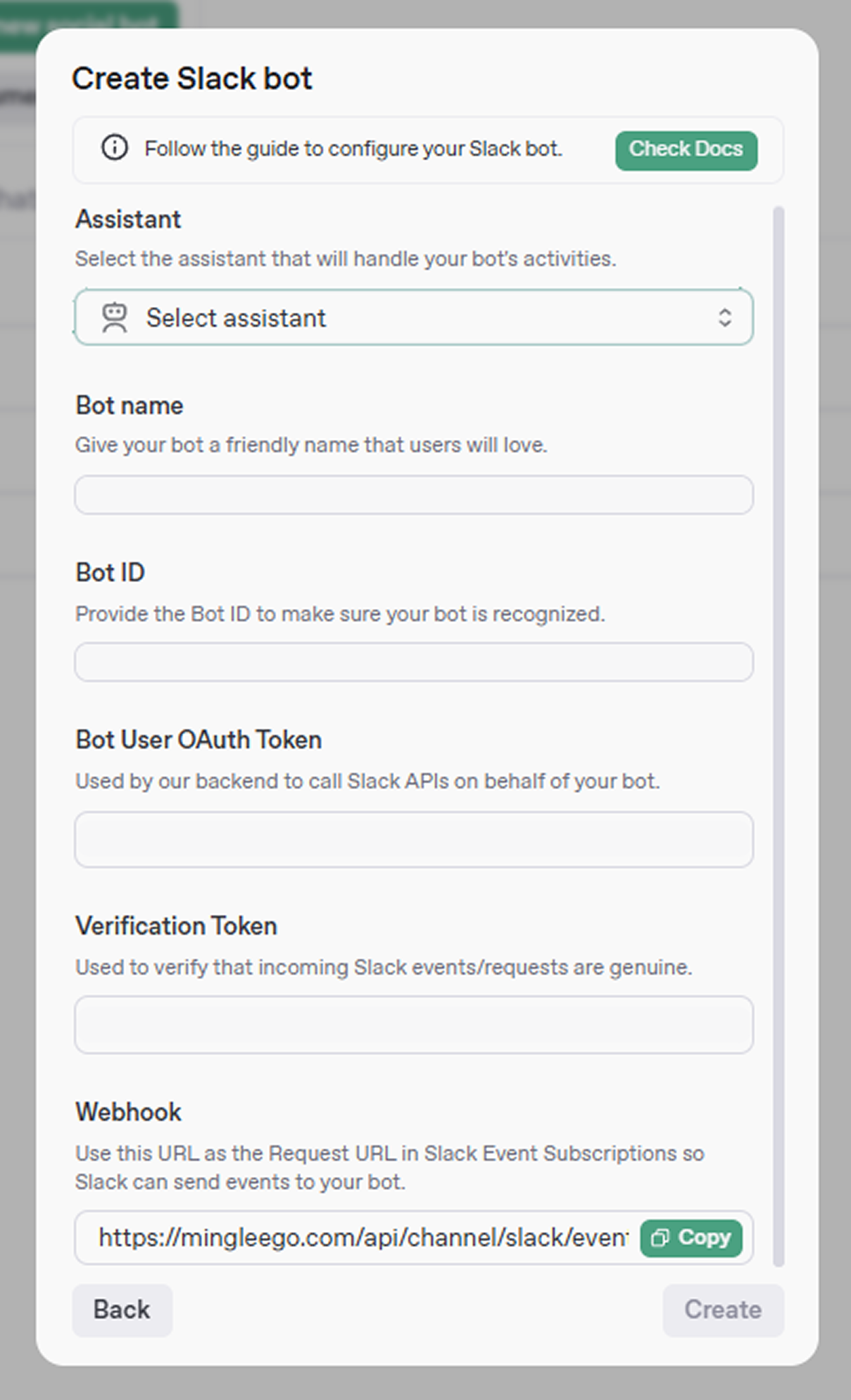
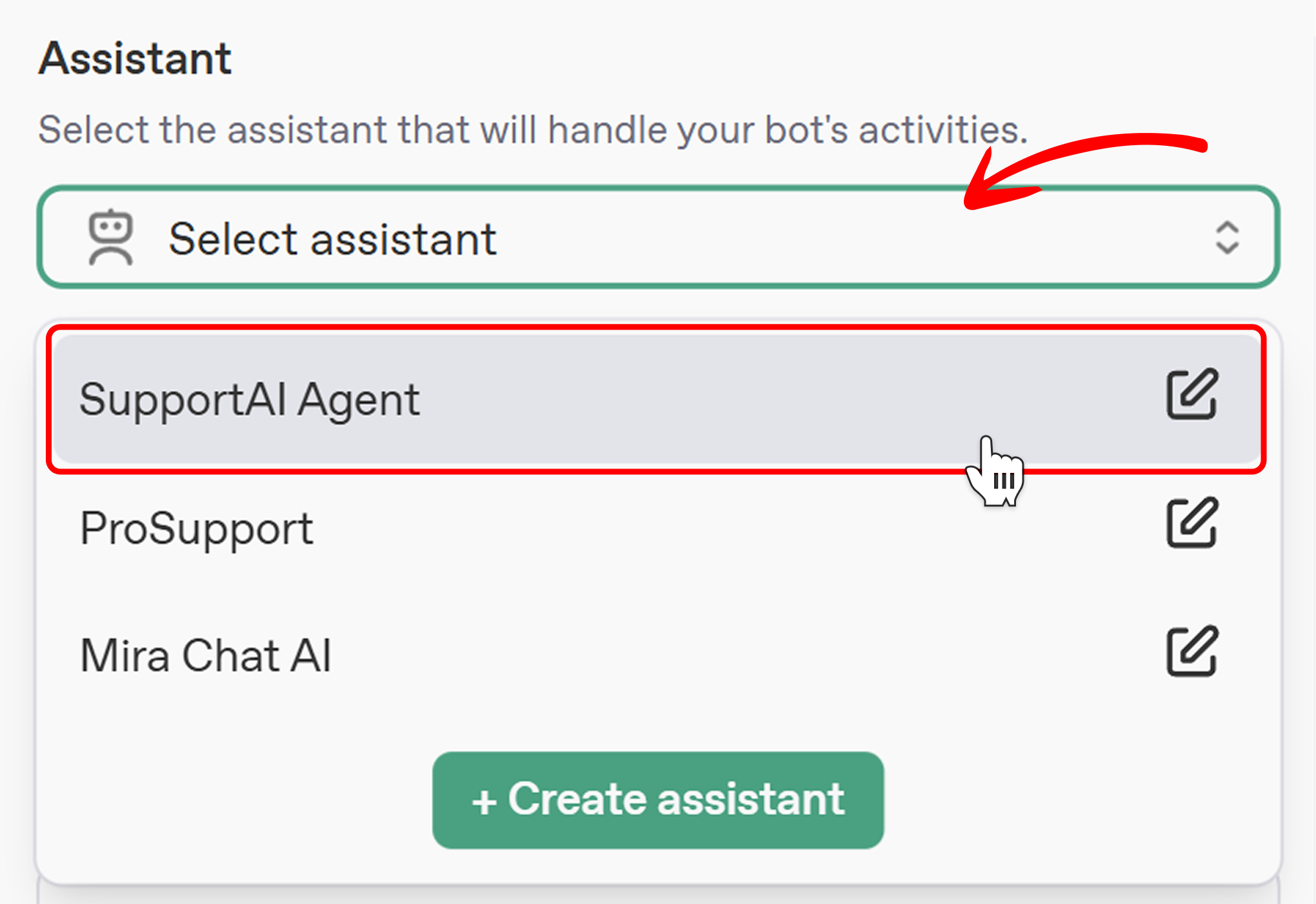
- Assistant: Select an AI assistant from the Select Assistant dropdown to power your bot's responses. If none are listed, click Create Assistant. See the Creating an Assistant Guide for details.
- Bot Name: Enter a unique name to identify your bot on the Mingleego platform.
- Bot ID: Paste the App ID from Slack (Basic Information → App Credentials).
- Bot User OAuth Token: Paste the Bot User OAuth Token from Slack (OAuth & Permissions).
- Verification Token: Paste the Verification Token from Slack (Basic Information → App Credentials).
- Request URL: Copy the Events URL from the form and use it as the Request URL in Slack (Event Subscriptions).
-
Finalize Creation:
- Review all entered details in the form to ensure accuracy, then click Create to activate your Slack bot on the Mingleego platform.
- After creation, your bot will appear in the Slack tab under the Social Bots section, displayed in a table. From there, you can:
- View Statistics to monitor engagement and performance.
- Edit the bot by updating the same form fields to adjust its functionality.
- Delete the bot if it is no longer needed, removing it from the platform.
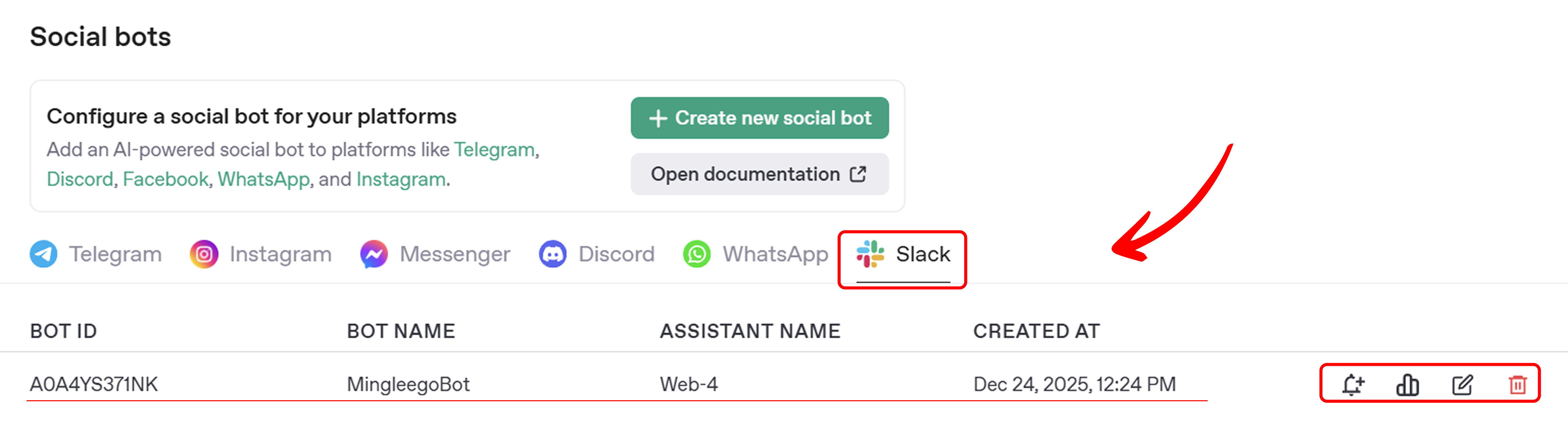
Once the bot is activated, it is ready to handle Slack events based on the configured settings. You can test its functionality using the Mingleego Playground.
Testing Your Slack Bot
Once your bot is activated, you can test its functionality to ensure it works as expected.
-
Find Your Bot in Slack:
- Open your Slack workspace and navigate to the Apps section in the left sidebar.
- You will see your newly added bot listed there, ready to interact with users.
-
Test Bot Interactions:
- Direct Messages: Click on your bot in the Apps section to open a direct message conversation. Send a test message to verify the bot responds correctly based on your configured assistant behavior.
- Channel Mentions: Add your bot to any channel in your workspace and mention it (e.g.,
@YourBotName hello). The bot will respond in the channel, allowing team members to interact with it directly.
-
Monitor and Adjust:
- Use the Mingleego Playground to test bot responses with various user inputs.
- If adjustments are needed, edit the bot settings via the Social Bots section on Mingleego.
Conclusion
You have successfully configured and integrated a Slack bot with the Mingleego platform. Your bot is now ready to receive events from Slack and respond using your selected AI assistant. For additional platform guides, see Social Bots Overview.