How to Create a Facebook Messenger Bot with AI
💡 Want the big picture first? See what an AI Messenger bot can do for your Page on the Facebook Messenger Bot overview.
Overview
This guide provides comprehensive instructions for configuring Facebook Messenger bots using the Meta Graph API and integrating them with the Mingleego platform. By following these steps, you will establish a bot capable of automating messaging, responding to customer inquiries, and enhancing engagement on your Facebook Page via Messenger. The process involves setting up a Meta Business account, creating a Meta Developer App, configuring API access, and integrating the bot with Mingleego.
Prerequisites
Before configuring a Facebook Messenger bot, ensure the following requirements are met:
- Meta Business Account: A Meta Business Account (also known as a Meta Business Portfolio) is required to access Meta's developer tools and APIs. If you don't have one yet, follow the instructions in the Creating a Meta Business Account section to set it up.
- Meta Developer App: A Meta Developer App is required to manage API connections, including webhooks and access tokens. Follow the instructions in the Creating a Meta Developer App guide to set up your app.
Setting Up Meta Business and Facebook
Establishing a Meta Business account and configuring your Facebook Page is a foundational step for enabling Facebook Messenger bot functionality. This section guides you through creating a Facebook Page and ensuring it is properly set up for bot integration.
Create or Access a Facebook Page: To begin, you need a Facebook Page where you have Administrator or Developer roles. If you already have a suitable Page, you can use it; otherwise, create a new one. For more detailed instructions on creating a Page, refer to Facebook’s official guide.
- Log in to your Facebook account at Facebook.
- From the Facebook menu, locate and click Pages to access your existing Pages or create a new one.
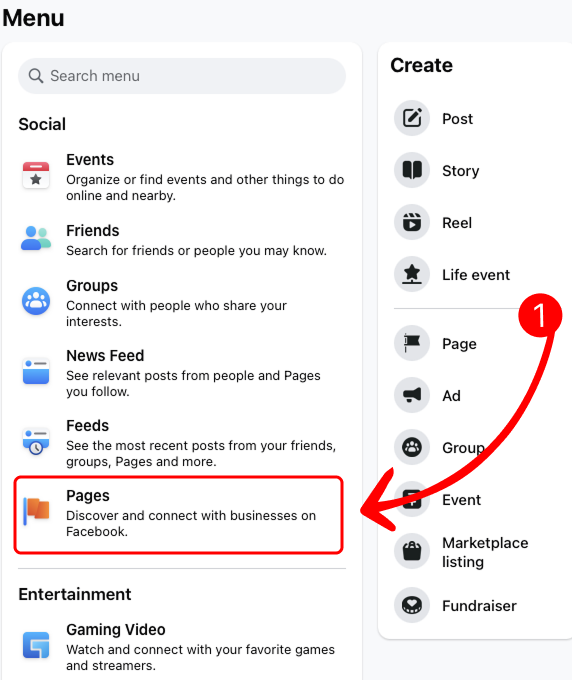
- In the Pages section, you will see a list of Pages you manage. To create a new Page, click the Create new profile or Page button.
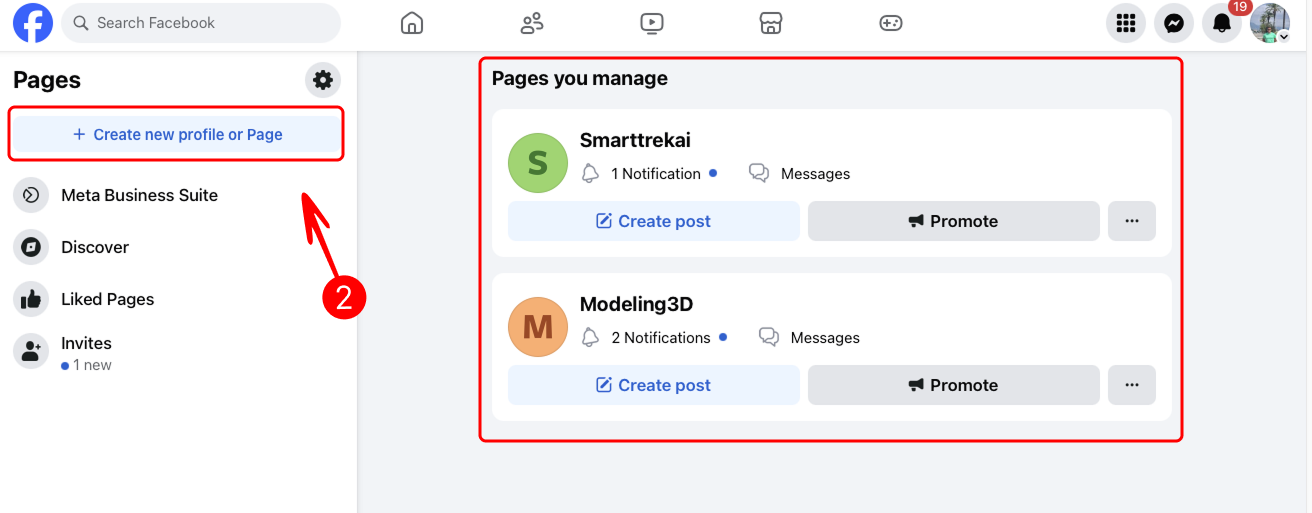
- Select Public Page as the Page type, then click Next to proceed.
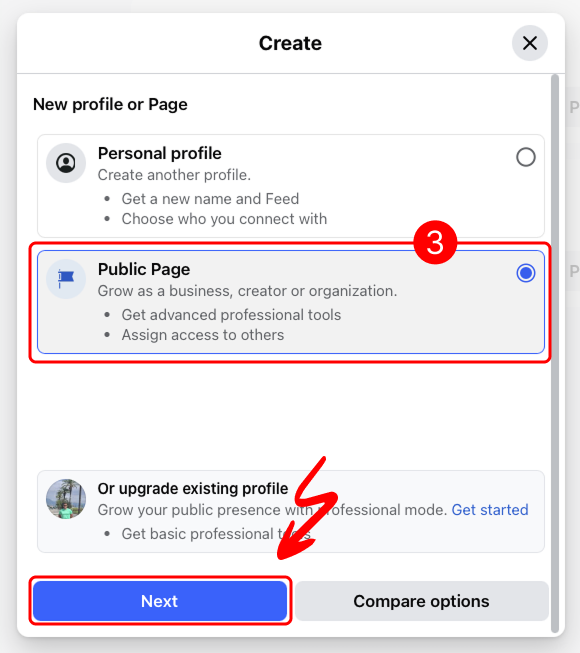
- Enter a name for your Page (ensure the name complies with the Page names allowed on Facebook policy), choose an appropriate category (e.g., Business), and click Create Page to finalize the setup.
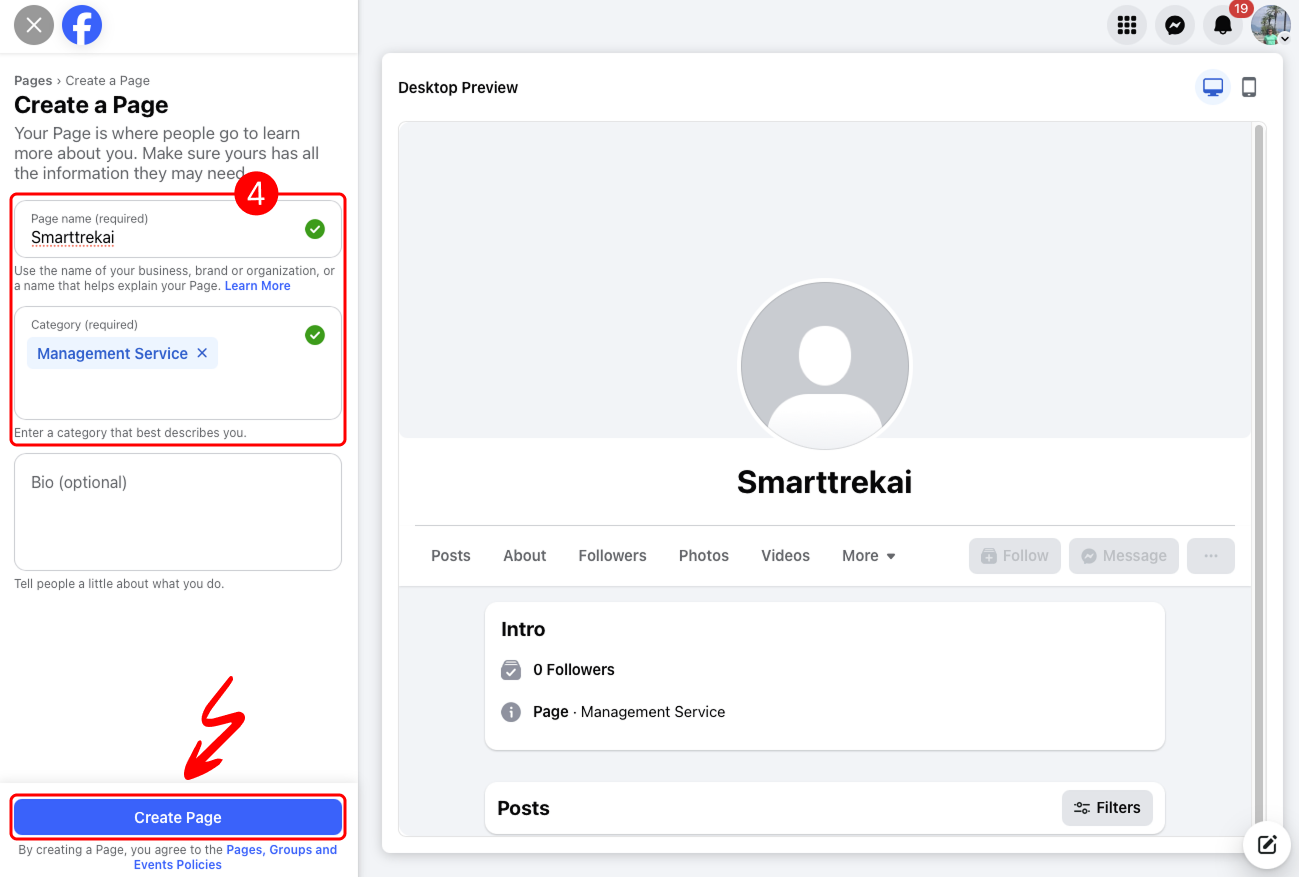
- Ensure the Page is set up for business purposes by configuring its settings, such as adding a profile picture, cover photo, and business details.
After creating your Page, you can further configure its settings to align with your business needs. For additional guidance on configuring your Page, refer to Facebook’s official guide.
With your Facebook Page now set up, you have established the foundation for your Facebook Messenger bot. Proceed to the Creating a Meta Developer App section to continue setting up the necessary API access for your bot.
Meta Developer App
A Meta Developer App is required to access the Meta Graph API and enable bot functionality for Facebook Messenger.
If you have not yet created a Meta Developer App, follow the detailed instructions in the Meta Developer App guide to set up your app. Once created, return to this guide to proceed.
If you already have a Meta Developer App set up in the App Dashboard, proceed with the following steps to configure it for Messenger:
- Add Messenger Product:
- In the Meta Developer App Dashboard, select your app. Then, choose Messenger from the product list and click Set Up to enable Messenger integration.
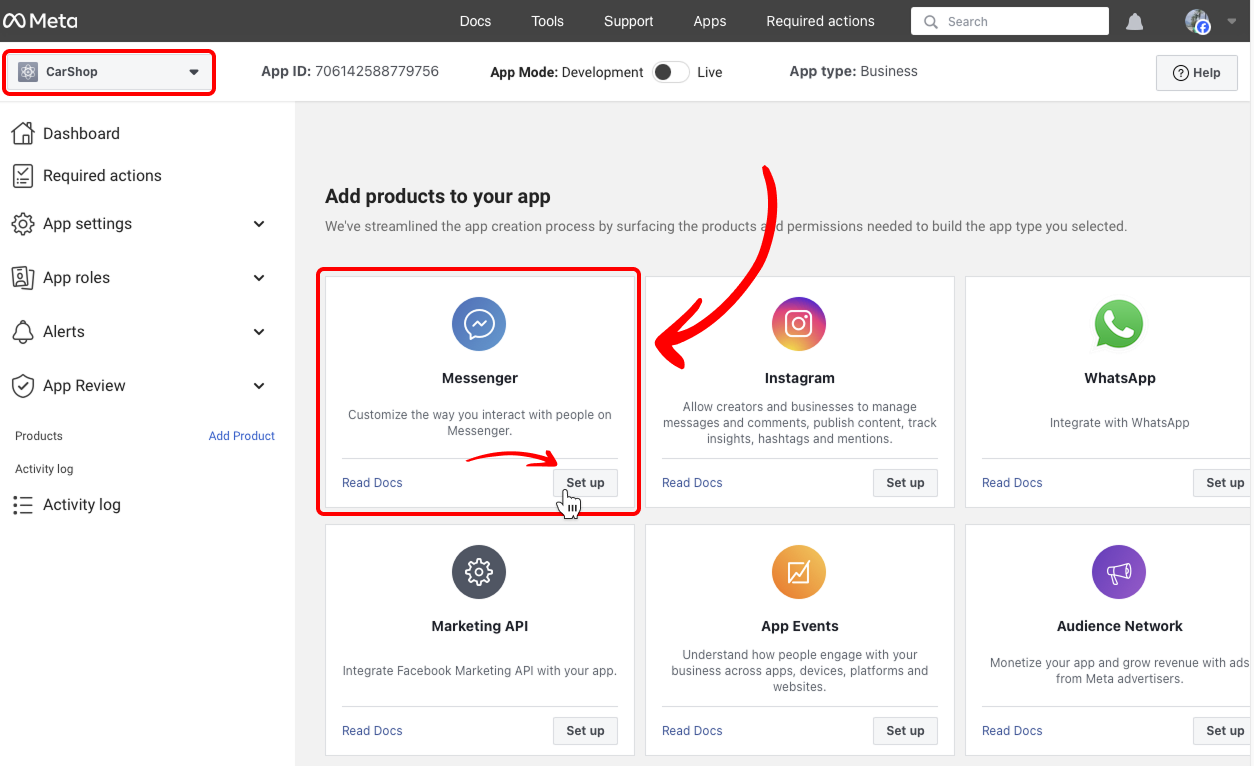
- In the Meta Developer App Dashboard, select your app. Then, choose Messenger from the product list and click Set Up to enable Messenger integration.
After adding the Messenger product, your app is ready for further configuration. Proceed to the Obtain Page ID and Access Token section to continue setting up your bot.
Obtain Page ID and Access Token
To send and receive Facebook Messenger messages, you need to obtain a Page ID and Access Token from your Meta Developer App.
-
Connect Business Portfolio:
- Ensure you have already created a Business Portfolio and a Facebook Page, as described in the Setting Up Meta Business and Facebook section. You will need to connect your Business Portfolio to your app.
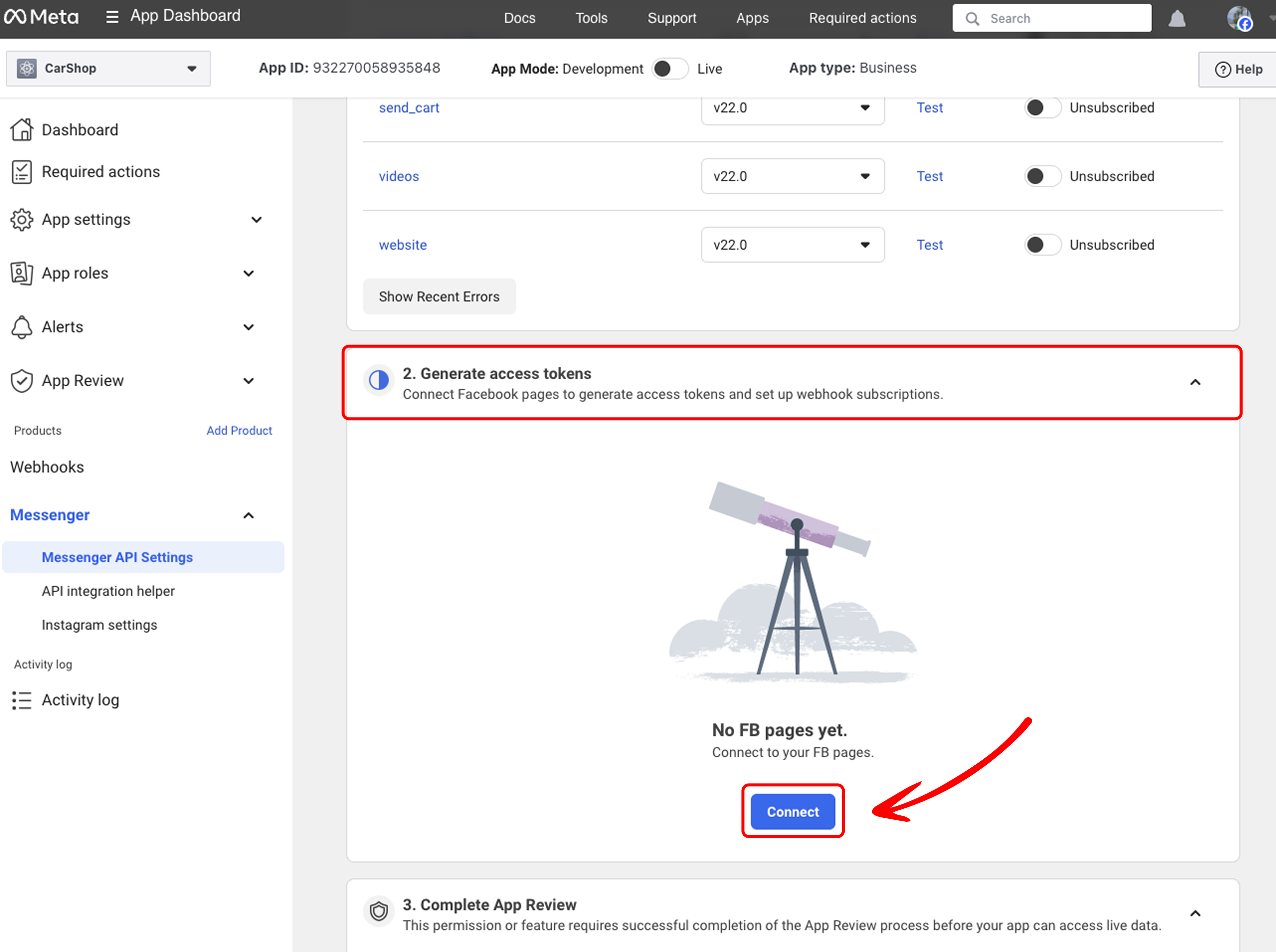
- Ensure you have already created a Business Portfolio and a Facebook Page, as described in the Setting Up Meta Business and Facebook section. You will need to connect your Business Portfolio to your app.
-
Copy Page ID:
- After connecting, locate the Page ID under the Page name in the Messenger Settings section of your Meta Developer App dashboard. Copy the Page ID and save it securely in your notes.
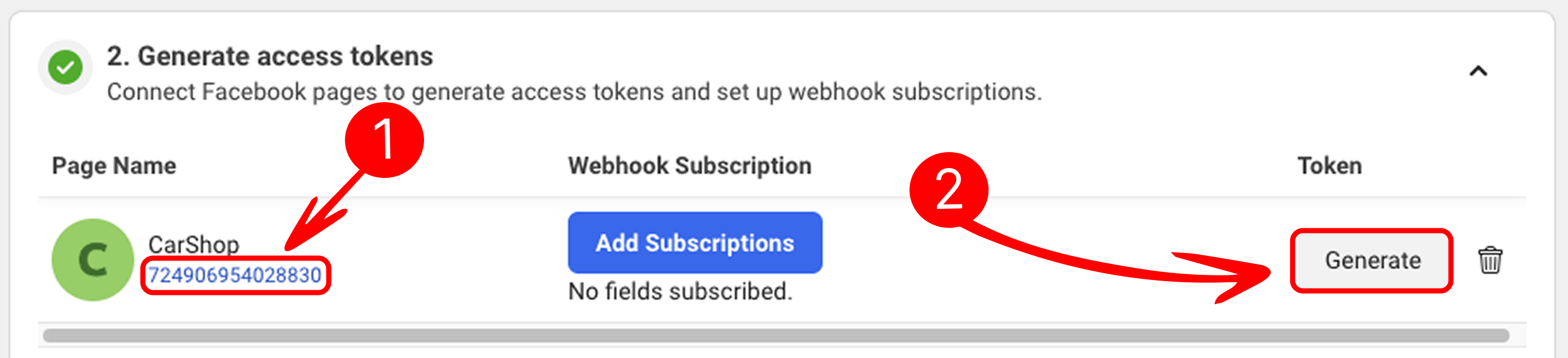
- After connecting, locate the Page ID under the Page name in the Messenger Settings section of your Meta Developer App dashboard. Copy the Page ID and save it securely in your notes.
-
Generate Access Token:
- Click Generate to create an Access Token. Copy the generated token and save it temporarily in a secure location.
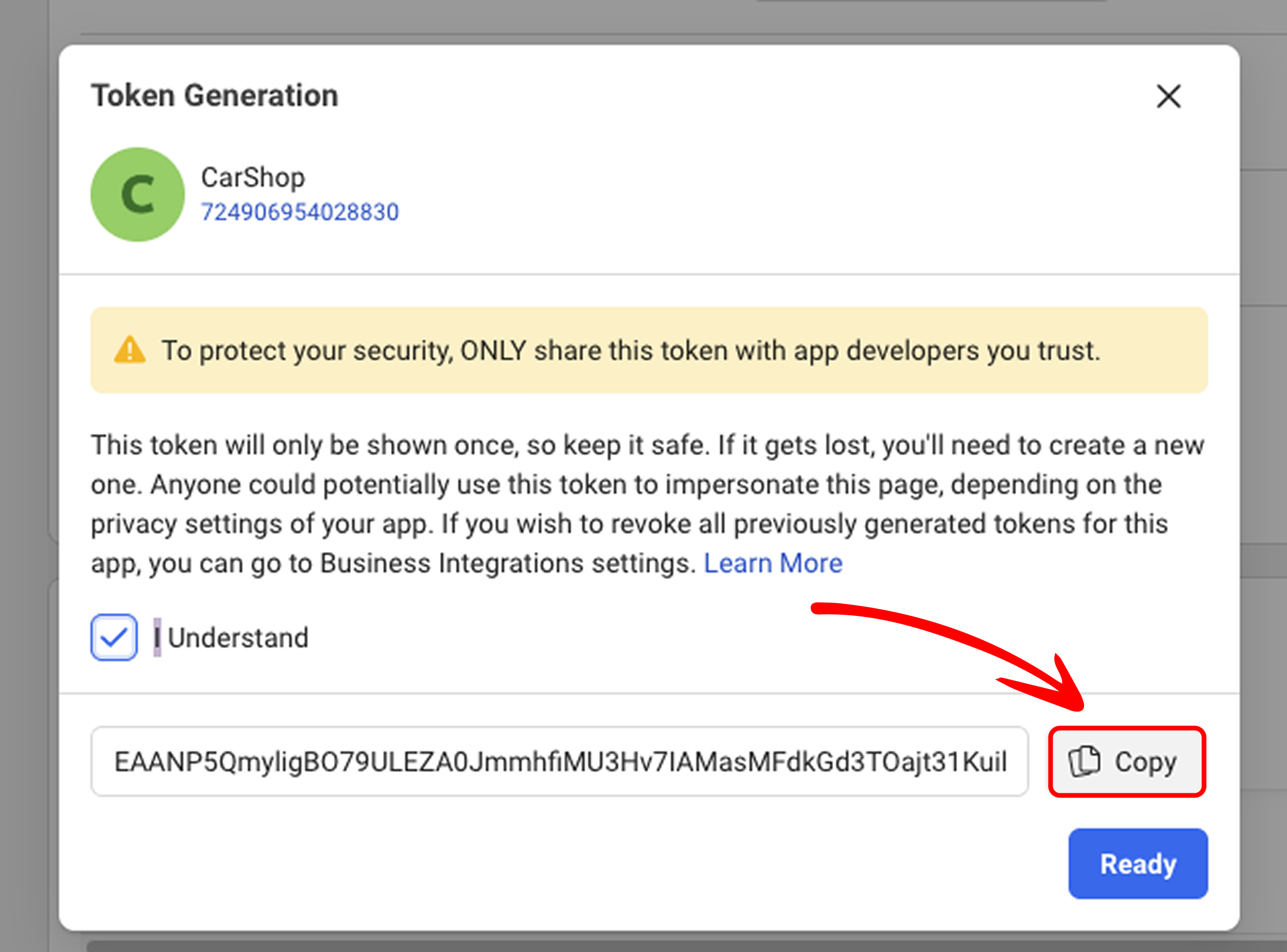
- Click Generate to create an Access Token. Copy the generated token and save it temporarily in a secure location.
Setting Up Webhook
Webhooks allow your bot to receive real-time updates from Facebook Messenger, such as incoming messages. Configure a webhook as follows:
-
Access Webhook Settings:
- In a separate tab, open the Mingleego platform and start creating the bot's social, as detailed in the Integrating with Mingleego section.
- Copy the Webhook URL provided in the form.
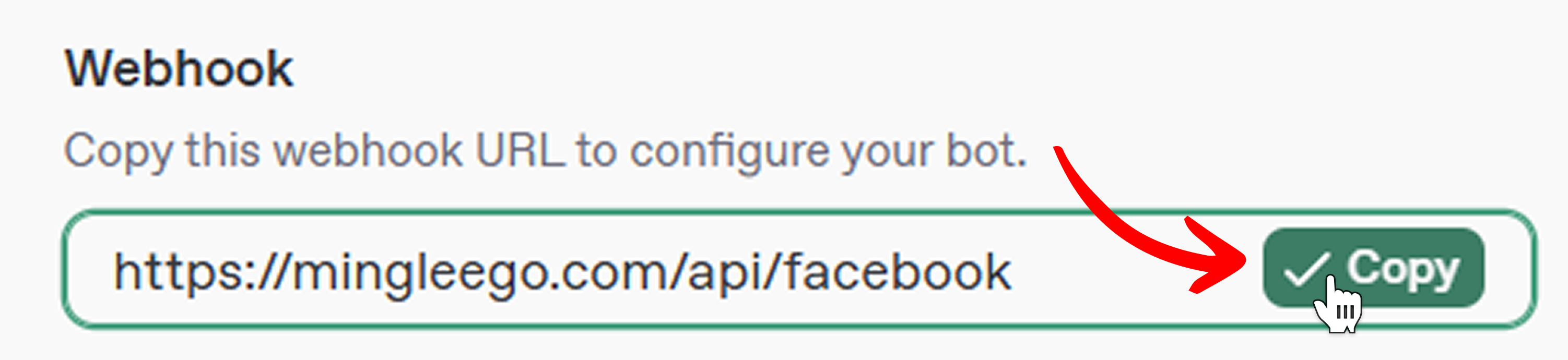
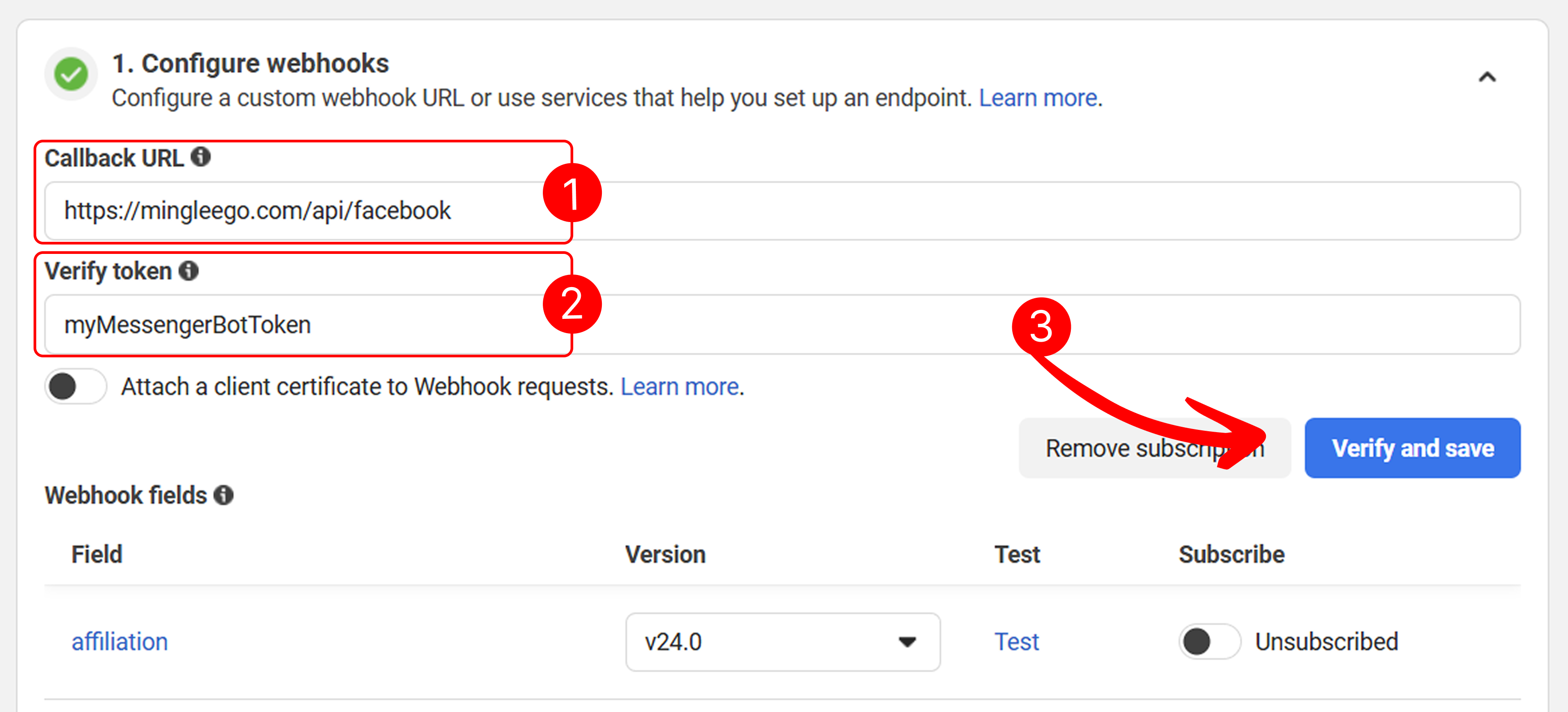
- Return to your Meta Developer App dashboard, paste the copied Webhook URL into the Callback URL field.
- Enter any Verify token you wish (e.g., a random string like "myMessengerBotToken"). Save the Verify Token securely for future reference.
-
Configure Webhook Subscriptions:
- In the Webhooks section of your Meta Developer App dashboard, click Add Subscriptions.
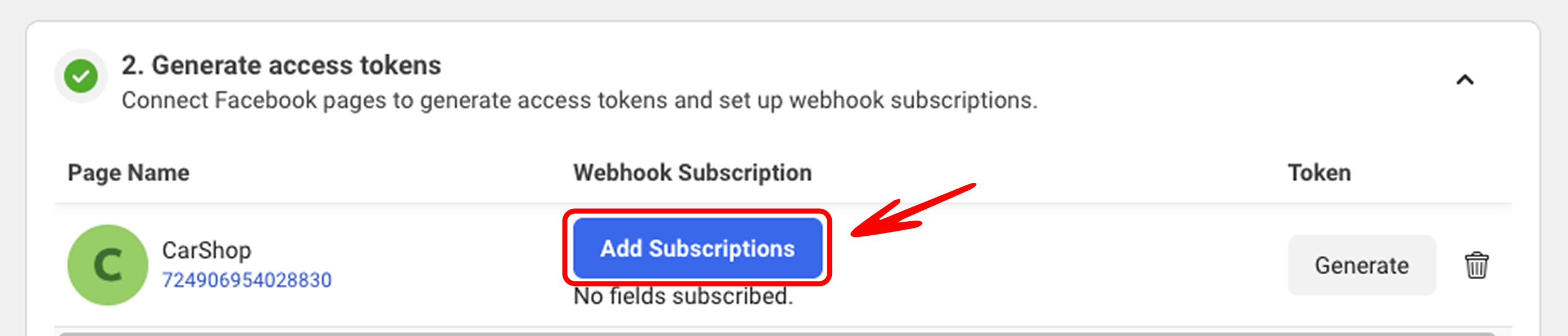
- Select the relevant fields, such as
messagesandmessaging_postbacks, to ensure your bot receives the necessary updates.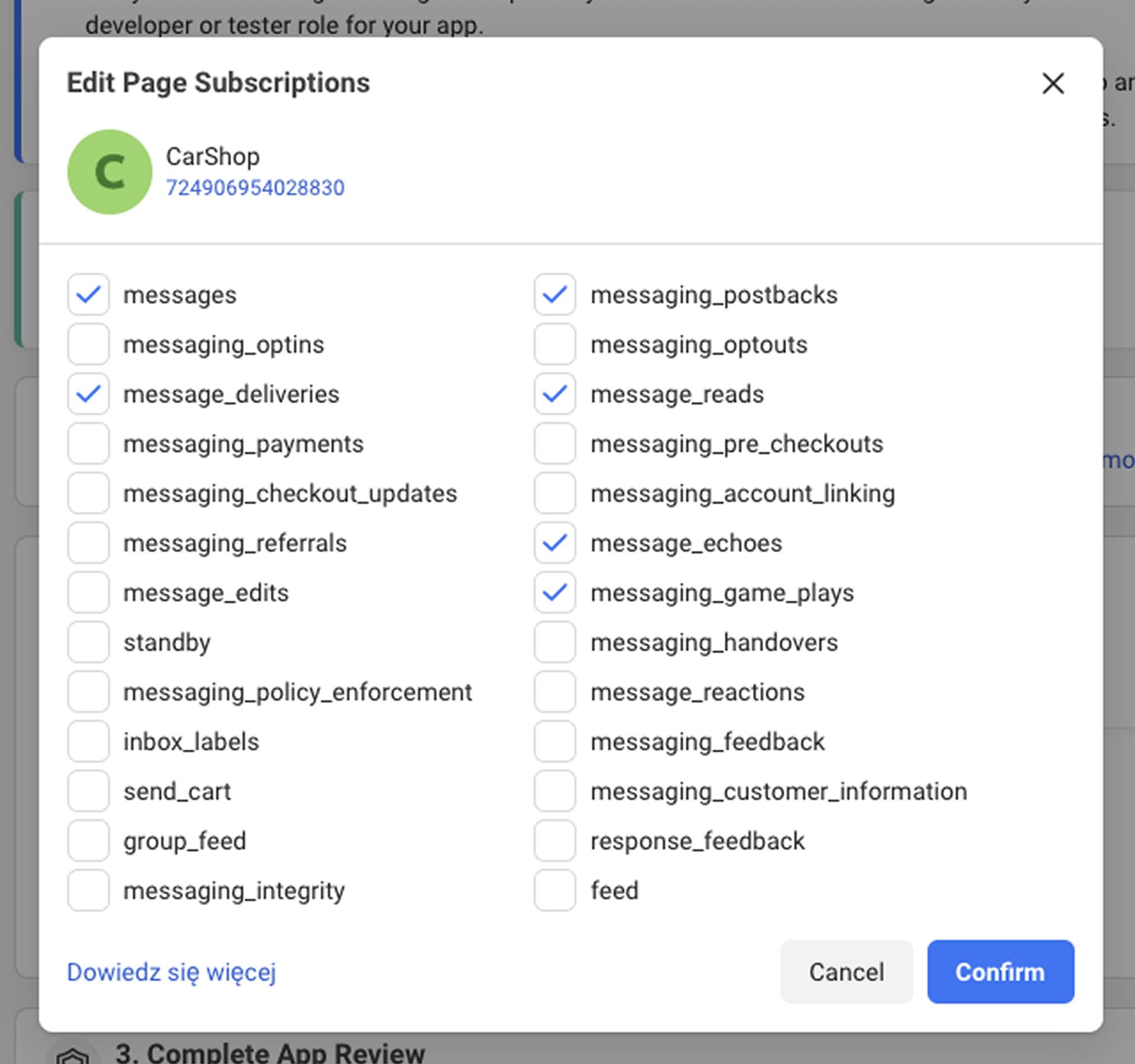
- In the Webhooks section of your Meta Developer App dashboard, click Add Subscriptions.
- Save the App Secret securely, as you will need it when creating your Facebook Messenger bot on the Mingleego platform.
Configure Testing Permissions
To test your bot, you need to configure testing permissions in your Meta Developer App.
- Add Testers:
- Ensure you have added yourself or another user as an Administrator, Developer, or Tester in the Meta Developer App. By default, this should be you—the person who created the app.
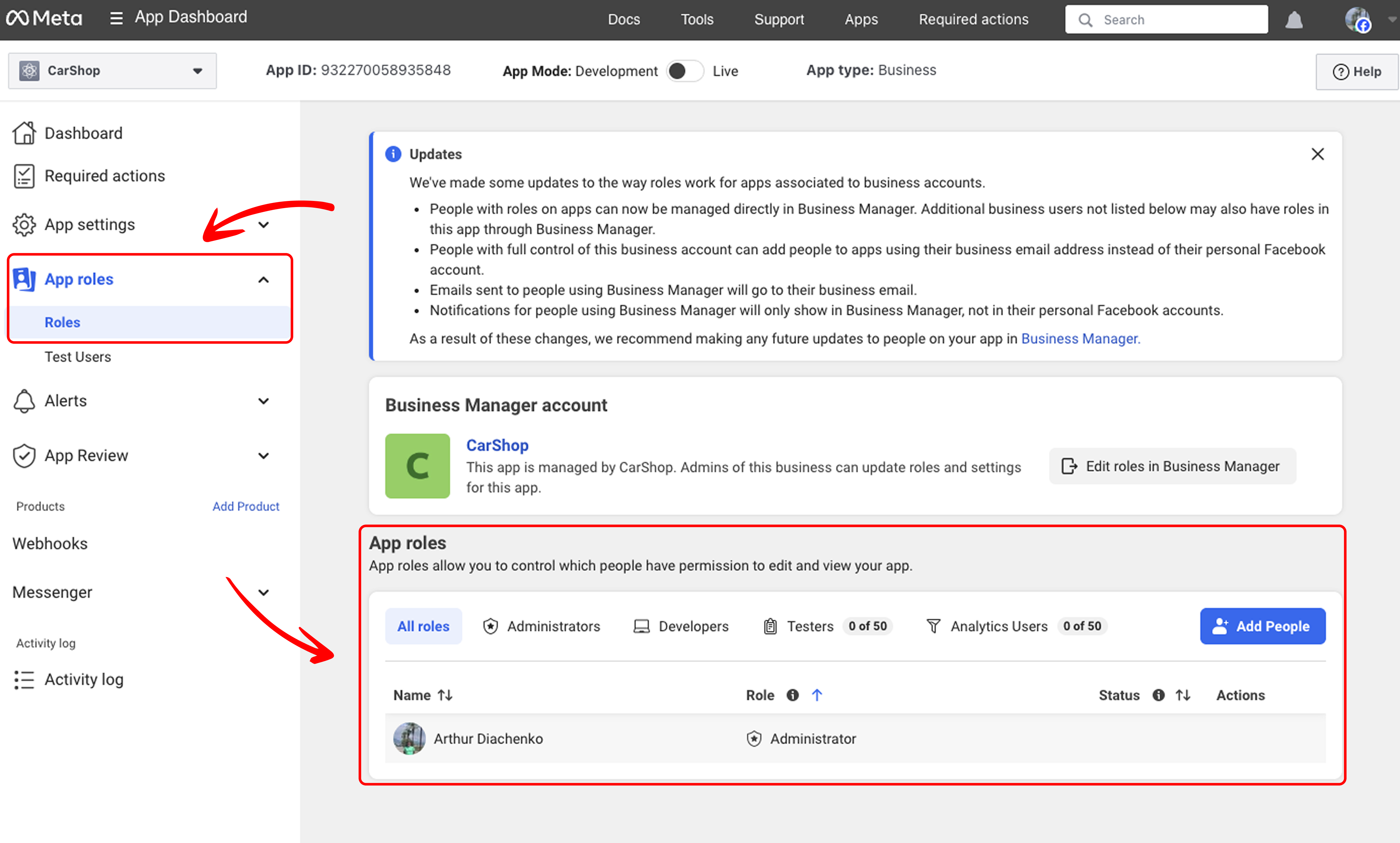
- If you want your bot to be able to receive and send messages to all users, you must verify your Meta Business account. Refer to the Submitting for Meta Review section for details on this process.
- Ensure you have added yourself or another user as an Administrator, Developer, or Tester in the Meta Developer App. By default, this should be you—the person who created the app.
Integrating with Mingleego
With the Meta Developer App configured, integrate the Facebook Messenger bot with the Mingleego platform:
-
Create a Social Bot:
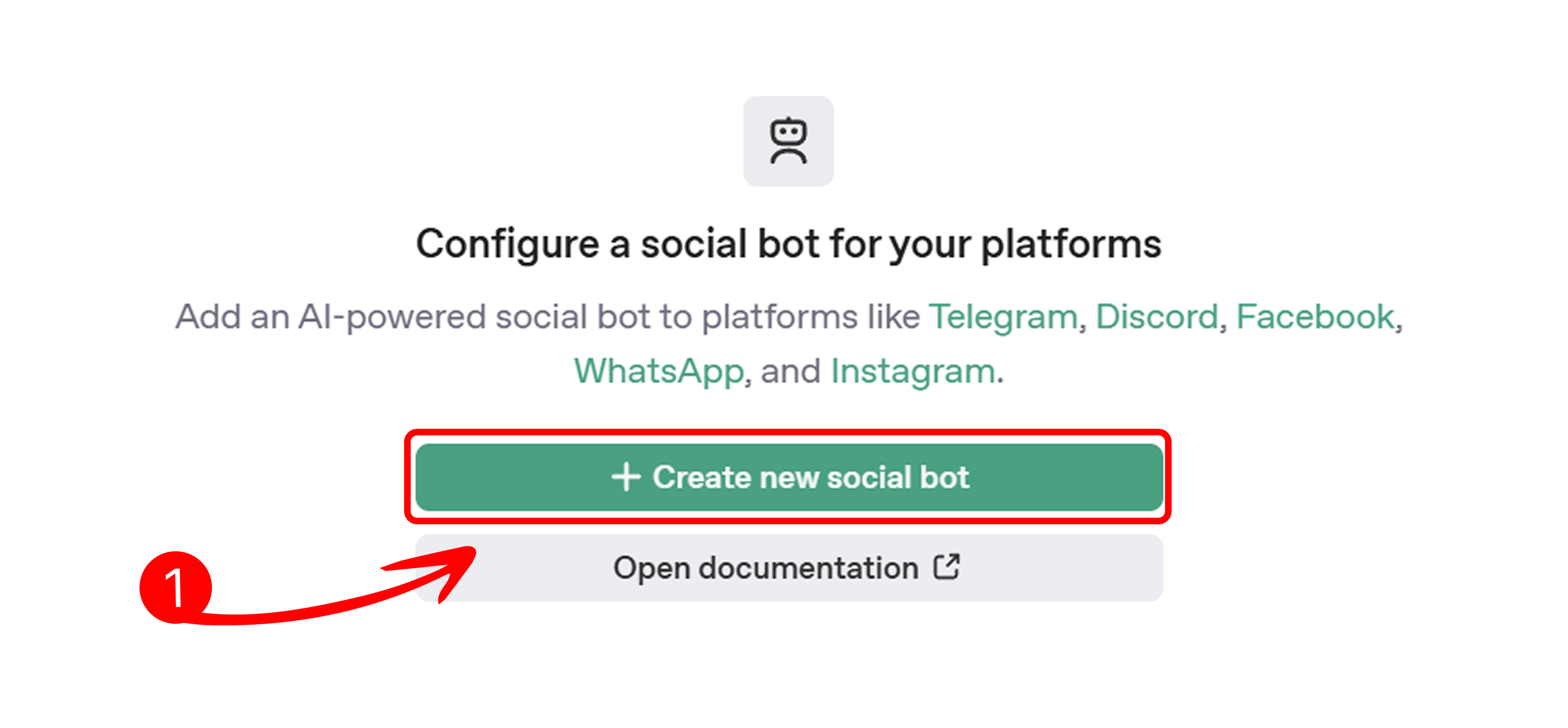
- On the Mingleego platform, navigate to Social Bots.
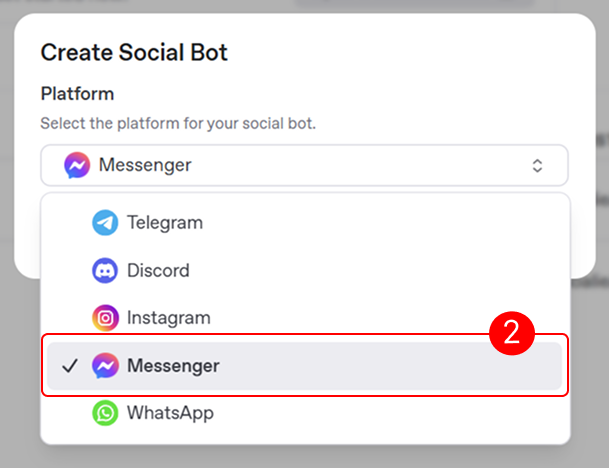
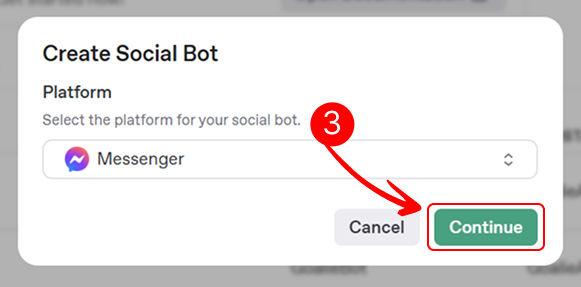
- Click Create New Social Bot, select Facebook Messenger, and click Continue.
-
Enter Bot Details: Fill in the required fields to configure your Facebook Messenger bot on the Mingleego platform:
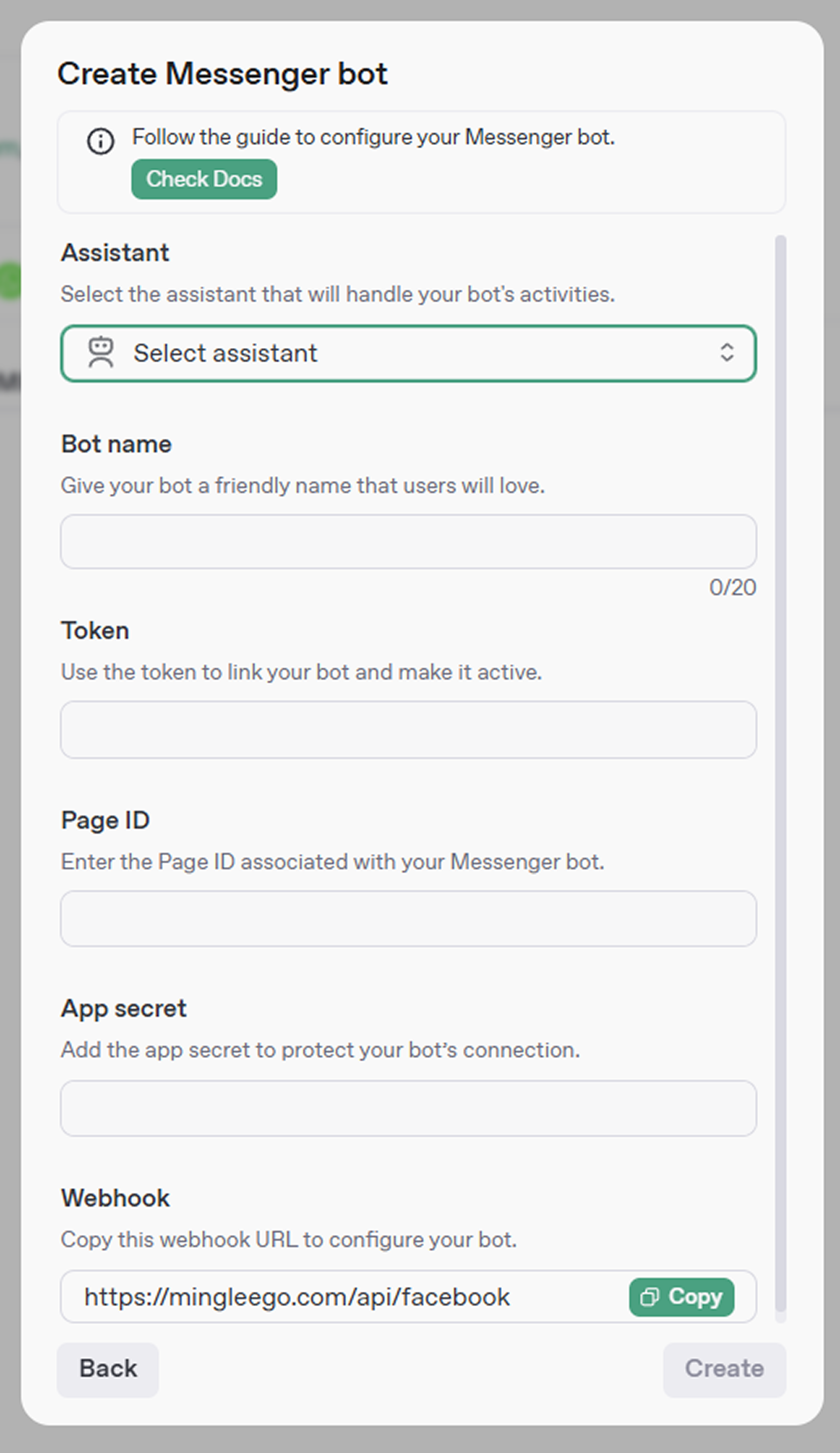
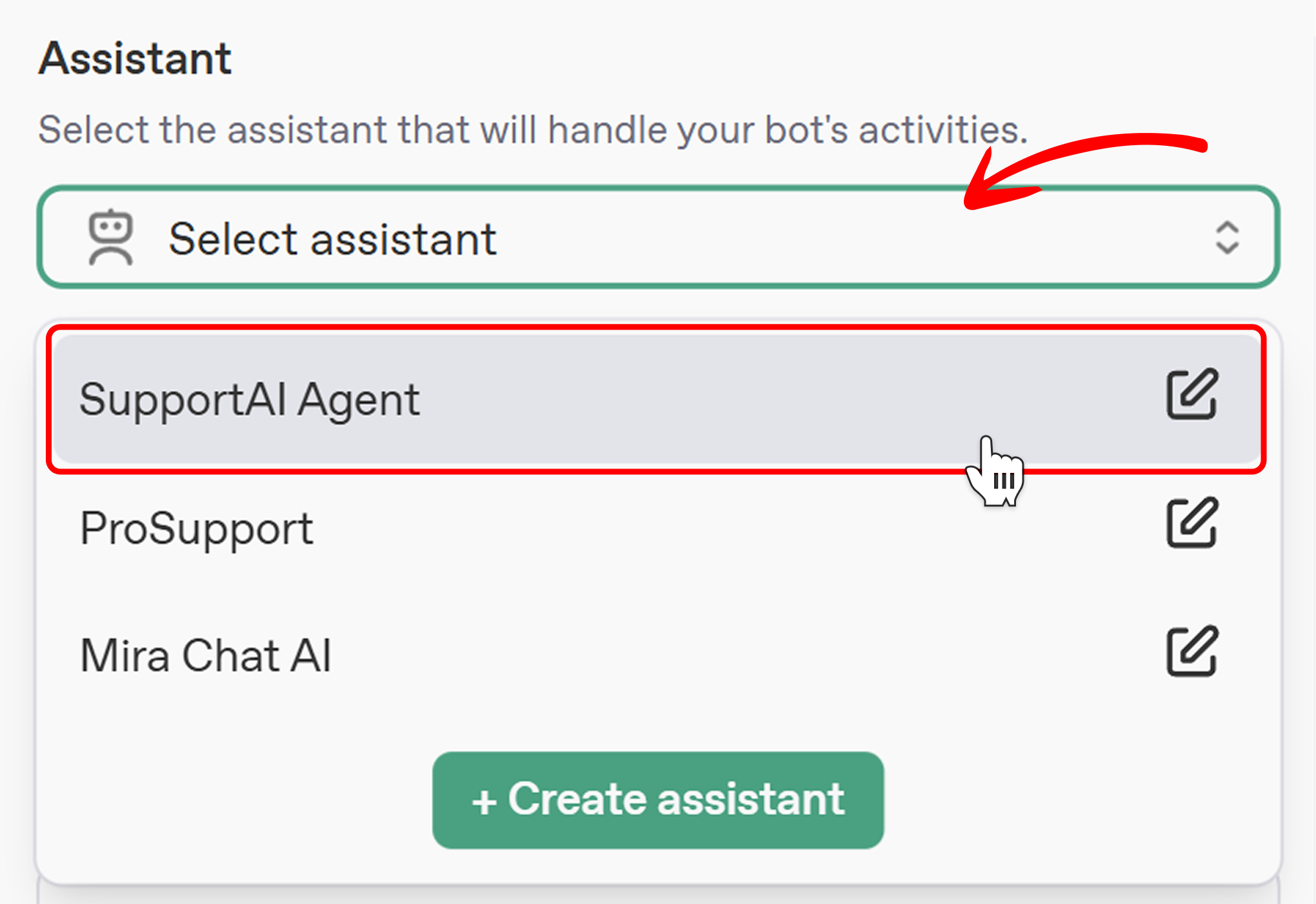
- Assistant: Select an AI assistant from the Select Assistant dropdown to power your bot’s responses, aligning with its purpose. If none are listed, click Create Assistant. See the Creating an Assistant Guide for details.
- Bot Name: Enter a unique name (e.g., "MessengerCustomerBot") to identify your bot on the Mingleego platform.
- Access Token: Paste the Access Token obtained from the Meta Developer App, as described in the Obtain Page ID and Access Token section, to authenticate your bot's connection to the Meta Graph API. Ensure it includes pages_messaging and pages_manage_metadata permissions.
- Page ID: Paste the Page ID retrieved from Meta Developer App's Messenger Settings, as outlined in the Obtain Page ID and Access Token section, to link your bot to the associated Facebook Page.
- Webhook: Copy the Webhook URL and use it in Meta Developer App's Webhook settings, as described in the Setting Up Webhook section.
-
Finalize Creation:
- Review all entered details in the form to ensure accuracy, then click Create to activate your Facebook Messenger bot on the Mingleego platform.
- After creation, your bot will appear in the Facebook Messenger tab under the Social Bots section, displayed in a table. From there, you can:
- View Statistics by bot users to monitor engagement and performance.
- Edit the bot by updating the same form fields to adjust its functionality.
- Delete the bot if it is no longer needed, removing it from the platform.
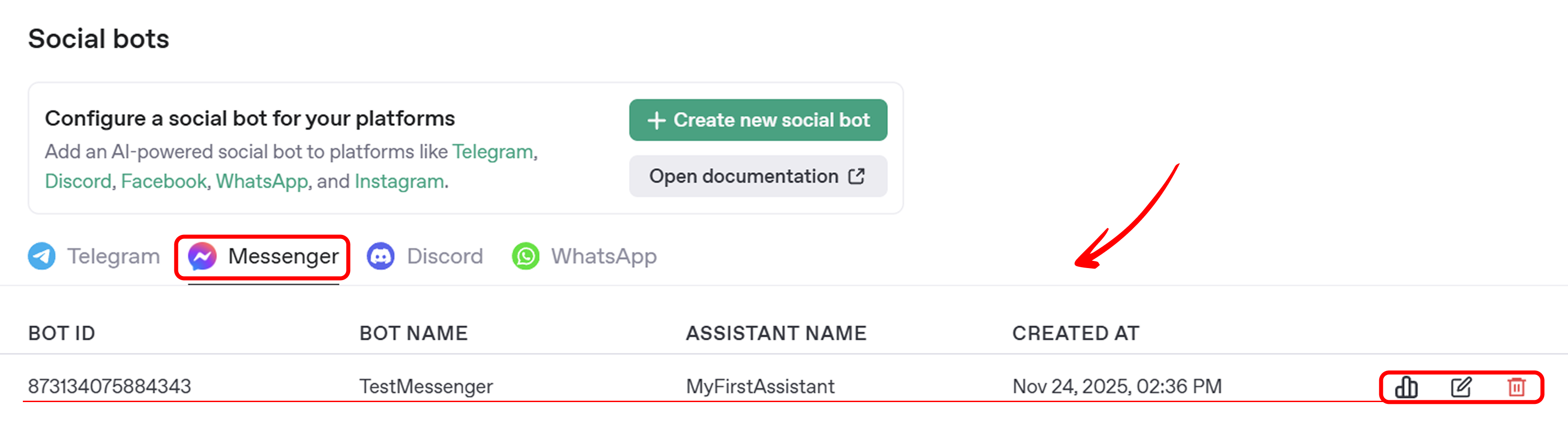
Once the bot is activated, it is ready to handle Facebook Messenger messages based on the configured settings. You can now proceed to the Submitting for Meta Review section to make your bot publicly accessible, or test its functionality using the Mingleego Playground.
Submitting for Meta Review
During Development Mode, your bot is accessible only to admins, developers, and testers. To make it available to the general public, you must submit your Meta Developer App for review and obtain approval from Meta.
-
Prepare for Review:
- Ensure your bot complies with Meta’s policies, including the Meta Platform Terms, to avoid rejection during the review process.
- Thoroughly test all bot functionalities in Development Mode to confirm they work as intended.
-
Submit for Review:
- In your Meta Developer App dashboard, navigate to App Review > Requests.
- Request permissions for pages_messaging and pages_manage_metadata to enable full bot functionality.
- Provide detailed information about your bot’s use case, functionality, and compliance with Meta’s guidelines.
- Submit the request and monitor your app dashboard for updates on the approval status. For more details on the App Review process, refer to Meta’s official guide: App Review Process.
Note: The review process may take several days or longer, depending on Meta’s review queue. Regularly check your app dashboard for status updates or requests for additional information.
Testing Your Facebook Messenger Bot
Once the bot is activated, test its functionality to ensure it works as expected and understand how users will interact with it.
-
Access Your Facebook Page:
- Navigate to your Facebook Page where the bot is configured.
- Ensure you are logged in as an Administrator, Developer, or Tester of the page (as configured in the Configure Testing Permissions section).
-
Open Messenger Chat:
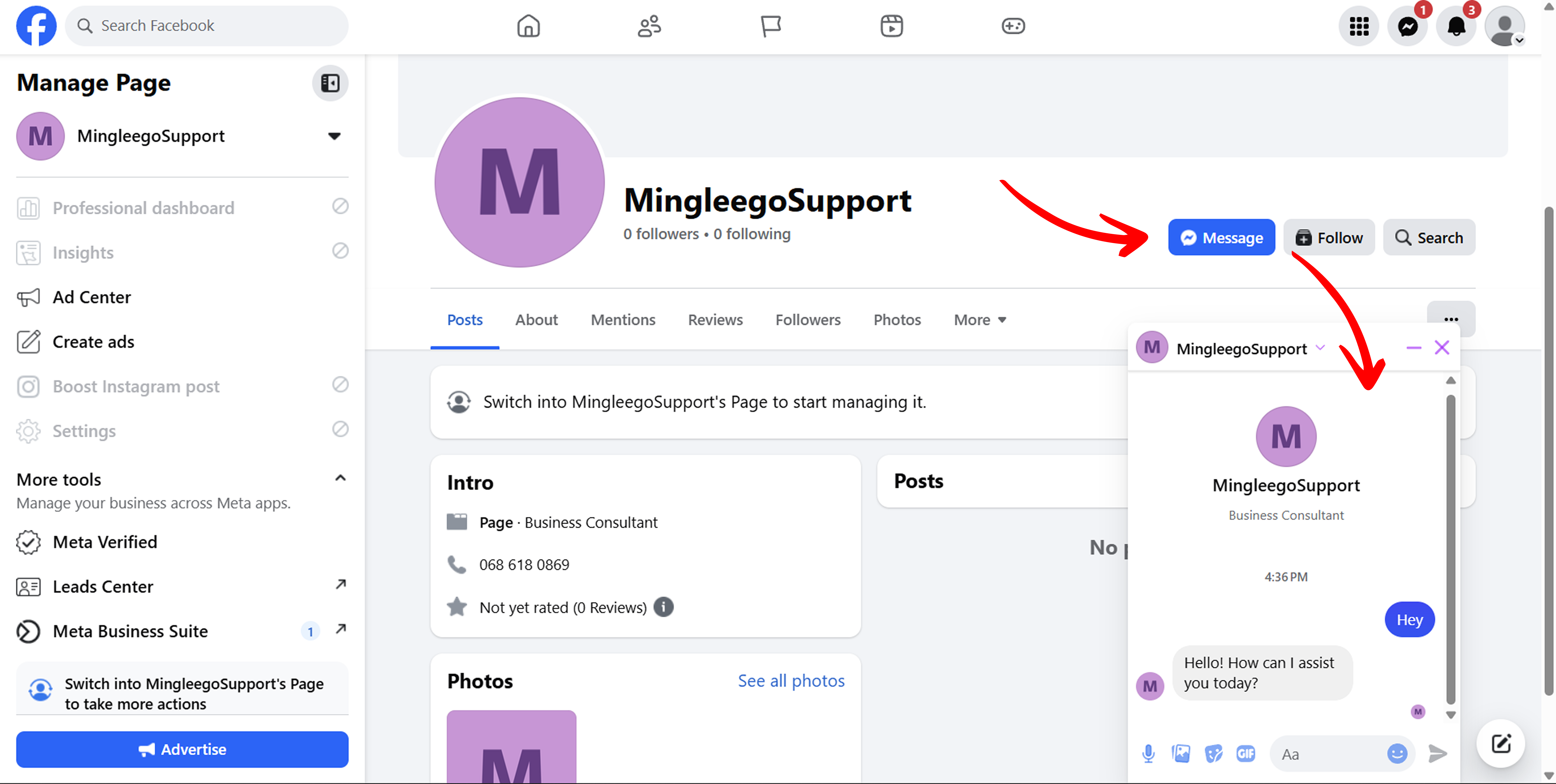
- On your Facebook Page, click the Message button to open a Messenger chat window.
- The chat window will appear, allowing you to interact with your bot.
-
Send Test Messages:
- Send a test message to your bot.
- Verify that the bot responds correctly based on the configured assistant behavior.
- Test various types of queries to ensure the bot handles different scenarios appropriately.
-
Share with Users:
- Once your bot is tested and working correctly, users can access it by:
- Visiting your Facebook Page and clicking the Message button
- Directly messaging your Page through Messenger
- Clicking on any Messenger links you share that point to your Page
- In Development Mode, only users added as Administrators, Developers, or Testers can interact with the bot. To make it available to all users, complete the Submitting for Meta Review process.
- Once your bot is tested and working correctly, users can access it by:
-
Monitor and Adjust:
- Use the Mingleego Playground to test bot responses with various user inputs before deploying.
- Monitor bot interactions through the Analytics section on Mingleego to track engagement and performance.
- If adjustments are needed, edit the bot settings via the Social Bots section on Mingleego.
Best Practices
To ensure optimal performance of your Facebook Messenger bot, follow these recommendations:
- Test Thoroughly: Use the Mingleego Playground to test bot responses with various user queries.
- Secure Tokens: Store Page ID and Access Token in a secure location to prevent unauthorized access.
- Monitor Webhook: Regularly verify that the webhook is receiving Facebook Messenger messages correctly.
- Comply with Meta Policies: Adhere to the Meta Platform Terms to ensure compliance and avoid app suspension. Review these terms to understand permissible bot activities, data handling requirements, and developer obligations.
- Update Tokens: If the Access Token expires, generate a new one in the Meta Developer App.
Conclusion
You have successfully configured and integrated a Facebook Messenger bot with the Mingleego platform using the Meta Graph API. By following this guide, your bot is now equipped to automate messaging, respond to customer inquiries, and enhance engagement on Facebook Messenger. To ensure long-term performance, regularly monitor your bot’s activity, update its settings as needed, and adhere to Meta’s policies. For further customization or troubleshooting, refer to the Mingleego Playground or explore additional resources in the Social Bots Guides.