How to Create a Discord Bot with AI
💡 Want the big picture first? See what an AI Discord bot can do for your community on the Discord Bot overview.
Overview
This guide provides comprehensive instructions for configuring Discord bots using the Discord Developer Portal and integrating them with the Mingleego platform. By following these steps, you will establish a bot capable of automating interactions, responding to user commands, and enhancing engagement on your Discord server. The process involves creating a Discord server, setting up a Discord application, configuring bot permissions, and integrating the bot with Mingleego.
Prerequisites
Before configuring a Discord bot, ensure the following requirements are met:
- Discord Account: A registered Discord account is required to create and manage servers and applications.
- Discord Server: You must have a Discord server where you have administrative privileges to add and manage bots.
- Discord Developer Portal Access: Access the Discord Developer Portal to create and configure your bot application.
Setting Up a Discord Server
Establishing a Discord server is the foundational step for enabling bot functionality. This section guides you through creating a server and selecting an appropriate template.
- Create a Discord Server:
- Open the Discord app or log in via the browser at Discord.
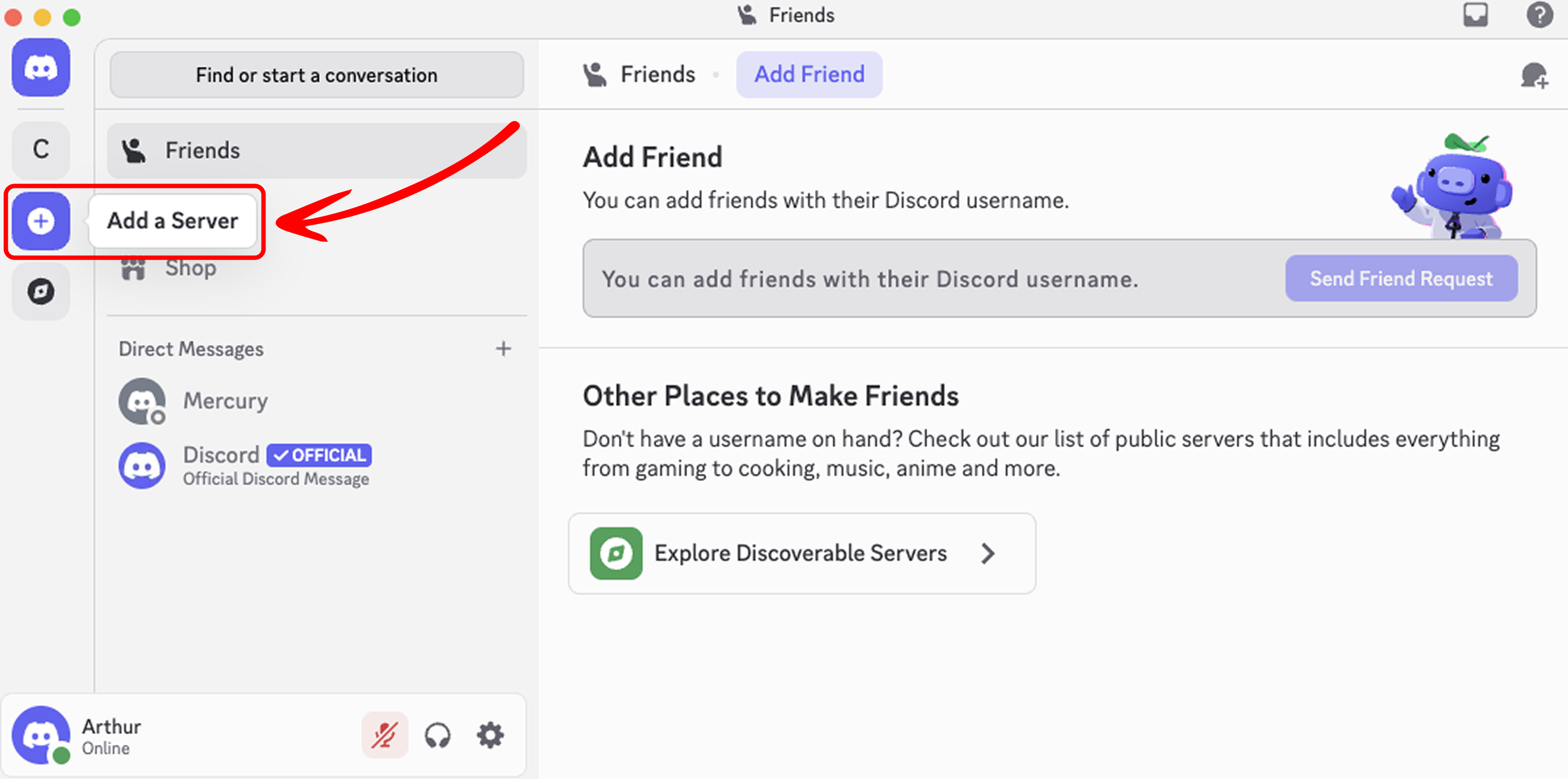
- In the left sidebar, click the + (plus) icon to start creating a new server.
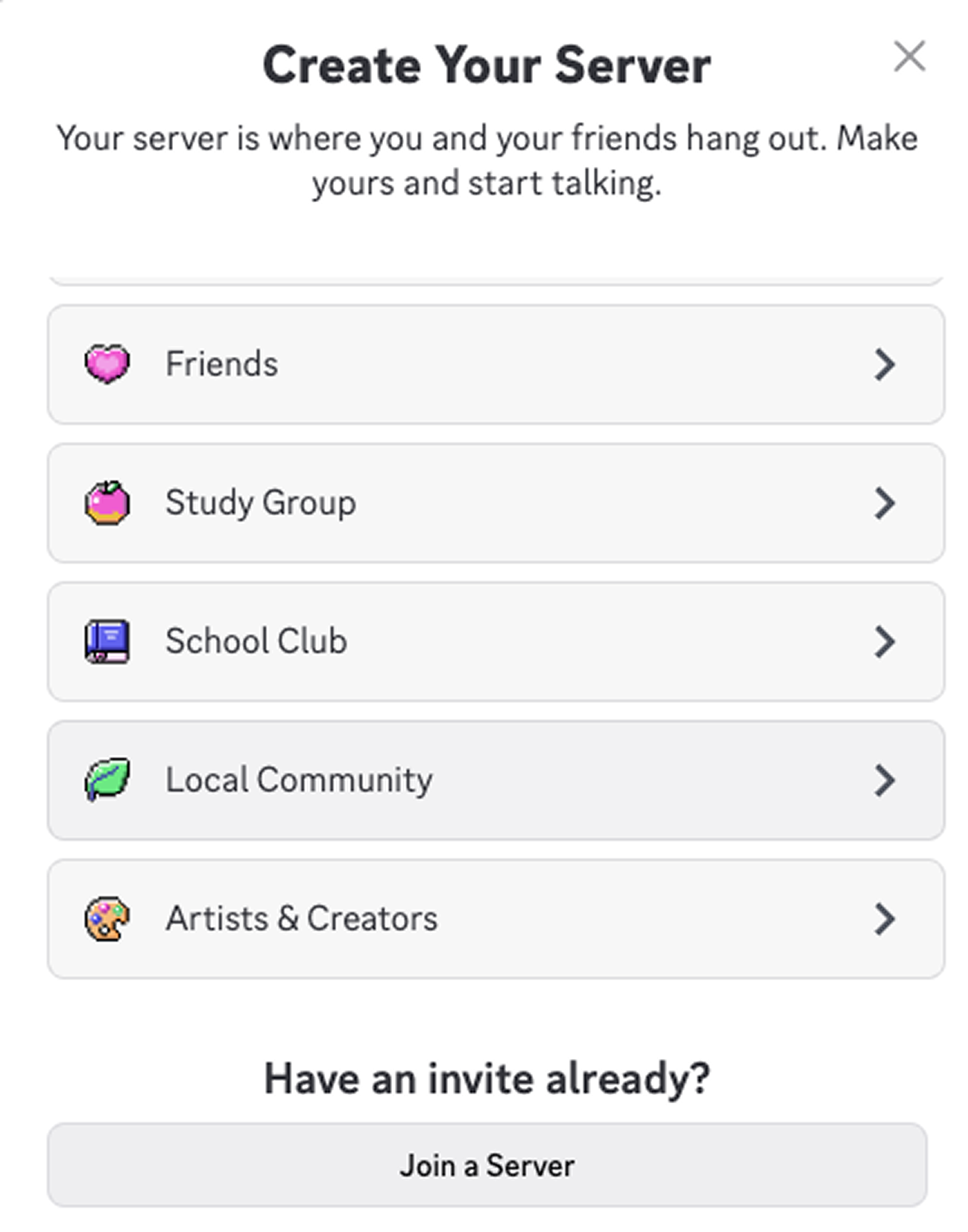
- Select Create My Own or choose a template that best suits your needs (e.g., "Gaming", "Friends", "Study Group").
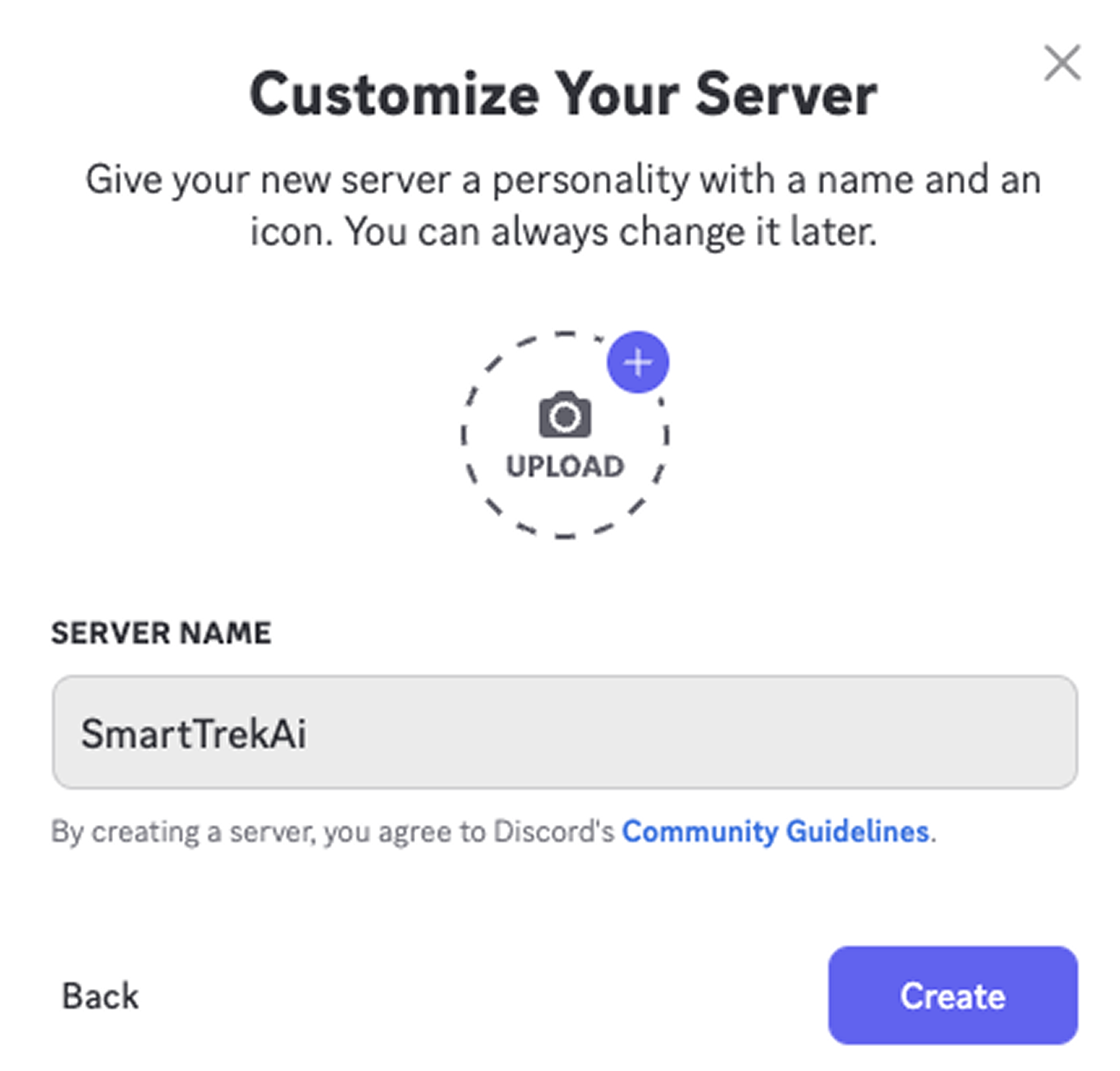
- Enter a server name, choose a region if prompted, and click Create to finalize the setup.
- Ensure you have administrative privileges on this server to add and manage bots.
Creating a Discord Application and Bot
A Discord application and bot are required to enable bot functionality via the Discord API. This section outlines the steps to create and configure them.
-
Access the Discord Developer Portal:
- Navigate to the Discord Developer Portal.
- Log in with your Discord account if prompted.
-
Create a New Application:
- Click New Application in the top-right corner of the Discord Developer Portal.
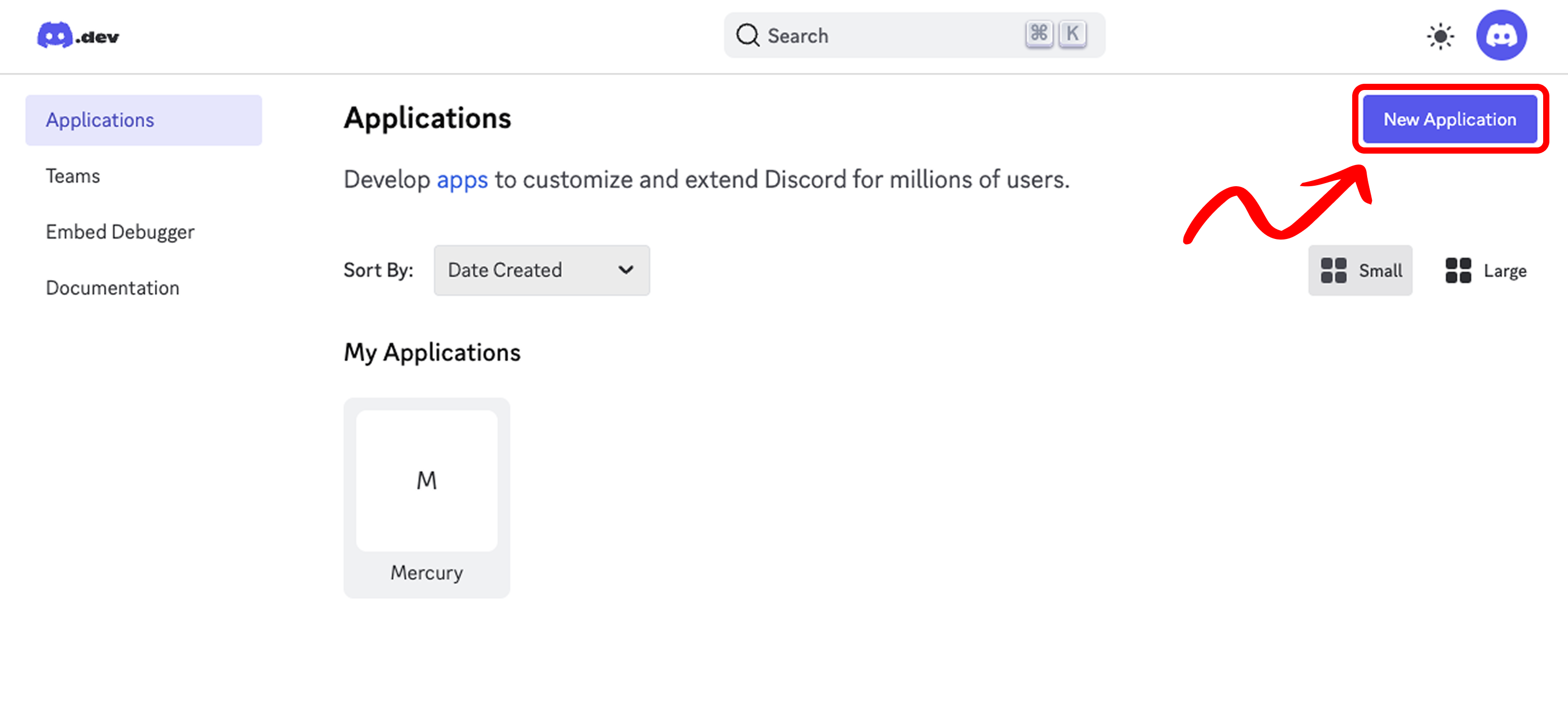
- Enter a unique name for your application (e.g., "MyDiscordBot") and click Create.
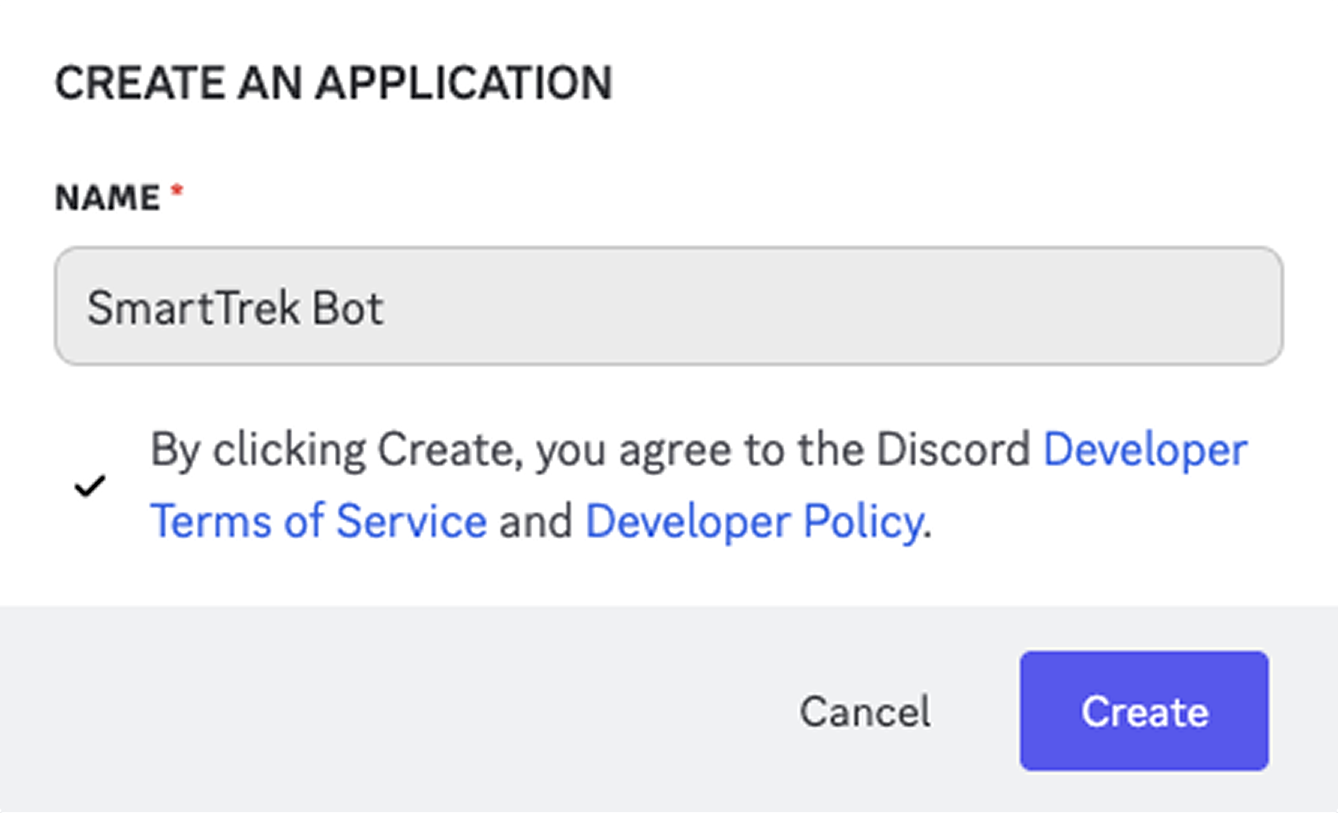
- Click New Application in the top-right corner of the Discord Developer Portal.
-
Configure the Bot:
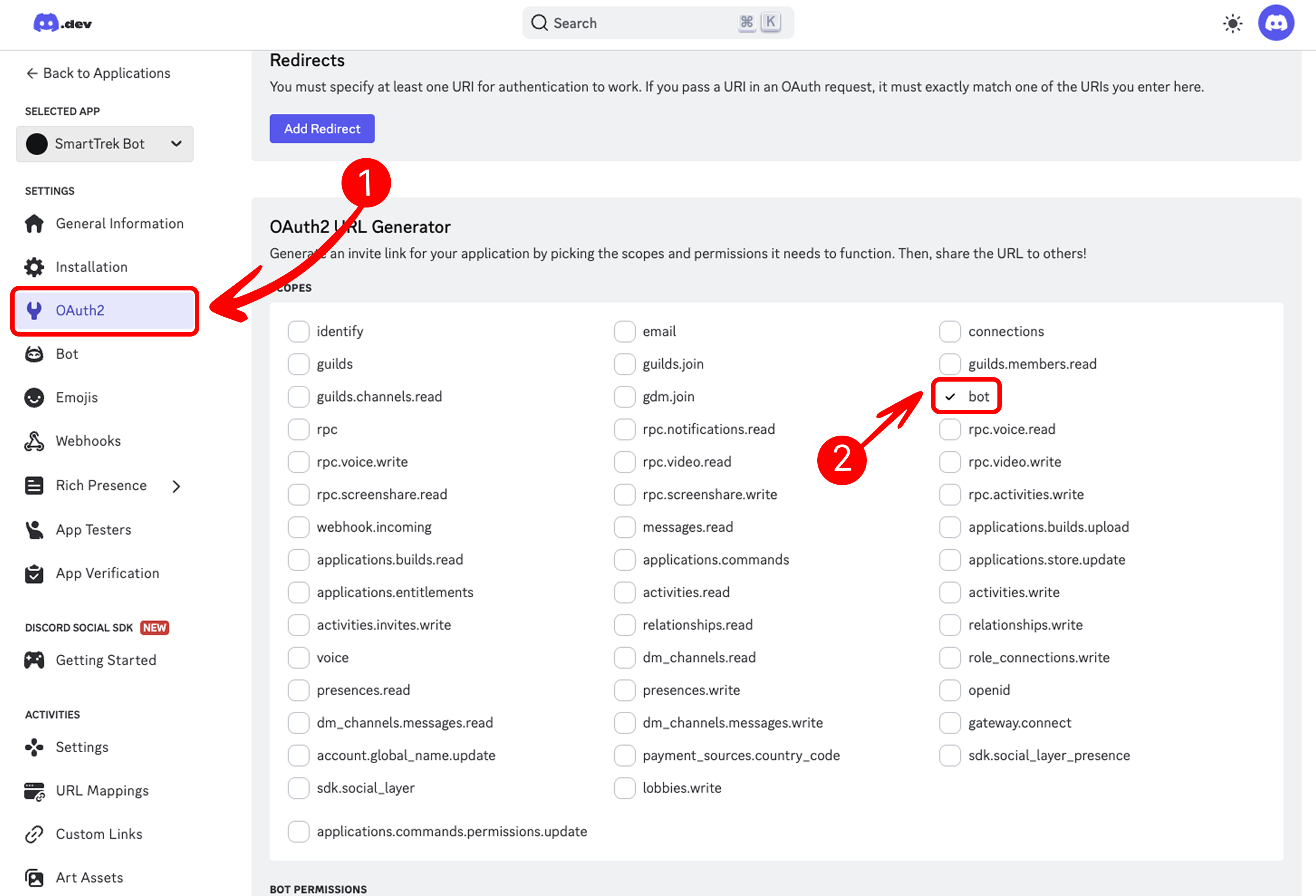
- In your application dashboard, navigate to the OAuth2 tab, then select URL Generator from the sub-menu.
- Under Scopes, check the bot option to enable bot functionality.
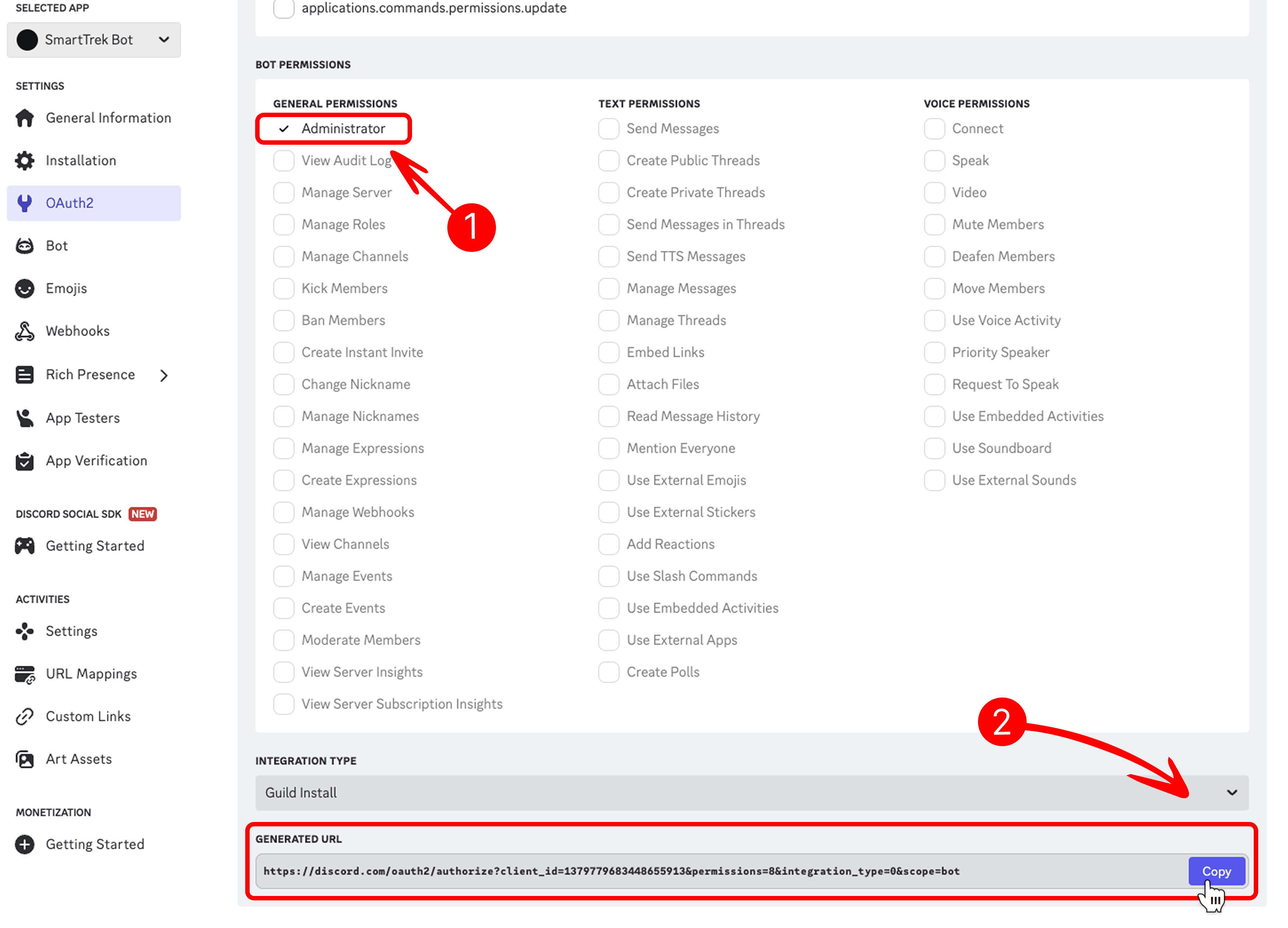
- Scroll down to Bot Permissions and check Administrator to grant your bot full control for testing purposes. Adjust permissions based on your needs (e.g., "Send Messages", "Manage Channels") for production.
- Copy the generated URL at the bottom of the page.
-
Add the Bot to Your Server:
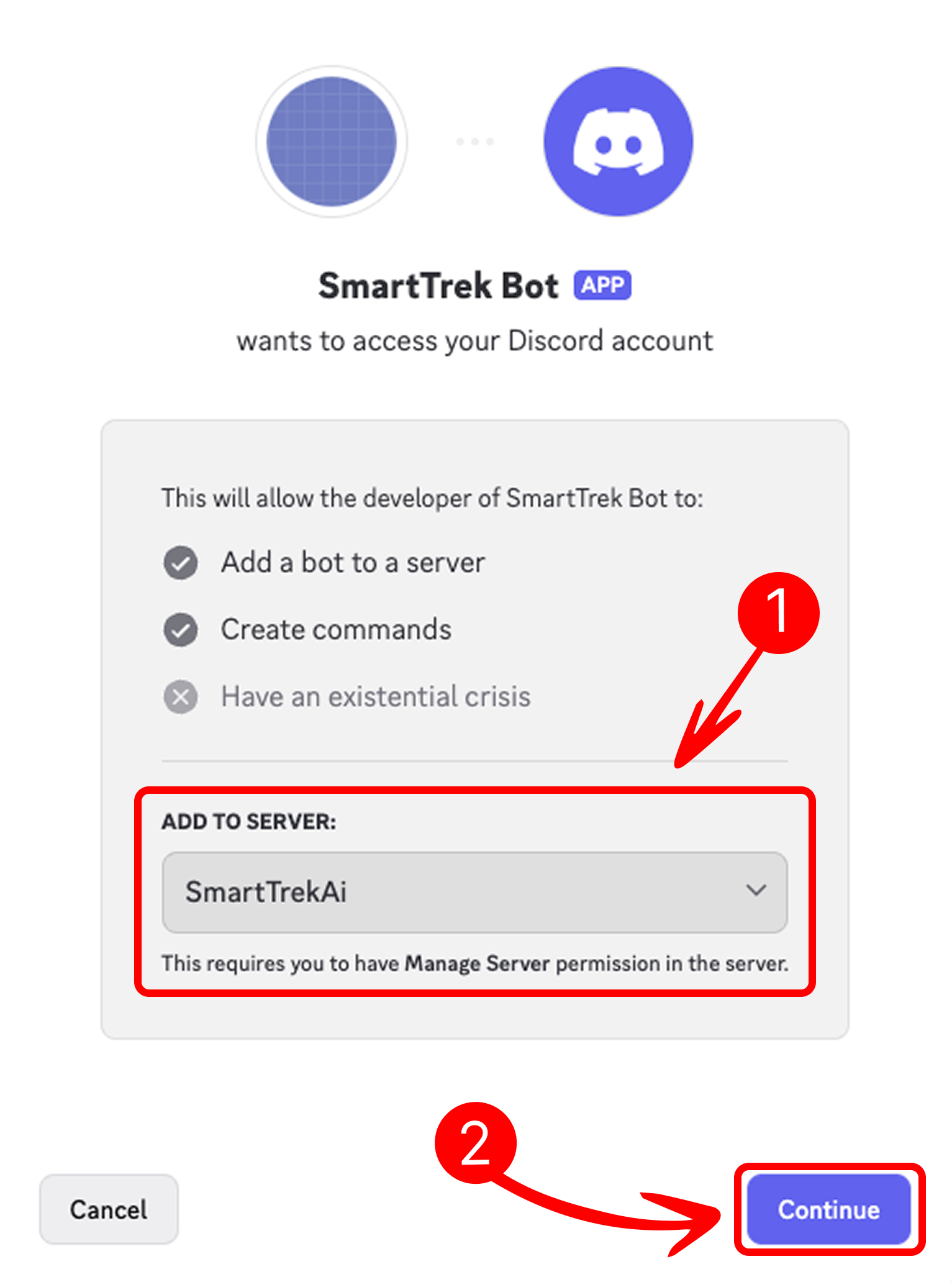
- Open a new browser tab and paste the copied URL.
- You will be prompted to select a server. Choose the server you created earlier from the dropdown menu and click Continue.
-
Obtain Application ID and Token:
- Return to the Discord Developer Portal and select your application.
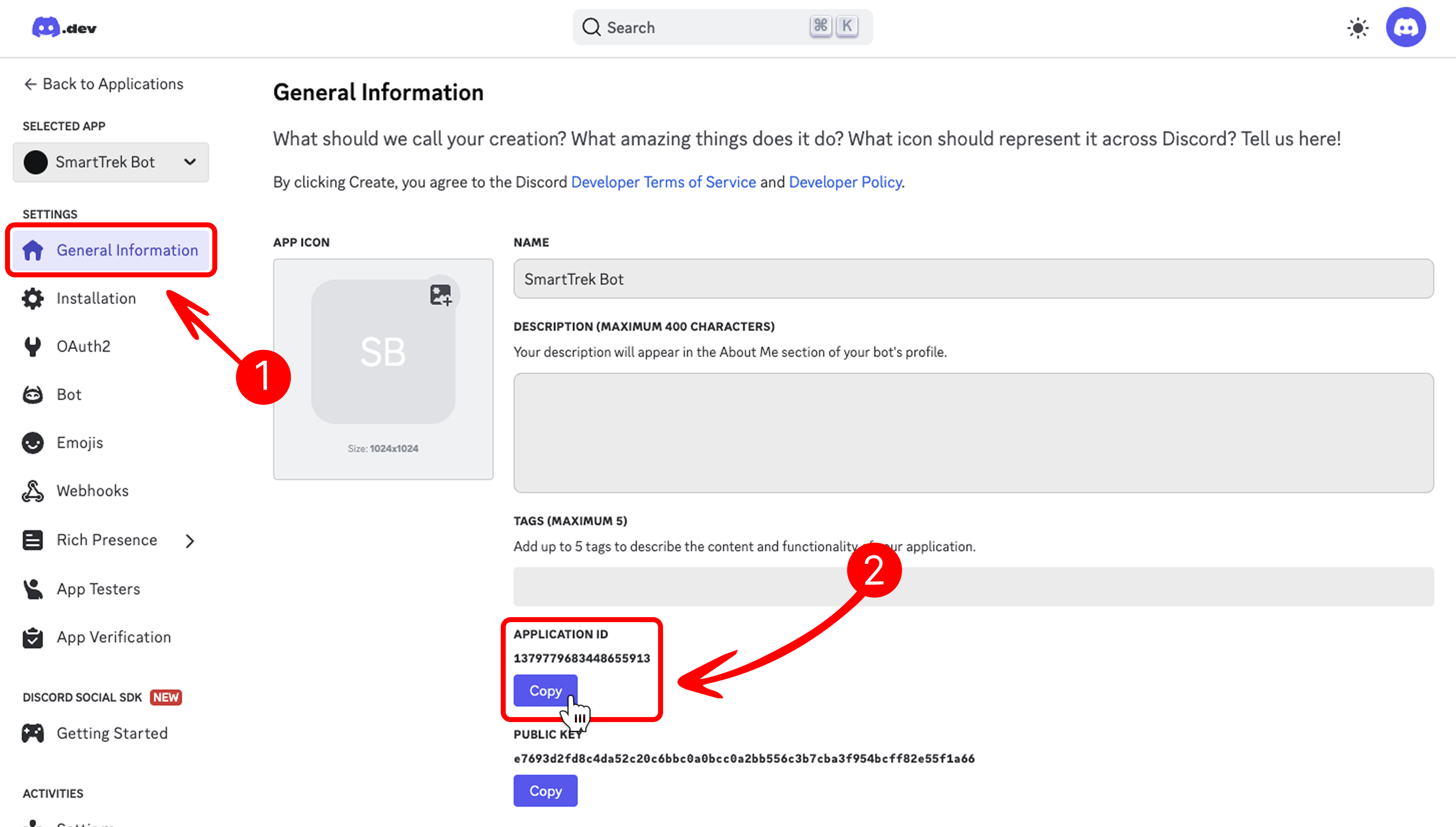
- In the General Information tab, locate the APPLICATION ID, copy it, and save it securely.
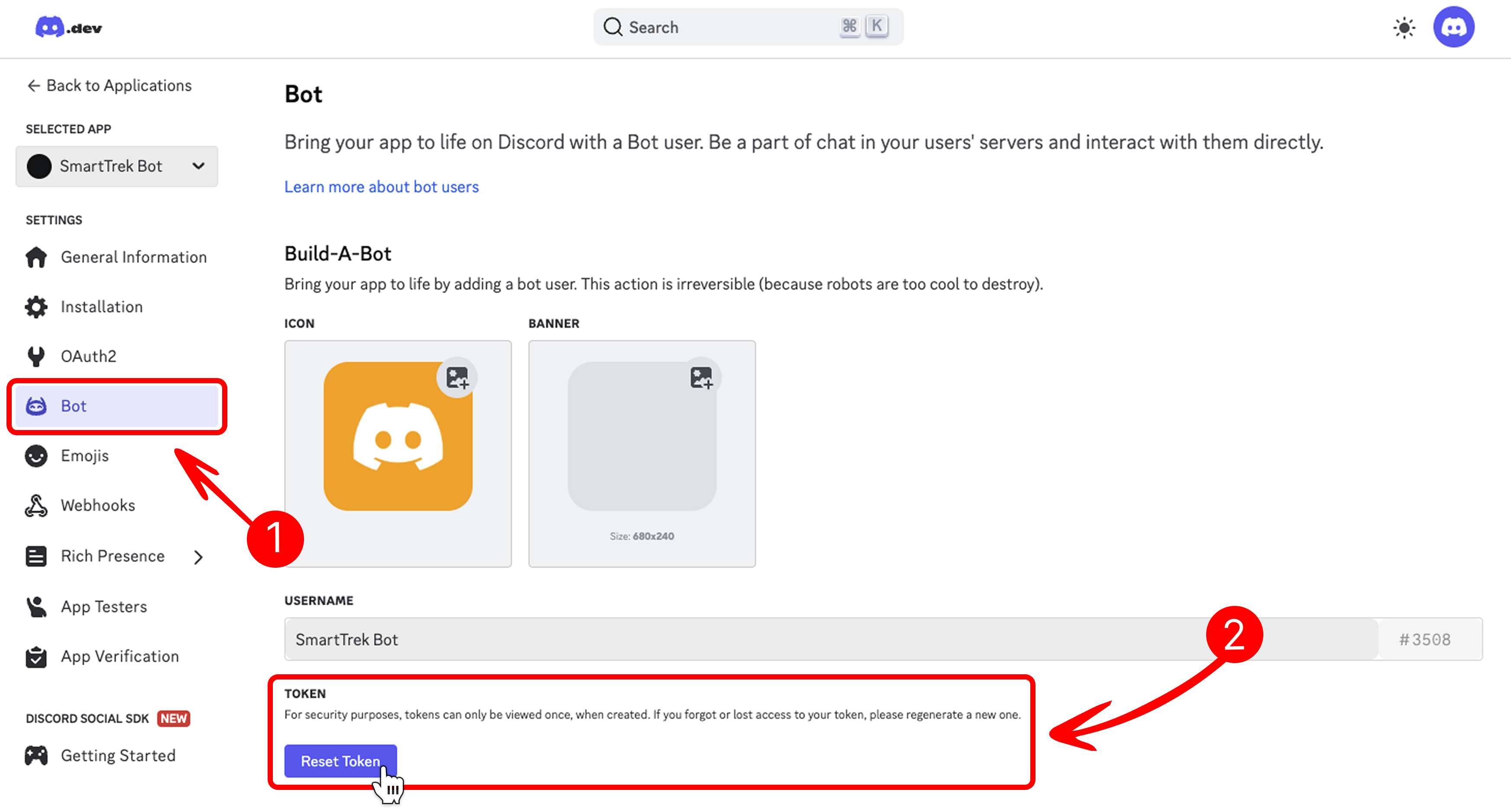
- Navigate to the Bot tab, click Reset Token to generate a new bot token, then copy it and save it securely. This token is sensitive and should not be shared publicly.
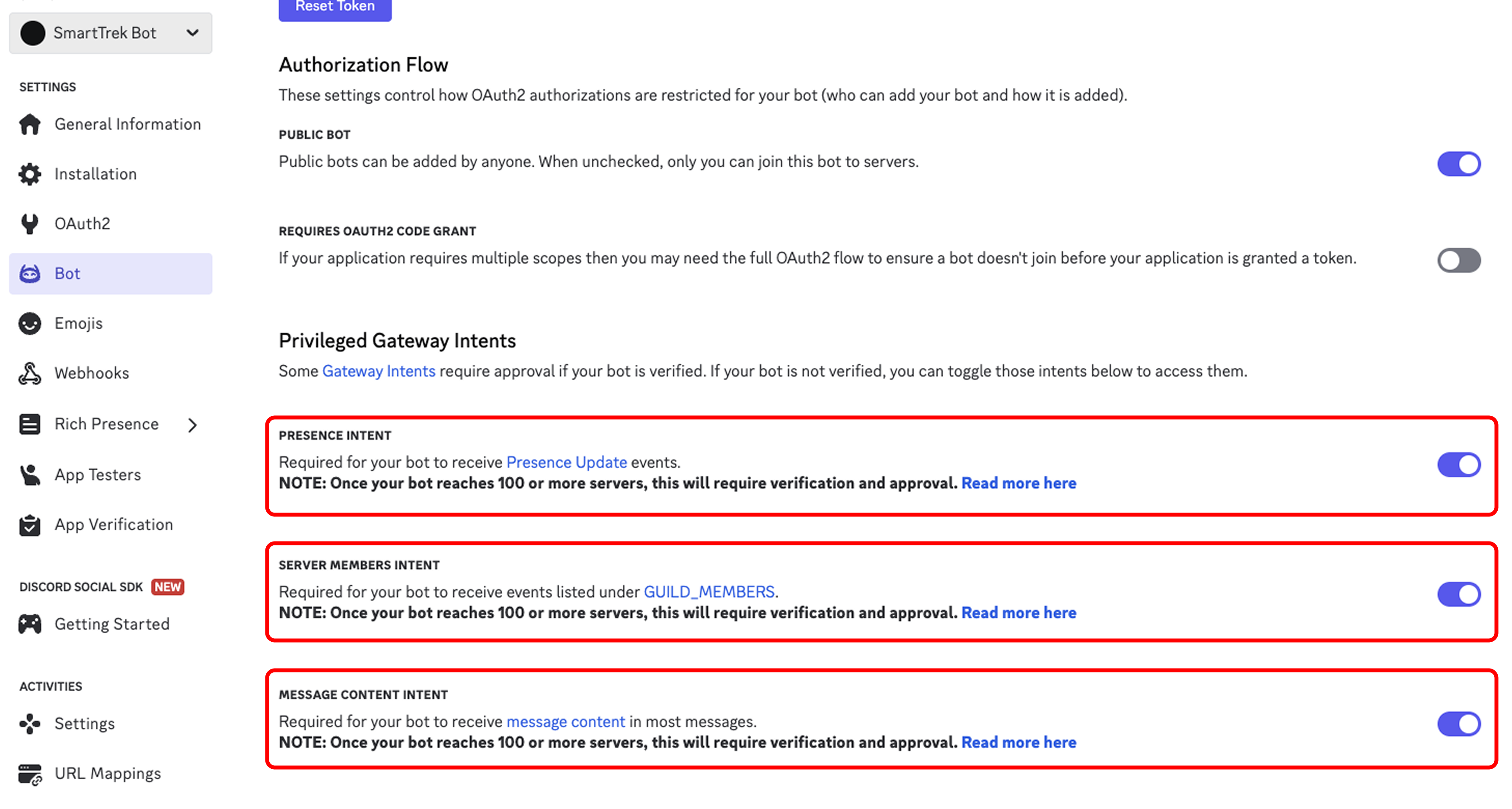
- In the Bot tab, ensure the following options are enabled under Privileged Gateway Intents:
- Presence Intent
- Server Members Intent
- Message Content Intent
Note: The bot token is sensitive and grants full access to your bot. Store it in a secure location and never share it publicly.
Integrating with Mingleego
With the Discord application and bot configured, integrate the bot with the Mingleego platform to enable advanced functionality and automation.
-
Create a Social Bot:
- Navigate to the Mingleego platform at Social Bots.
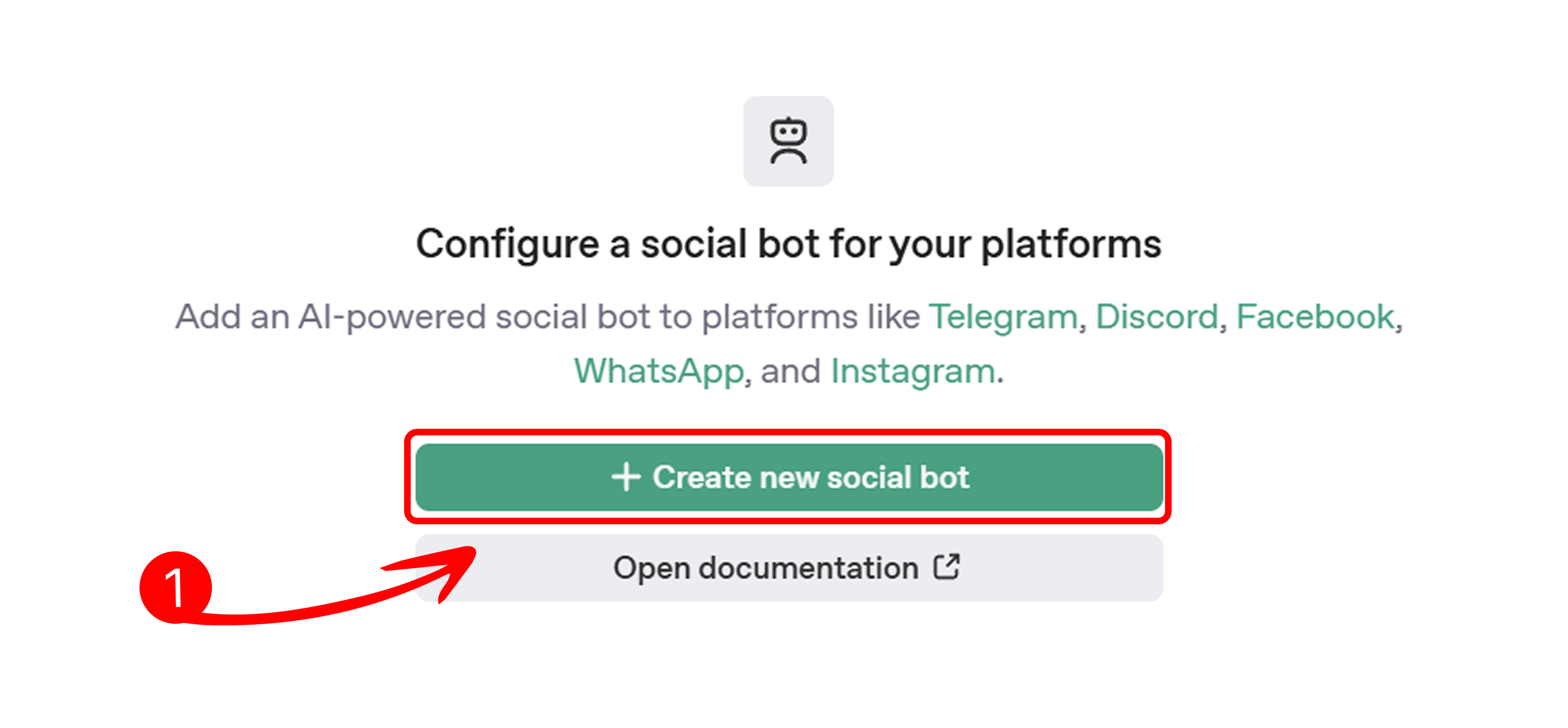
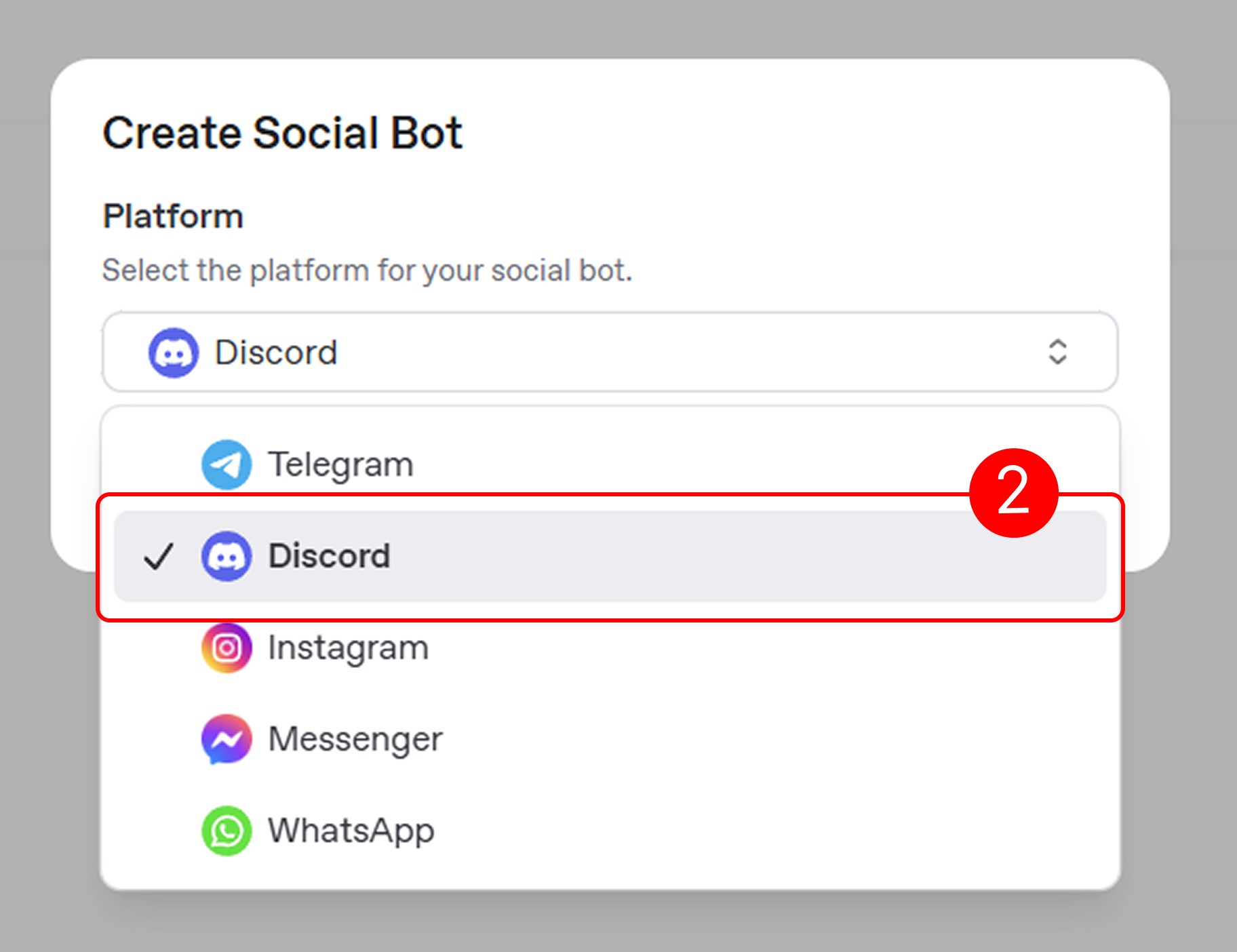
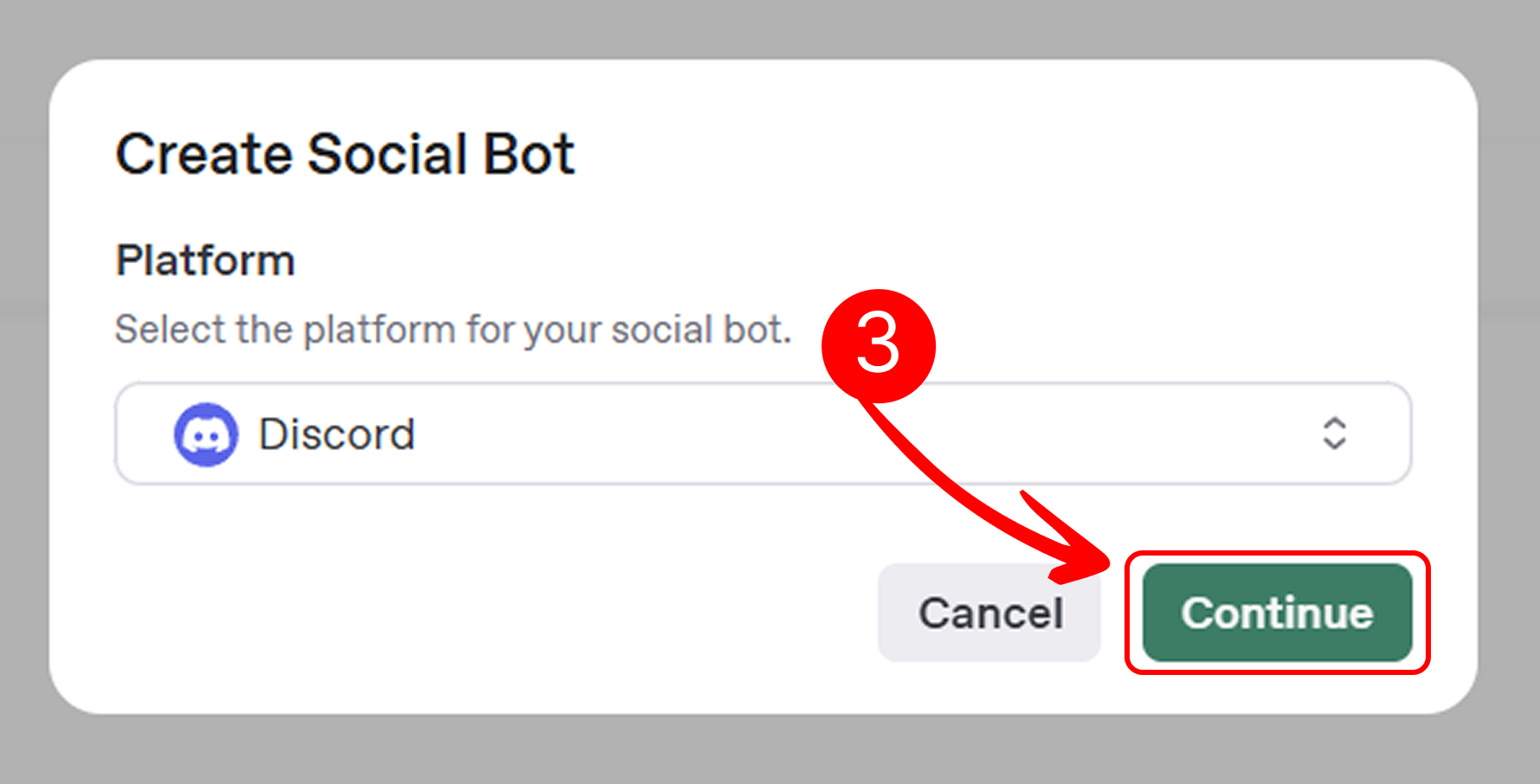
- Click Create New Social Bot, select Discord, and click Continue.
-
Enter Bot Details:
- Fill in the required fields to configure your Discord bot on the Mingleego platform:
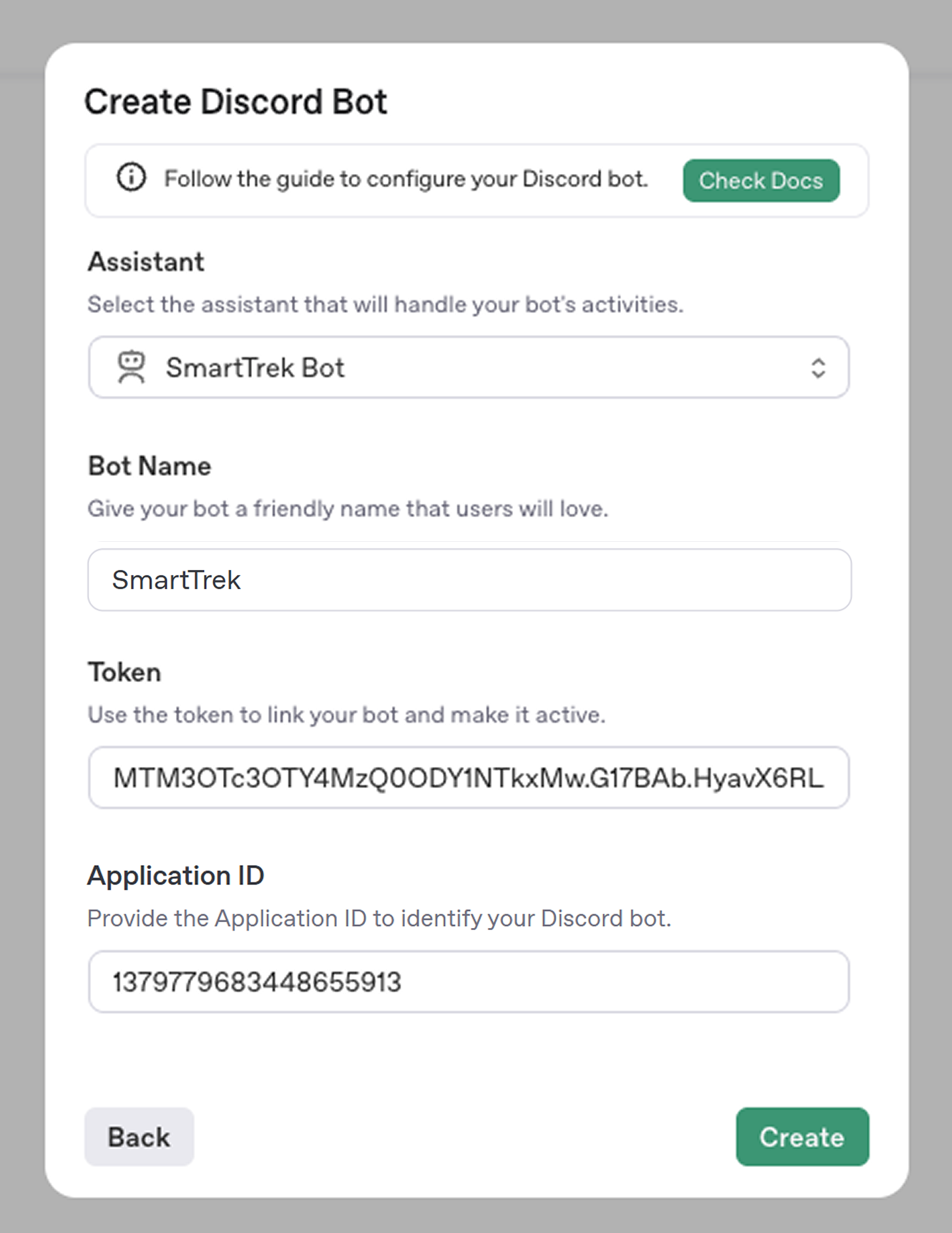
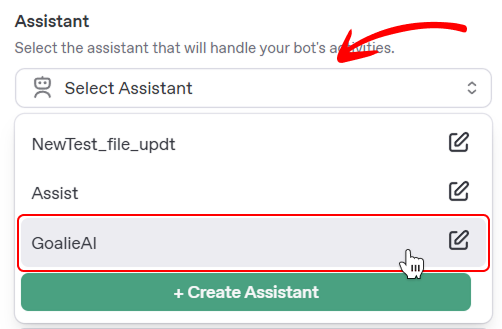
- Assistant: Select an AI assistant from the Select Assistant dropdown to power your bot’s responses, aligning with its purpose. If none are listed, click Create Assistant. See the Creating an Assistant Guide for details.
- Bot Name: Enter a unique name (e.g., "DiscordSupportBot") to identify your bot on the Mingleego platform.
- Token: Paste the bot token you copied from the Discord Developer Portal’s Bot tab.
- Application ID: Paste the Application ID you copied from the Discord Developer Portal’s General Information tab.
- Fill in the required fields to configure your Discord bot on the Mingleego platform:
-
Finalize Creation:
- Review all entered details in the form to ensure accuracy, then click Create to activate your Discord bot on the Mingleego platform.
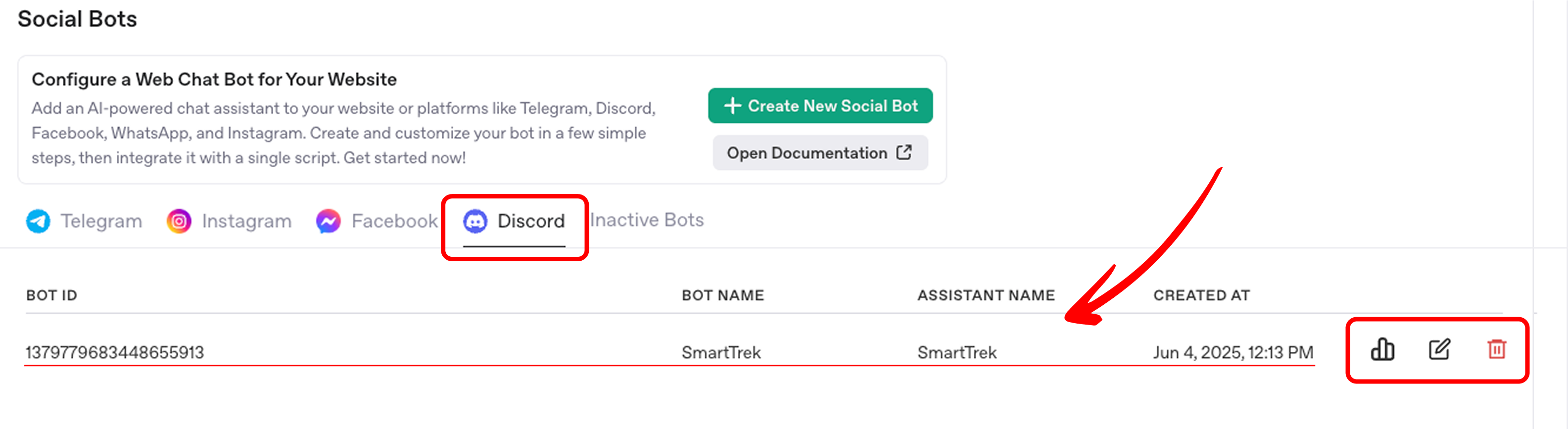
- After creation, your bot will appear in the Discord tab under the Social Bots section, displayed in a table. From there, you can:
- View Statistics by bot users to monitor engagement and performance.
- Edit the bot by updating the same form fields to adjust its functionality.
- Delete the bot if it is no longer needed, removing it from the platform.
Testing Your Discord Bot
Once the bot is activated, test its functionality to ensure it works as expected.
-
Send Test Commands:
- Go to your Discord server where the bot was added.
- Send a test message or command.
- Verify that the bot responds correctly based on the configured assistant behavior.
-
Monitor and Adjust:
- Use the Mingleego Playground to test bot responses with various user inputs.
- If adjustments are needed, edit the bot settings via the Social Bots section on Mingleego.
Best Practices
To ensure optimal performance of your Discord bot, follow these recommendations:
- Test Thoroughly: Use the Mingleego Playground to test bot responses with various user commands and queries.
- Secure Tokens: Store the bot token and Application ID in a secure location to prevent unauthorized access.
- Adjust Permissions: Grant only the necessary permissions in the Discord Developer Portal to minimize security risks (e.g., avoid Administrator unless required).
- Comply with Discord Policies: Adhere to the Community Guidelines to ensure compliance and avoid bot suspension.
- Monitor Activity: Regularly check your bot’s performance and logs on the Mingleego platform to address any issues promptly.
Conclusion
You have successfully configured and integrated a Discord bot with the Mingleego platform using the Discord API. By following this guide, your bot is now equipped to automate interactions, respond to user commands, and enhance engagement on your Discord server. To ensure long-term performance, regularly monitor your bot’s activity, update its settings as needed, and adhere to Discord’s policies. For further customization or troubleshooting, refer to the Mingleego Playground or explore additional resources in the Social Bots Guides.