Creating a Meta Developer App
Overview
This guide provides detailed instructions for creating a Meta Developer App, a critical component for integrating bots with Meta platforms such as Instagram, Facebook Messenger, and WhatsApp. A Meta Developer App is required to manage API connections, including webhooks and access tokens, enabling your bot to interact with Meta services. The process involves registering as a Meta developer and setting up an app on Meta for Developers with the appropriate business configuration.
Prerequisites
Before creating a Meta Developer App, ensure the following requirements are met:
- Meta Account: You need a Meta account to register as a developer and access the Meta for Developers platform.
- Business Portfolio: A Meta Business Portfolio is recommended for managing your app and associated Pages or accounts. You can create one by following the steps described in our documentation: Creating a Business Account.
Register as a Meta Developer
If you have already registered as a Meta developer, you can skip this step and proceed to the Create an App in Facebook section.
-
Go to Meta for Developers.
-
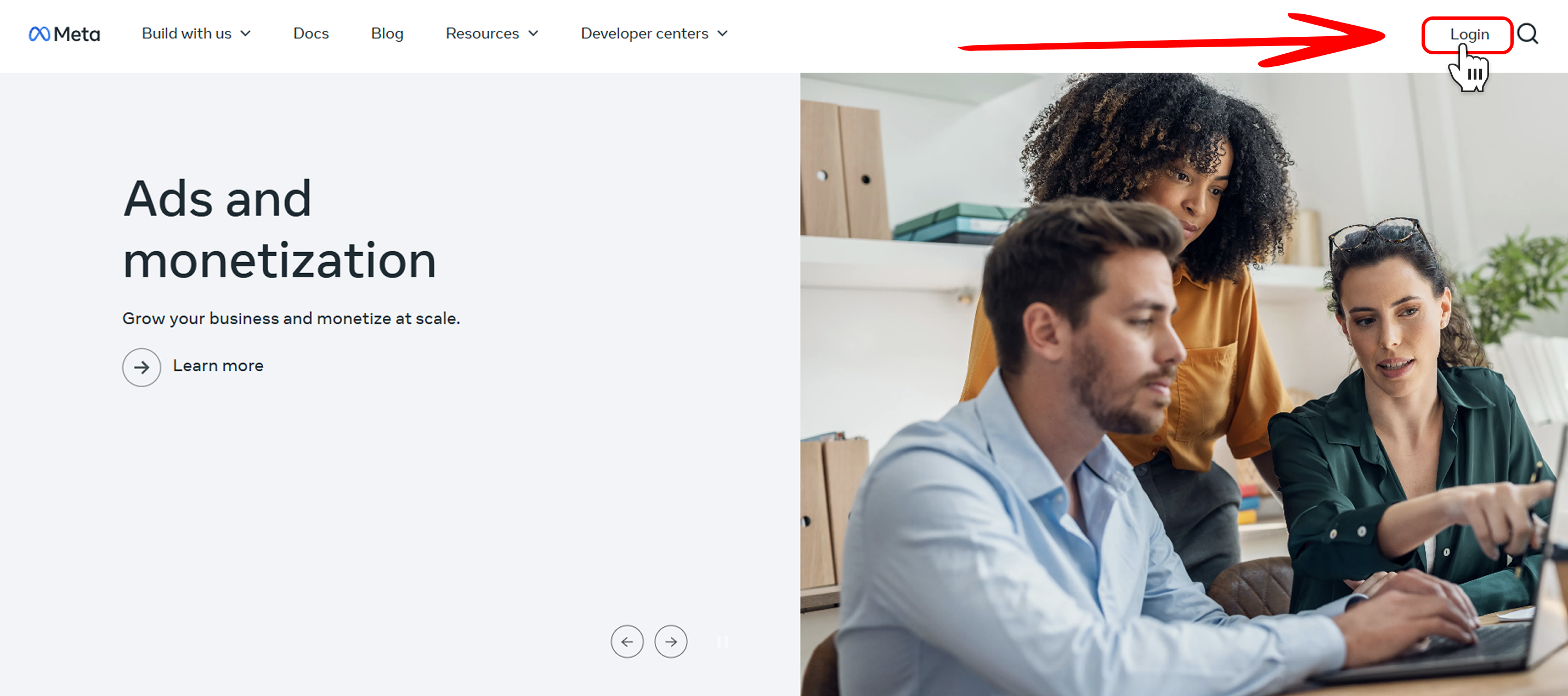
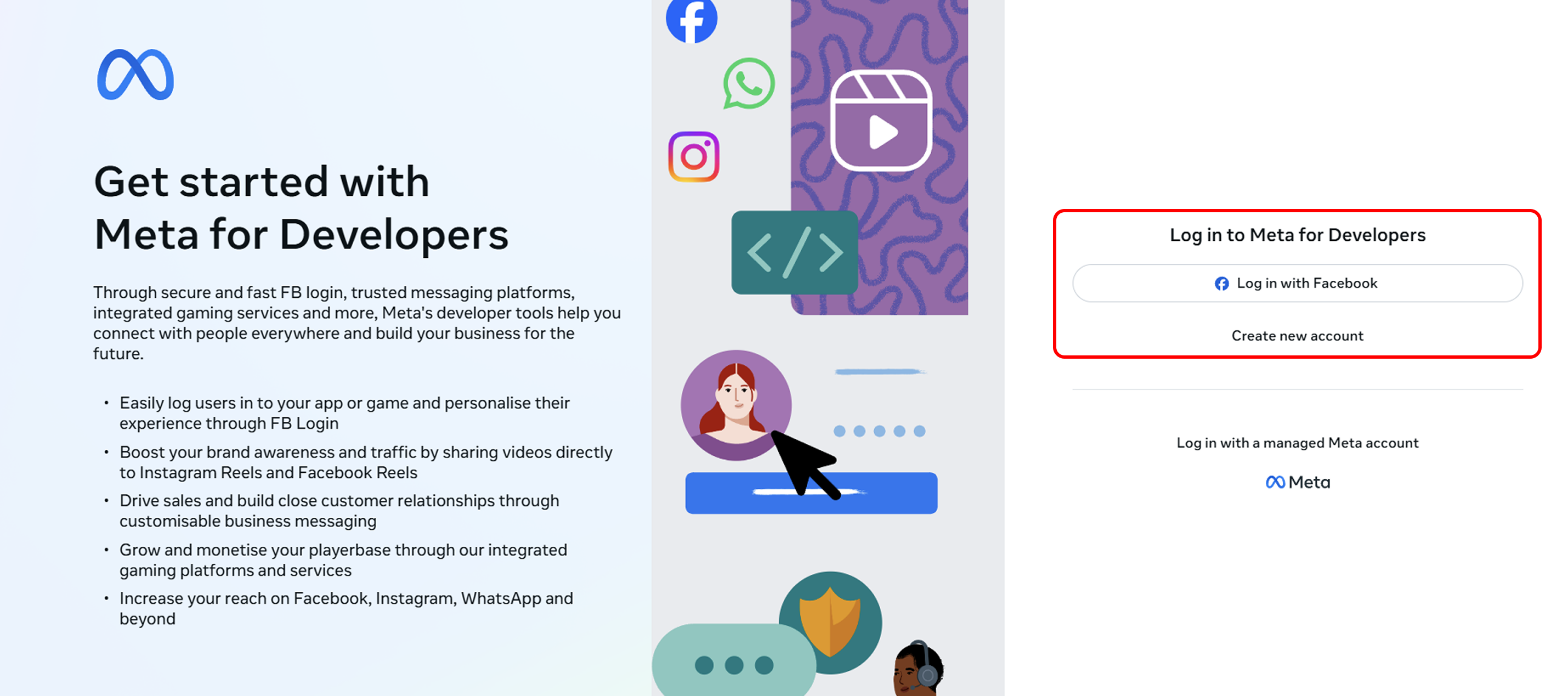
Log In to Your Account:
-
Log in using your Meta account credentials.
-
-
Register as a Meta Developer:
-
Click Get Started to begin the registration process as a Meta developer.
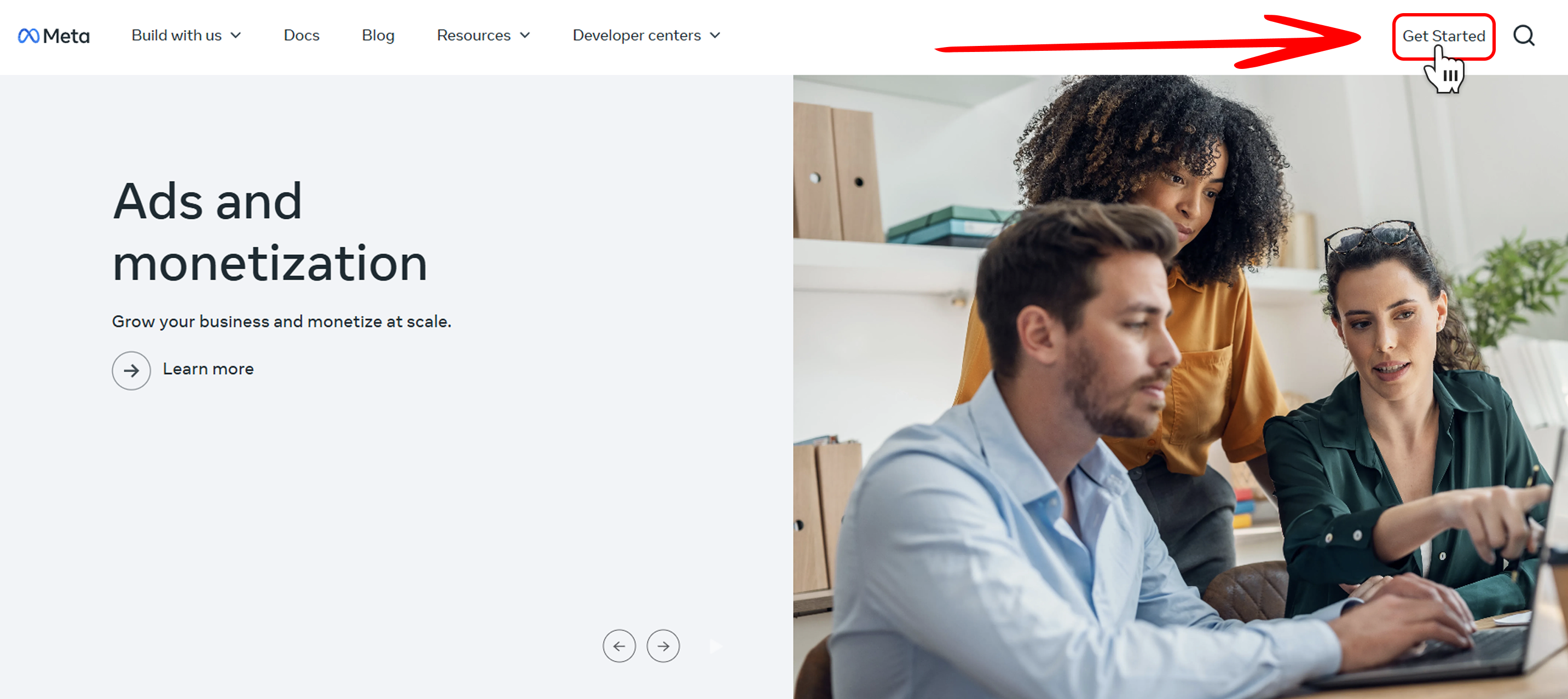
For more detailed instructions on the registration process, refer to Meta’s official guide on registering as a developer.
-
After registering, you will have access to the Meta for Developers dashboard, where you can create and manage your apps.
Create an App in Facebook
This section provides instructions on setting up an app in Meta for Developers. If you have already created a Meta Developer App, you can skip this section and proceed to the Platform-Specific Guides section.
Before Creating an App
-
Log In to Your Meta Developer Account:
- Ensure you are logged in to your Meta Developer account at Meta for Developers.
-
Go to the My Apps Section:
- Navigate to My Apps in the top menu to access your existing apps or create a new one.
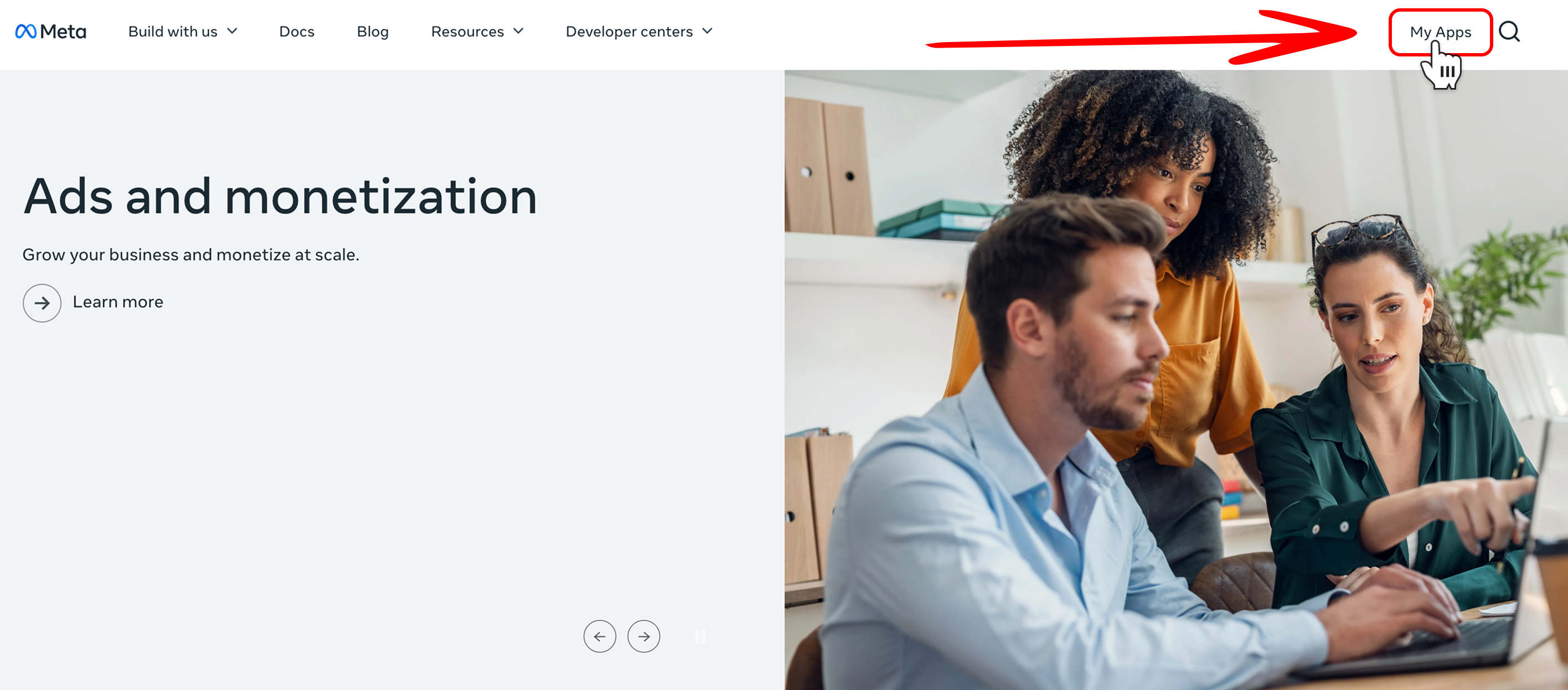
- Navigate to My Apps in the top menu to access your existing apps or create a new one.
-
Check App Limits:
- As a developer, you can have a maximum of 15 apps where you hold a developer or administrator role. Before creating a new app, ensure you have not reached this limit.
- If you have reached the limit and cannot create a new app or accept a new role:
- Visit your My Apps page.
- Remove any apps you no longer use or resign from roles as an administrator or developer to free up space for a new app.
Create a New App
-
Initiate App Creation:
- Click Create App to start the process.
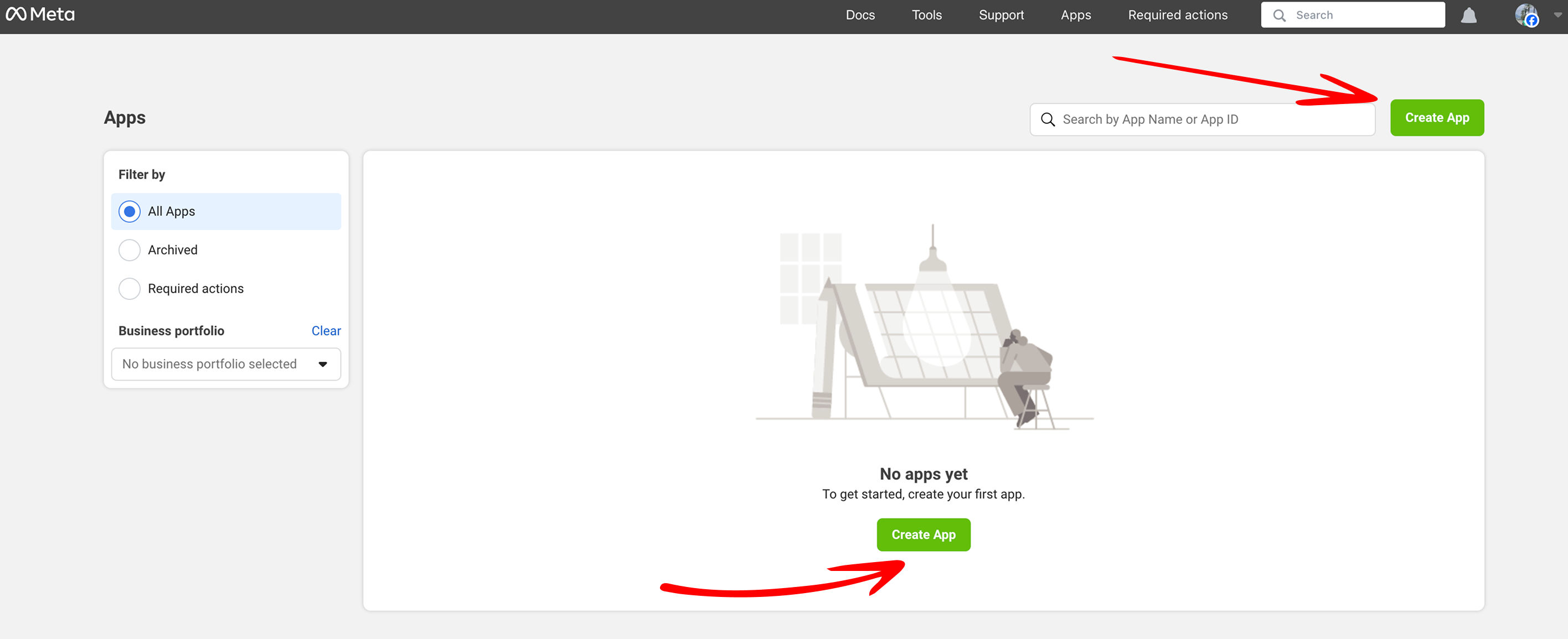
- Click Create App to start the process.
-
Enter App Details:
- Enter your desired app name (e.g., "SmartTrekBotApp") and provide a contact email.
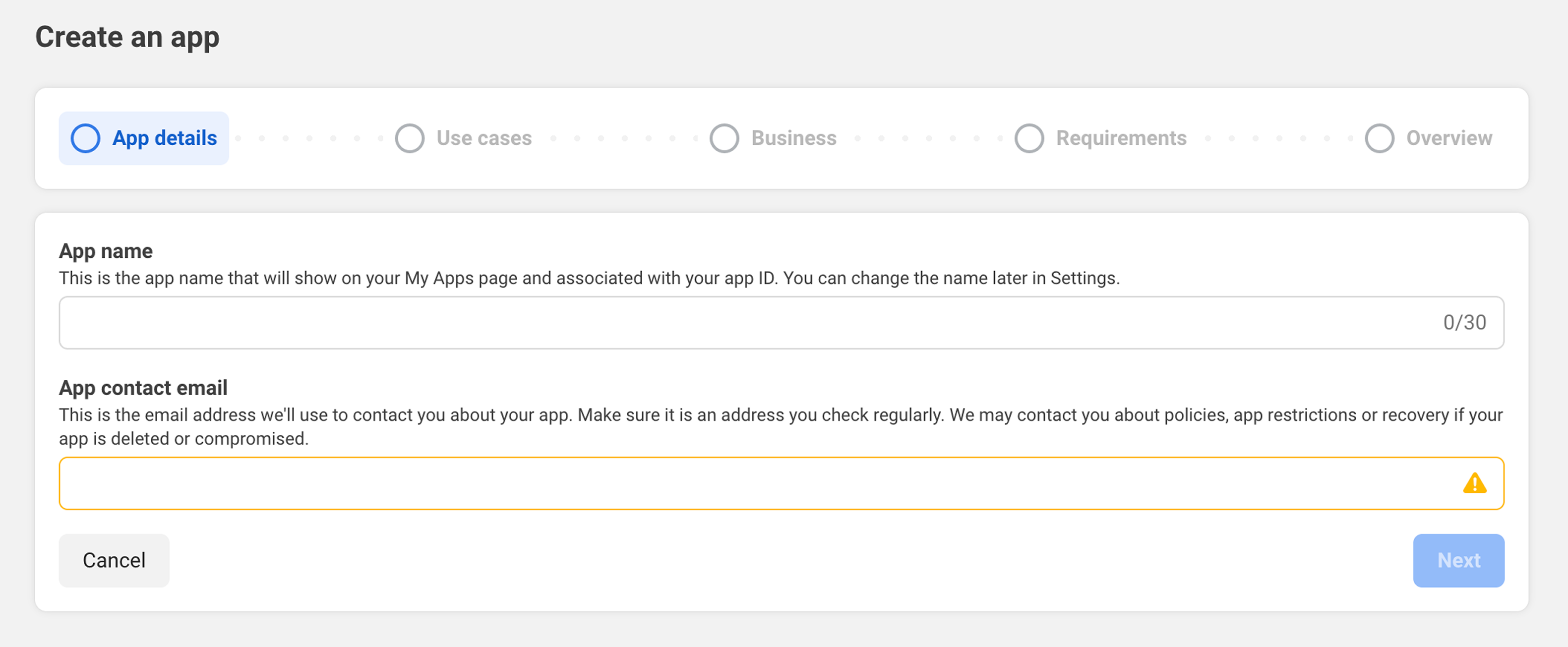
- Enter your desired app name (e.g., "SmartTrekBotApp") and provide a contact email.
-
Choose Business Use Case:
- After providing the app name and email, you will be prompted to choose your business use case. We recommend selecting Other for most bot integrations.
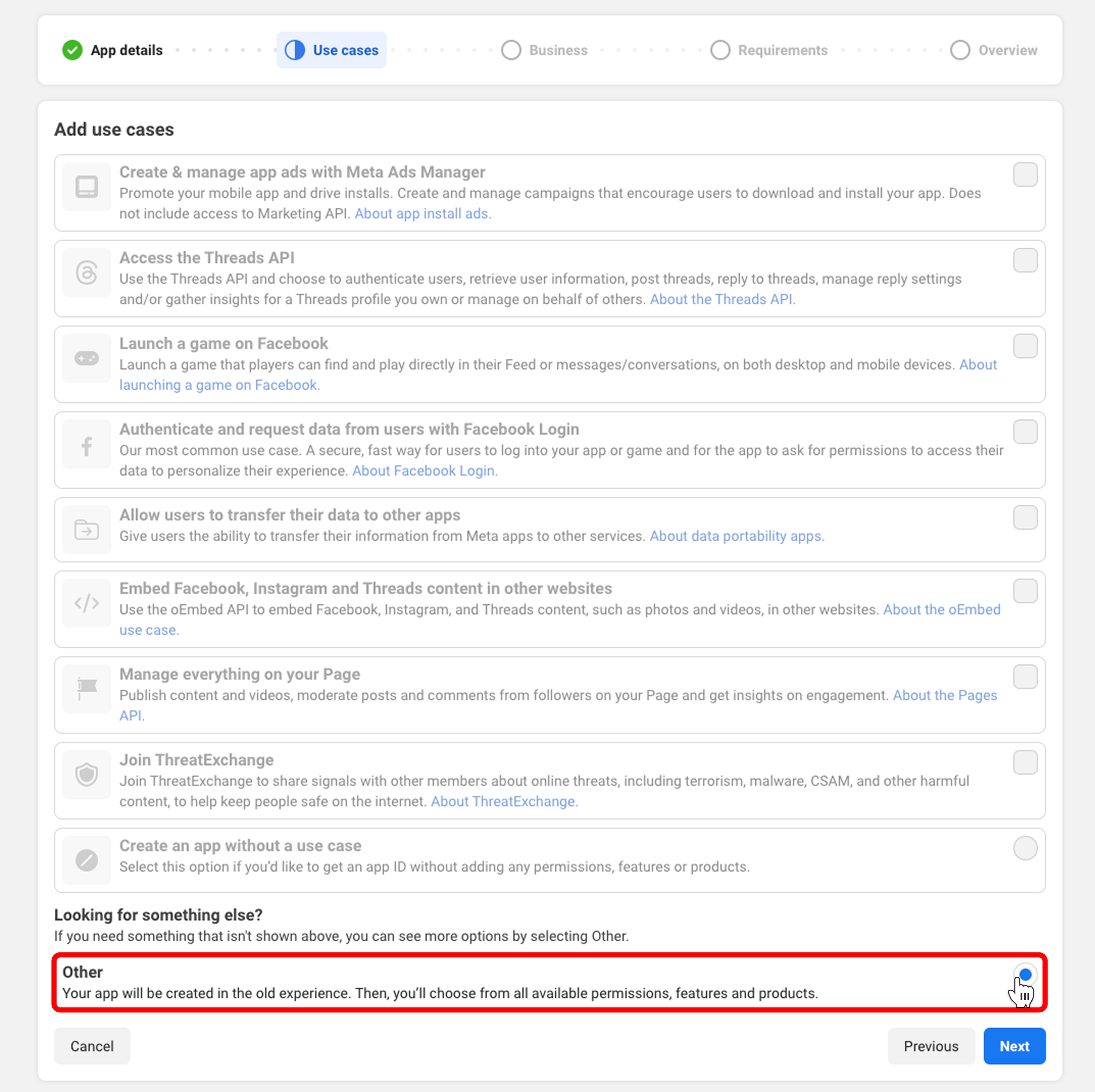
- After providing the app name and email, you will be prompted to choose your business use case. We recommend selecting Other for most bot integrations.
-
Select App Type:
- Click Business to choose the app type. In most cases, this will be Business for bot functionality.
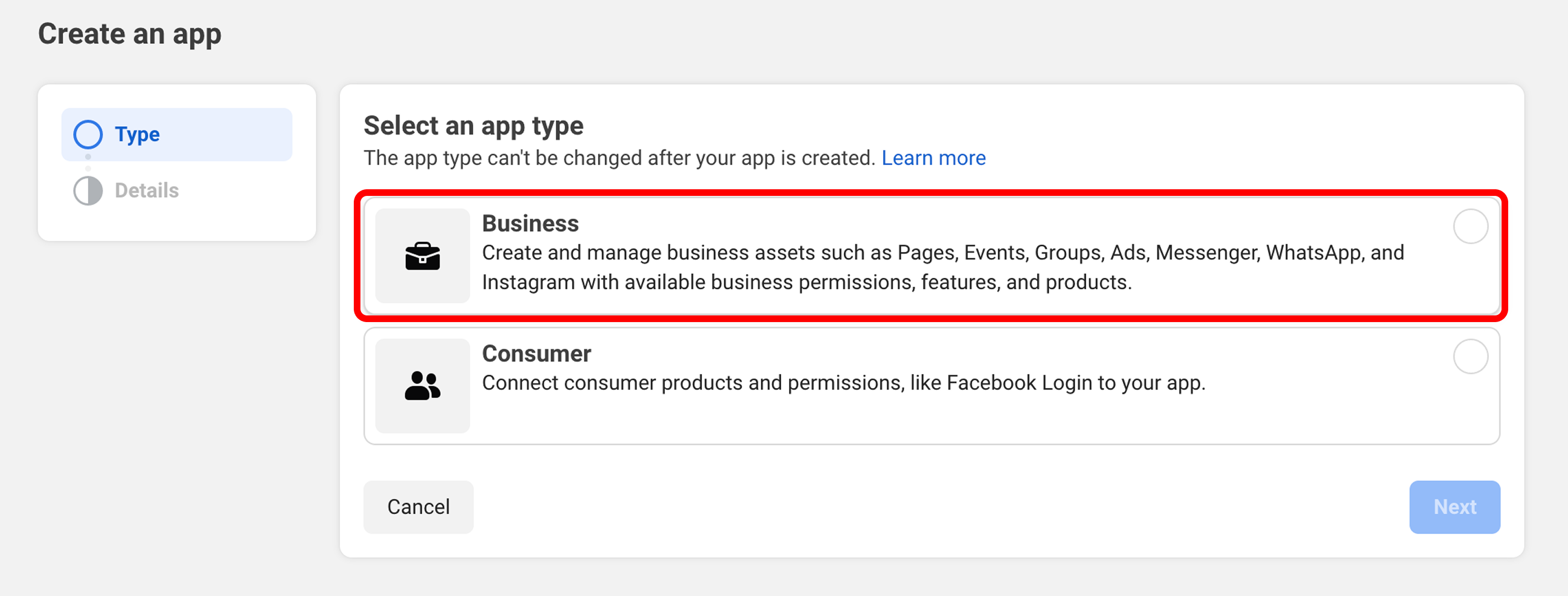
- Click Business to choose the app type. In most cases, this will be Business for bot functionality.
-
Choose Business Portfolio:
- You will be prompted to choose an existing business portfolio or create a new one. You can select an existing portfolio or set it up later. For instructions on creating a portfolio, refer to guide on creating a Business Portfolio.
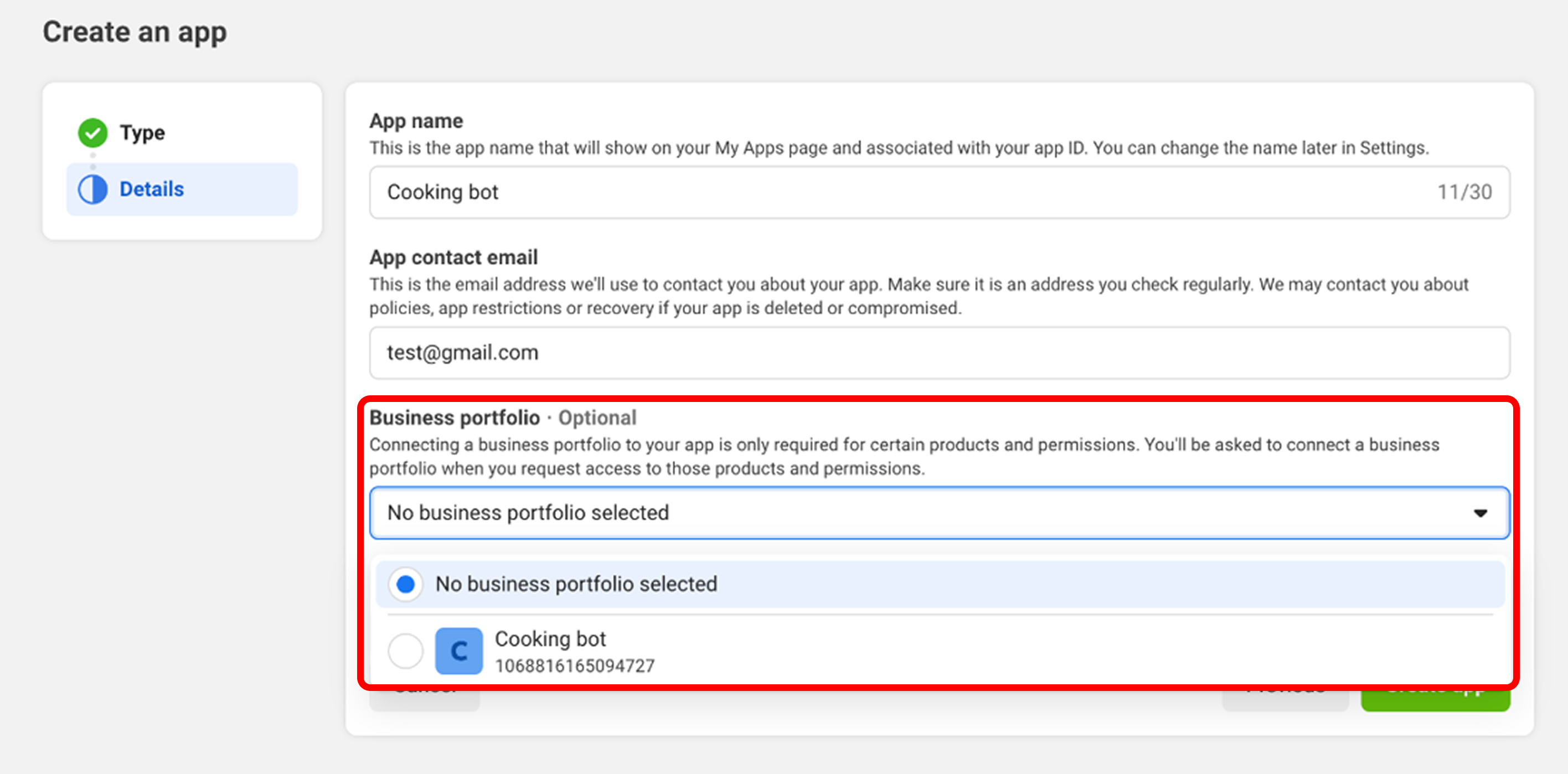
- You will be prompted to choose an existing business portfolio or create a new one. You can select an existing portfolio or set it up later. For instructions on creating a portfolio, refer to guide on creating a Business Portfolio.
-
Access the App Dashboard:
- Once you complete the app creation flow, your app will be loaded in the App Dashboard. Alternatively, you can go to Meta for Developers Apps and select your app from the list.
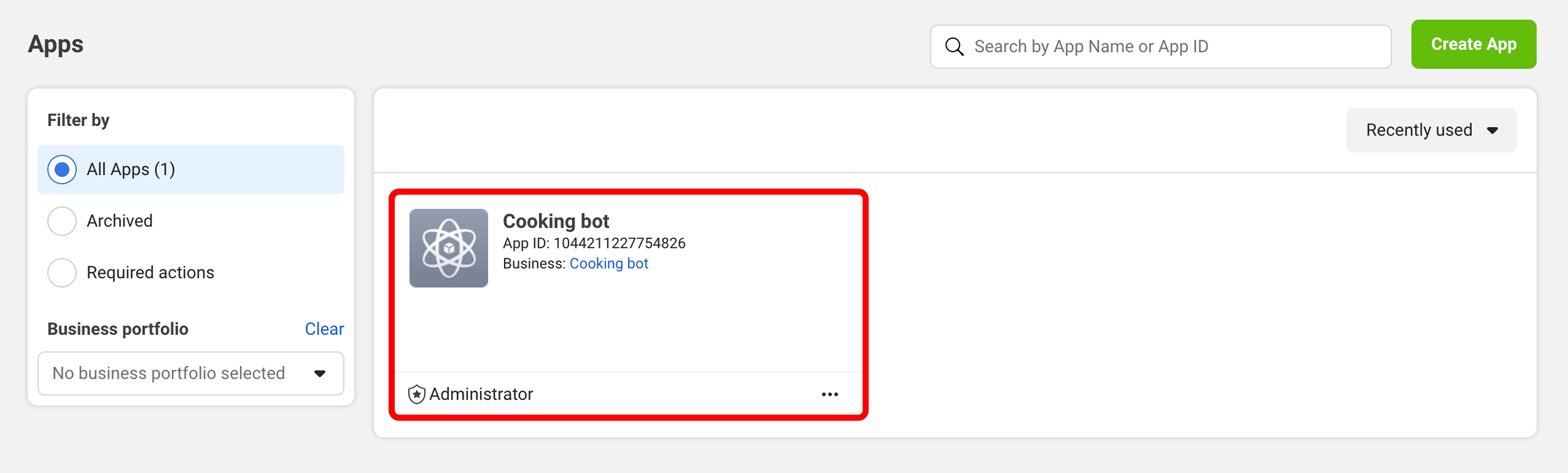
- Once you complete the app creation flow, your app will be loaded in the App Dashboard. Alternatively, you can go to Meta for Developers Apps and select your app from the list.
-
Choose App Product:
- After selecting your app, choose the type of app you want to create by adding the appropriate product (e.g., Messenger, Instagram, WhatsApp).
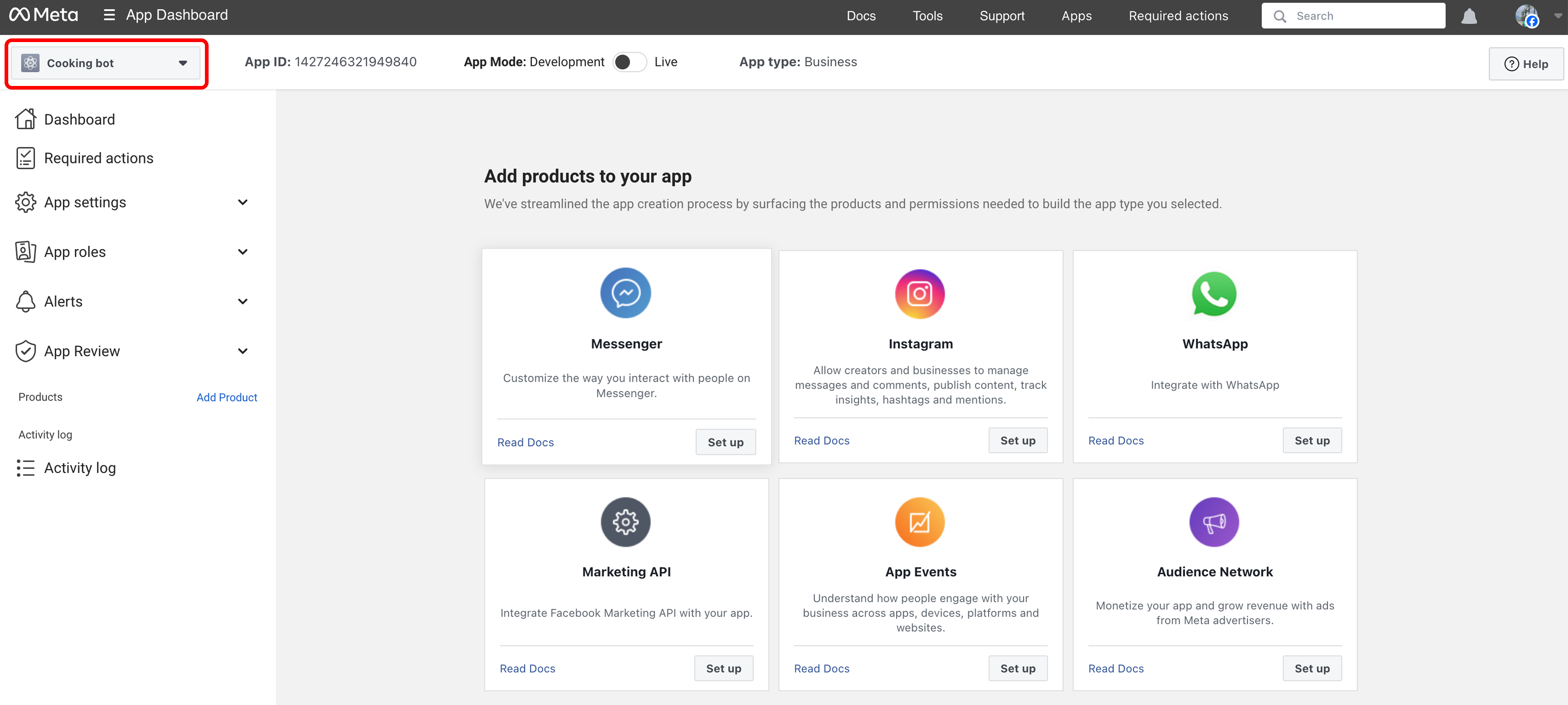
- After selecting your app, choose the type of app you want to create by adding the appropriate product (e.g., Messenger, Instagram, WhatsApp).
After creating the app, you will need to configure it for the specific Meta platform you are integrating with (e.g., Instagram, Facebook Messenger, or WhatsApp). Refer to the Platform-Specific Guides below for detailed instructions on selecting the appropriate product and completing the setup.
Note: Ensure you select the correct business portfolio linked to your Pages or accounts during the app creation process, and save the App ID displayed on the dashboard for future reference.
Platform-Specific Guides
To continue setting up your bot, select the Meta platform you are integrating with and follow the corresponding guide for detailed instructions: